active directory
900 TopicsActive Directory Advanced Threat Hunting - Tracing the cause of account lockouts and password errors
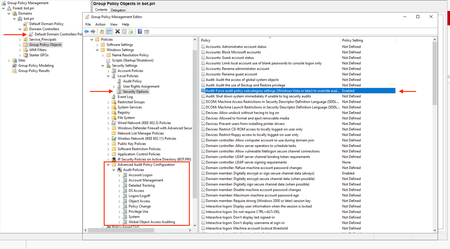
Dear Microsoft Active Directory friends, In this article we are going on a "search for clues" :-). In the life of an IT administrator, you have certainly often had to reset a user's password or remove an account lockout. Now the question arises on which system the account was locked or on which system the password was entered incorrectly. In order to determine this information with PowerShell, some preparations must be made. "Advanced Audit Policy Configuration" must be configured in the group policies. This article from Microsoft provides a good starting point: https://learn.microsoft.com/en-us/defender-for-identity/deploy/event-collection-overview In my example, I have adapted the Default Domain Controls Policy. Before we begin, here is some important information about MITRE techniques: Account Access Removal: https://attack.mitre.org/techniques/T1531/ User Account: https://attack.mitre.org/datasources/DS0002/ Brute Force: Password Spraying: https://attack.mitre.org/techniques/T1110/003/ Account lockouts are logged in the Windows event logs with the ID 4740. We will therefore focus on this event ID first. The start of the PowerShell script looks like this: #Prep work for lockouts, Account lockout Event ID $LockOutID = 4740 #Find the PDC (Get-ADDomain).PDCEmulator $PDCEmulator = (Get-ADDomain).PDCEmulator #Connect to the PDC Enter-PSSession -ComputerName $PDCEmulator #Query event log Get-WinEvent -ComputerName $PDCEmulator -FilterHashtable @{ LogName = 'Security' ID = $LockOutID } #Parse the event and assign to a variable $events = Get-WinEvent -ComputerName $PDCEmulator -FilterHashtable @{ LogName = 'Security' ID = $LockOutID } #Examine some properties $events[0].Message #Regex? $events[0].Message -match 'Caller Computer Name:\s+(?<caller>[^\s]+)' $Matches.caller #Cool, but not as easy as: $events[0].Properties $events[0].Properties[1].Value #For all events: ForEach($event in $events){ [pscustomobject]@{ UserName = $event.Properties[0].Value CallerComputer = $event.Properties[1].Value TimeStamp = $event.TimeCreated } } #And we'll make that a function Function Get-ADUserLockouts { [CmdletBinding( DefaultParameterSetName = 'All' )] Param ( [Parameter( ValueFromPipeline = $true, ParameterSetName = 'ByUser' )] [Microsoft.ActiveDirectory.Management.ADUser]$Identity ) Begin{ $LockOutID = 4740 $PDCEmulator = (Get-ADDomain).PDCEmulator } Process { If($PSCmdlet.ParameterSetName -eq 'All'){ #Query event log $events = Get-WinEvent -ComputerName $PDCEmulator -FilterHashtable @{ LogName = 'Security' ID = $LockOutID } }ElseIf($PSCmdlet.ParameterSetName -eq 'ByUser'){ $user = Get-ADUser $Identity #Query event log $events = Get-WinEvent -ComputerName $PDCEmulator -FilterHashtable @{ LogName = 'Security' ID = $LockOutID } | Where-Object {$_.Properties[0].Value -eq $user.SamAccountName} } ForEach($event in $events){ [pscustomobject]@{ UserName = $event.Properties[0].Value CallerComputer = $event.Properties[1].Value TimeStamp = $event.TimeCreated } } } End{} } #Usage Get-ADUserLockouts #Single user Get-ADUser 'jesse.pinkman' | Get-ADUserLockouts Now we come to the incorrectly entered passwords. These events are logged in the Windows event logs with the ID 4625. #Prep work for bad passwords - Event ID $badPwId = 4625 #Get the events from the PDC $events = Get-WinEvent -ComputerName $PDCEmulator -FilterHashtable @{ LogName = 'Security' ID = $badPwId } #Correlate the logon types $LogonType = @{ '2' = 'Interactive' '3' = 'Network' '4' = 'Batch' '5' = 'Service' '7' = 'Unlock' '8' = 'Networkcleartext' '9' = 'NewCredentials' '10' = 'RemoteInteractive' '11' = 'CachedInteractive' } #Format the properties ForEach($event in $events){ [pscustomobject]@{ TargetAccount = $event.properties.Value[5] LogonType = $LogonType["$($event.properties.Value[10])"] CallingComputer = $event.Properties.Value[13] IPAddress = $event.Properties.Value[19] TimeStamp = $event.TimeCreated } } #Bring it all together in a function Function Get-ADUserBadPasswords { [CmdletBinding( DefaultParameterSetName = 'All' )] Param ( [Parameter( ValueFromPipeline = $true, ParameterSetName = 'ByUser' )] [Microsoft.ActiveDirectory.Management.ADUser]$Identity ) Begin { $badPwId = 4625 $PDCEmulator = (Get-ADDomain).PDCEmulator $LogonType = @{ '2' = 'Interactive' '3' = 'Network' '4' = 'Batch' '5' = 'Service' '7' = 'Unlock' '8' = 'Networkcleartext' '9' = 'NewCredentials' '10' = 'RemoteInteractive' '11' = 'CachedInteractive' } } Process { If($PSCmdlet.ParameterSetName -eq 'All'){ #Query event log $events = Get-WinEvent -ComputerName $PDCEmulator -FilterHashtable @{ LogName = 'Security' ID = $badPwId } }ElseIf($PSCmdlet.ParameterSetName -eq 'ByUser'){ $user = Get-ADUser $Identity #Query event log $events = Get-WinEvent -ComputerName $PDCEmulator -FilterHashtable @{ LogName = 'Security' ID = $badPwId } | Where-Object {$_.Properties[5].Value -eq $user.SamAccountName} } ForEach($event in $events){ [pscustomobject]@{ TargetAccount = $event.properties.Value[5] LogonType = $LogonType["$($event.properties.Value[10])"] CallingComputer = $event.Properties.Value[13] IPAddress = $event.Properties.Value[19] TimeStamp = $event.TimeCreated } } } End{} } #Usage Get-ADUserBadPasswords | Format-Table #Single account Get-ADUser administrator | Get-ADUserBadPasswords | Format-Table I hope that this information is helpful to you and that you have been given a good "little" foundation. This article/information is by no means complete and exhaustive. But I still hope that this information is helpful to you. Thank you for taking the time to read the article. Happy Hunting, Tom Wechsler P.S. All scripts (#PowerShell, Azure CLI, #Terraform, #ARM) that I use can be found on github! https://github.com/tomwechsler13KViews7likes1Comment
Hostname Character Limit
Still being limited to 15 characters for hostnames in 2019 is very upsetting. In an age where we are deploying servers in multiple data centres, whether that be on premise or in the cloud and having multiple environments as well means trying to come up with sensible hostnames in just 15 characters is basically impossible. I’m sure I am not the only person who is frustrated by this limit and would very much like it if Microsoft was to revisit this limit and increase it to bring it in line with the wonderful limit our Linux friends enjoy.174KViews6likes6CommentsActive Directory Advanced Threat Hunting - Compare GPOs with the Security Compliance Toolkit
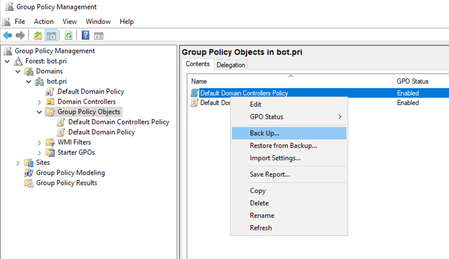
Dear Microsoft Active Directory friends, Even in the age of digital transformation, group policy settings (still) play a crucial role in maintaining network security and compliance. Advanced Hunting, an advanced technique for monitoring and analyzing these settings, is an indispensable tool for administrators. This method makes it possible to gain in-depth insights into the configuration and security situation of Windows networks. By using specific tools and scripts, professionals can detect security vulnerabilities, identify configuration errors and ensure that all group policies meet the highest security and compliance requirements. This article introduces the concept of Advanced Hunting for Group Policy settings and how it can transform management and security in IT infrastructures. Do we now need additional software and/or expensive tools? No, all we need is a little time, curiosity and the "Security Compliance Toolkit", which Microsoft is making available to us free of charge (thanks to Microsoft at this point). But first let's take a closer look at the MITRE techniques and the relevant Windows Event IDs. Before we start analyzing the group policy settings. We start with a list of MITRE techniques: Domain Policy Modification https://attack.mitre.org/techniques/T1484/ Domain Policy Modification: Group Policy Modification https://attack.mitre.org/techniques/T1484/001/ Group Policy Discovery https://attack.mitre.org/techniques/T1615/ Domain Policy Modification: Domain Trust Modification https://attack.mitre.org/techniques/T1484/002/ Unsecured Credentials: Group Policy Preferences https://attack.mitre.org/techniques/T1552/006/ The Windows Event ID's for the MITRE techniques: Domain Policy Modification 4739(S): Domain Policy was changed https://learn.microsoft.com/en-us/windows/security/threat-protection/auditing/event-4739 Group Policy Discovery Appendix L: Events to Monitor https://learn.microsoft.com/en-us/windows-server/identity/ad-ds/plan/appendix-l--events-to-monitor Domain Policy Modification: Domain Trust Modification 4716(S): Trusted domain information was modified https://learn.microsoft.com/en-us/windows/security/threat-protection/auditing/event-4716 Compare the Default Domain Controllers Policy with the security baselines using the Policy Analyzer! So that we can compare the Default Domain Controllers Policy, we create a backup: Security Compliance Toolkit and Baselines can be downloaded here: https://www.microsoft.com/en-us/download/details.aspx?id=55319 We need the necessary tools and baselines: Extract the files: From the Windows-Server-2022-Security-Baseline-FINAL folder, copy the following file: Paste the file in the Policy Analyzer folder: Open the Policy Analyzer: NOTE: If you have a low screen resolution you may not be able to see the bottom part of the application. It is important that you see the bottom part so that you can adjust the path to the policy rule sets (see red marker). Now we have to add the default domain controller policy: Click on the import button: Give it a name and then click on safe: Now you can compare the policy with the security baseline: HAPPY COMPARING! If you want to examine your Active Directory with PowerShell, you will find a "small" compilation of various PowerShell scripts in the following link: https://github.com/tomwechsler/Active_Directory_Advanced_Threat_Hunting/tree/main/PowerShell NOTE: Before using these scripts, make sure that you have the necessary authorizations. This should always be in writing. Although the scripts do not change any settings or manipulate the system, it is your responsibility how you use these scripts! I hope that this information is helpful to you and that you have been given a good "little" foundation. This article/information is by no means complete and exhaustive. But I still hope that this information is helpful to you. Thank you for taking the time to read the article. Happy Comparing and Hunting, Tom Wechsler P.S. All scripts (#PowerShell, Azure CLI, #Terraform, #ARM) that I use can be found on github! https://github.com/tomwechsler22KViews5likes5CommentsAdvanced threat hunting within Active Directory Domain Services - Knowledge is power!
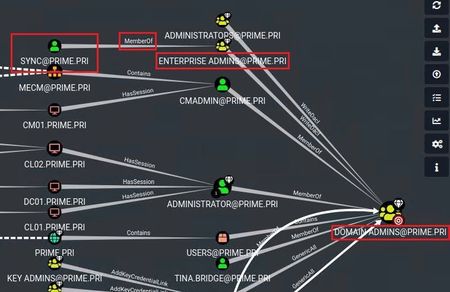
Dear Microsoft Active Directory friends, What is this article about? Showing attacks, compromising domain controllers or even introducing and showing hacking tools? NO. It is about giving you a jump start on how to gather targeted information about attacks and threats in your Active Directory. Is this also a complete and accomplished listing, again no. But my goal is to give you a solid foundation to build on. Let's start with the different event ID's from the event viewer. This assumes, of course, that extended logging has been configured on your domain controllers. If not, this should definitely be done immediately. Event logs are best examined in a SIEM (Security Information and Event Management). Such a tool is not always available, which makes finding information somewhat more difficult. Event ID 4769 Search for attacks from user accounts used as service accounts (search for service accounts - with a login on a client system - IP address). https://learn.microsoft.com/en-us/windows/security/threat-protection/auditing/event-4769 Search for computer with "Trusted for Delegation": Get-ADComputer -Filter {TrustedforDelegation -eq $true} (Domaincontroller's are not interesting) Best practices: There's no reason to assign this user right to anyone on member servers and workstations that belong to a domain because it has no meaning in those contexts. It's only relevant on domain controllers and stand-alone devices https://learn.microsoft.com/en-us/windows/security/threat-protection/security-policy-settings/enable-computer-and-user-accounts-to-be-trusted-for-delegation Event ID 4624 Successful logins (search for users/service accounts that have logged in to systems that are TrustedforDelegation). https://learn.microsoft.com/en-us/windows/security/threat-protection/auditing/event-4624 In ADUC (Active Directory Users and Computers) search in the properties of a user account in the Account tab, for "Account is sensitive and cannot be delegated". Not even the administrator has this configured by default. Sensitive accounts should be configured with this option. Event ID 4624 Type 3 - Network Logon (searching for logons from remote systems) Event ID 4611 (often generated by mimikatz) A trusted logon process has been registered with the local System authority. https://learn.microsoft.com/en-us/windows/security/threat-protection/auditing/event-4611 Event ID 4673 (often generated by mimikatz) When the tool tries to assign itself missing permissions. https://learn.microsoft.com/en-us/windows/security/threat-protection/auditing/event-4673 Event ID 4675 - SIDs were filtered https://learn.microsoft.com/en-us/windows/security/threat-protection/auditing/event-4675 Note: If you have a SIEM at your disposal, just search for "mimikatz or rebeus" maybe the names of the tools were not changed because the attacker was too lazy. Note: Install Sysinternals "sysmon" for detailed information https://learn.microsoft.com/en-us/sysinternals/downloads/sysmon Protected Accounts and Groups in Active Directory Adminsdholder: The purpose of the AdminSDHolder object is to provide "template" permissions for the protected accounts and groups in the domain. AdminSDHolder is automatically created as an object in the System container of every Active Directory domain. Its path is: CN=AdminSDHolder,CN=System,DC=<domain_component>,DC=<domain_component>?. https://learn.microsoft.com/en-us/windows-server/identity/ad-ds/plan/security-best-practices/appendix-c--protected-accounts-and-groups-in-active-directory SDProp: SDProp is a process that runs every 60 minutes (by default) on the domain controller that holds the domain's PDC Emulator (PDCE). SDProp compares the permissions on the domain's AdminSDHolder object with the permissions on the protected accounts and groups in the domain. If the permissions on any of the protected accounts and groups do not match the permissions on the AdminSDHolder object, the permissions on the protected accounts and groups are reset to match those of the domain's AdminSDHolder object. https://learn.microsoft.com/en-us/windows-server/identity/ad-ds/plan/security-best-practices/appendix-c--protected-accounts-and-groups-in-active-directory Securable objects use an access mask format in which the four high-order bits specify generic access rights. Each type of securable object maps these bits to a set of its standard and object-specific access rights. GenericAll - Full rights to the object (add users to a group or reset user's password) https://learn.microsoft.com/en-us/windows/win32/secauthz/generic-access-rights Let's let pictures do the talking at this point. Take a closer look at the "Dom" user account. This account has no elevated privileges, BUT a "GenericAll" connection. Now please take a close look at the following pictures. net group "domain admins" dom /add /domain Add-ADGroupMember -Identity "domain admins" -Members dom Using powerview: Get-ObjectAcl -SamAccountName delegate -ResolveGUIDs | ? {$_.ActiveDirectoryRights -eq "GenericAll"} Event ID 5136 (However, domain controllers must be configured to record this event.) A directory service object was modified https://learn.microsoft.com/en-us/windows/security/threat-protection/auditing/event-5136 In ADUC and ADSI Edit under System, examine the AdminSDHolder object. If necessary, you should restore the permissions. The user "Dom" could add himself to the group "Domain Admins" because the security properties of AdminSDHolder were manipulated. Another topic is group policies. Examine the group policies in particular the permissions of the group policies. Get-GPO -All Get-GPPermission „nameofgpo“ -All How to give users access to Group Policy Objects: https://learn.microsoft.com/en-us/troubleshoot/windows-server/group-policy/give-users-access-group-policy-objects The next topic is SID History. Security assessment: Unsecure SID History attributes SID History: Get-ADUser -Filter * -Properties cn,memberof,sidhistory Get-ADUser -Properties sidhistory,memberof -Filter {sidhistory -like '*'} https://learn.microsoft.com/en-us/defender-for-identity/security-assessment-unsecure-sid-history-attribute DCSync is a legitimate Active Directory feature that domain controllers only use for replicating changes, but illegitimate security principals can also use it. Event ID 4662 An operation was performed on an object. https://learn.microsoft.com/en-us/windows/security/threat-protection/auditing/event-4662 Domain controller synchronization, looking for the following GUIDs: ("1131f6aa-9c07-11d1-f79f-00c04fc2dcd2" or "1131f6ad-9c07-11d1-f79f-00c04fc2dcd2" or "89e95b76-444d-4c62-991a-0facbeda640c") https://learn.microsoft.com/en-us/openspecs/windows_protocols/ms-adts/1522b774-6464-41a3-87a5-1e5633c3fbbb Do you know all your domain controllers? If yes, no synchronization should have been started that does not originate from a domain controller. The synchronization should be executed only between the DC's you know. (The exception may be Azure AD Connect - this service generates similar events). Look for a synchronization that was not started by a domain controller. I hope that this information is helpful to you and that you have received a good "little" foundation. This is certainly not an exhaustive list. But I still hope that this information is helpful for you. Thank you for taking the time to read the article. Happy Hunting, Tom Wechsler P.S. All scripts (#PowerShell, Azure CLI, #Terraform, #ARM) that I use can be found on github! https://github.com/tomwechsler34KViews5likes0Comments
Windows Server 2025 | Kerberos Local Key Distribution Center (LocalKDC) service fails to start
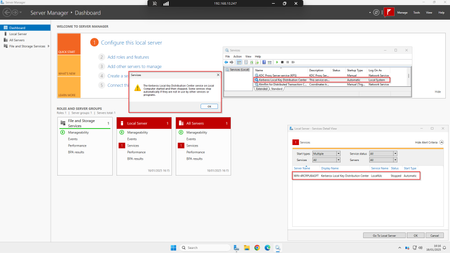
I have found that this service was disabled before the December update, for some reason it has gone to automatic and cannot be started, maybe this behavior is normal if you are not using this feature. After the January security patch the service still does not start, I think microsoft should report this problem. This happens on a clean installation without any role installed, I know there are many users with this problem. The January patch has not fixed it.7.3KViews3likes8CommentsUse PowerShell to search for accounts in Active Directory that have gone stale!
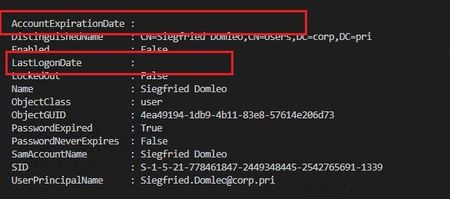
Dear Microsoft and Active Directory Friends, In a company/organization, employees come and go. This is completely normal and nothing out of the ordinary. But often, from a technical point of view, the Active Directory is somewhat forgotten and account cleanup is rarely or never done. This means there are outdated or no longer current accounts (ghost accounts). This is not a great situation from either a security or administrative perspective. In this article I would like to show you a possible way. But what exactly does "stale" accounts mean? Let me explain my definition to you: 1. Haven't logged in for X days 2. Hasn't logged in 3. Created at least X days ago We can start first with the CMDLET "Search-ADAccount". This gives once a first result. The #tags are comments. #Using Search-ADAccount Search-ADAccount -AccountInactive -TimeSpan '90.00:00:00' -UsersOnly How many accounts would there be? (Search-ADAccount -AccountInactive -TimeSpan '90.00:00:00' -UsersOnly).count But there are a lot of them. Now let's work with filters. We explicitly examine the "LastLogonTimeStamp" property. For an account that has never been logged in, no value is displayed. #Using a filter Get-ADUser "Freida Lazarus" -Properties LastLogonTimeStamp | Select-Object Name,LastLogonTimeStamp An account that has been used for a login will show a value. This number represents a date, this is in FileTime format. We can generate such value. For example, one hour in the past. $LogonDate = (Get-Date).AddHours(-1).ToFileTime() $LogonDate So, for example, we can check who has not logged in during the last hour. Of course we would not work with only one hour. But I'm going to keep working with this one hour so I can illustrate it to you better. #If it is older than $LogonDate $LogonDate = (Get-Date).AddHours(-1).ToFileTime() Get-ADUser -Filter {LastLogonTimeStamp -lt $LogonDate} Or in numbers it would be so many accounts. Now we search for all accounts that do not have this value. #If it doesn't have value Get-ADUser -Filter {LastLogonTimeStamp -notlike "*"} -Properties LastLogonTimeStamp | Select-Object Name,LastLogonTimeStamp But what if the user has not yet logged in because the account has just been created? Let's take a closer look at this as well. #And if the account was created before $createdDate $createdDate = (Get-Date).AddDays(-14) Get-ADUser -Filter {Created -lt $createdDate} -Properties Created | Select-Object Name,Created Bringing all this together, we can determine what exactly "stale" means to us. #Add them all together: $filter = { ((LastLogonTimeStamp -lt $logonDate) -or (LastLogonTimeStamp -notlike "*")) -and (Created -lt $createdDate) } Get-ADuser -Filter $filter | Select-Object SamAccountName We can create a function from it. Function Get-ADStaleUsers { [cmdletbinding()] Param ( [datetime]$NoLogonSince = (Get-Date).AddDays(-90), [datetime]$CreatedBefore = (Get-Date).AddDays(-14) ) $NoLogonString = $NoLogonSince.ToFileTime() $filter = { ((LastLogonTimeStamp -lt $NoLogonString) -or (LastLogonTimeStamp -notlike "*")) -and (Created -lt $createdBefore) } Write-Host $filter Get-ADuser -Filter $filter } # Usage Get-ADStaleUsers This way we can work with our own values. Moreover, we can delete the accounts directly afterwards or at least check with -WhatIf what exactly would be done! Get-ADStaleUsers -NoLogonSince (Get-Date).AddDays(-30) -CreatedBefore (Get-Date).AddDays(-7) | Remove-ADUser -WhatIf Annotation: In the search result from above two Built-In accounts (e.g.: krbtgt) are displayed among others (this is how it turned out in the search). Such Built-In accounts should never be deactivated or even worse deleted, this has very negative effects on the function of the Active Directory. You should never delete user accounts directly. Instead, the accounts should be disabled for some time first. If the accounts were used for other purposes (unknown to you). You should also avoid setting user accounts as service accounts. This is not according to Microsoft "Best Practice". For service accounts, use the so-called group managed service accounts. I realize that this was not necessarily spectacular. It was simply important for me to share my experience with you. Nevertheless, I hope that this article was helpful. Thank you for taking the time to read the article. Best regards, Tom Wechsler P.S. All scripts (#PowerShell, Azure CLI, #Terraform, #ARM) that I use can be found on github! https://github.com/tomwechsler15KViews3likes2CommentsThe security database on the server does not have a computer account for this workstation trust..
We have a single Site single Domain (xyz.com) which contain following 3 Domain Controllers: 1- DC1 (PDC, windows server 2012 R2, a hyper-v virtual server) 2- DC2 (Secondary DC, windows server Ent 2008 sp2, physical server) 3- DC3 (Secondary DC, windows server Ent 2008 sp2, a vmware virtual server) Problem: The error message "The security database on the server does not have a computer account for this workstation trust relationship" is coming while end users attempting to change their password who are controlled by a domain password policy. Action Taken: 1 When i chech the computer account, i found following result: C:\Windows\system32> NETDOM VERIFY computer_name The secure channel from computer_name to the domain XYZ has been verified. The connection is with the machine \\DC3.xyz.com 2 Then i do force to RESET the secure channel to DC1: C:\Windows\system32> NETDOM RESET computer_name /domain:xyz /server:DC1 3 After restart the computer, user able to change without any error message!!! Now My Question is: Why the error message "The security database on the server does not have a computer account for this workstation trust relationship" appear while those computer's secure channel is connected to DC2/DC3 only? Why those client computer's Secure Channel is automatically registered to either DC2 or DC3?1.8MViews2likes19Comments