accessibility
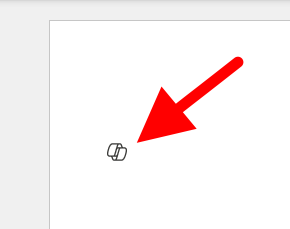
31 TopicsI want to turn off or hide the draft with copilot dingbat that follows my cursor around in MS Word.
I have seen a few articles on this website, and I know it's not possible but I'm going to ask anyway. For reference this is what I'm referring to: It's more I find the little thing following me around on my screen to be annoying and distracting, I've managed to hide or disable anything related to copilot on my system except this little dingbat. When a new document is open you get a little message that says "Select the icon or press Alt + i to draft with copilot" It would be nice if I could hide that as well, yes copilot is a *feature*, and I don't care about it. I also want to hide the paste with copilot and just used the local paste options that were built into previous versions of word. I suspect that there is a copilot dingbat that is stored somewhere on my system, possibly in a font, and as I have already made a few detrimental modifications to my operating system registry, I'm not wary of messing up my computer any more than it could be. The only saving grace I have at the moment is there is an issue with my account, so any accidental triggering of the feature causes it to crap out. (So long as I don't accidentally press the 'fix account" button) I know that if it was easy to turn off there would be a button for it, I know Microsoft probably wants us to use this feature because it means more data for them to collect, an I'm disappointed in the loss of user agency that's resulted from this rollout, and there's a spike in animosity towards AI in general.Solved43KViews22likes39CommentsUnlocking Productivity with Copilot Pages
Microsoft 365 Copilot Chat now creates Pages based on user intent, making it easy to turn ideas into interactive content. Copilot Pages are dynamic collaborative canvases to help you accomplish your goals from Chat. Powered by GPT-5 reasoning, Copilot now can also write code directly onto a Page—letting users create interactive reports, visualize concepts, and prototype new ideas. And whether it's code or any other content, users can continue to iterate with Copilot using Chat or directly on the Page and share it with others. When using Pages to research a concept or brainstorm a proposal, Copilot can also turn the content on the Page into a PowerPoint presentation to tell the story effectively. Whether you’re brainstorming, planning, or building, Pages accelerates work that used to take days and makes it possible in minutes. It’s collaborative by default, and designed to harness human creativity and AI assistance side by side. Create with Copilot Copilot now enables you to create and edit Pages directly, facilitating smooth co-authoring that fits seamlessly into your existing workflows. Just start chatting with Copilot, by simply sharing an intent to use a Page, Copilot will create a Page for you to begin collaborating instantly. Copilot can create all types of Pages; you can ask Copilot to create meeting agenda, progress trackers, write interactive reports, visualize concepts and prototype new ideas. Now you can change the Page directly from chat, making it easier to iterate and refine content. Highlight text on your Page and choose “Ask Copilot,” or simply ask Chat to edit your Page. This direct editing experience bridges the gap between Chat and Page, letting you revise, polish, and finalize with Copilot’s help. Or try editing with Shortcuts to trigger common actions like adding structure or tailoring content without needing to craft detailed prompts. Try the following prompt: "Create a page for onboarding new team members." To learn more: Draft content with Microsoft 365 Copilot Chat and Copilot Pages - Microsoft Support Currently rolling out to all Microsoft 365 Copilot app users on the web, Windows desktop, Mac desktop app. Alt Text: Video of prompting Copilot Chat within the M365 Copilot app to create a Copilot Page with a proposal from a file and iterate with Copilot Shortcuts. Visualize concepts in Pages Powered by the newest models, Copilot can write code for you, to let you visualize concepts, and prototype ideas—all within a Page. Create rich, immersive experiences—with zero coding skills required. If you can imagine it, you can build it. Whether it’s rapid prototypes for your ideas, concept visualizations or even interactive reports, Copilot rapidly generates high-quality web pages rendered securely in Copilot Pages. The result? Increased productivity by helping you visualize ideas, accelerate decisions, and understand complex concepts faster. Try the following prompt with GPT-5 and in the Web tab Make an interactive UI explaining Microsoft's Environmental Strategy. To learn more: Build lightweight apps within Microsoft 365 Copilot Pages - Microsoft Support Available today for all Frontier Public users when using Copilot with GPT-5 and in the Web tab. Alt Text: Video of using Copilot Chat within the M365 Copilot App, prompting for an interactive UI, generating code, and previewing the code as an interactive UI. Page History Copilot Pages are built for iteration, and Page History gives you confidence and control at every step—whether editing manually, with Copilot, or collaboratively. If important information was deleted or overwritten, you can view and recover previous versions in seconds. And when you only need specific parts of the old content, copy sections from an older version without overwriting your current work—so progress never gets lost. Available today for all Microsoft 365 Copilot app users on the web, Windows desktop, Mac desktop app. Alt Text: Video of selecting the “previous version” button of an open Copilot Page. Transform to Fit Your Audience Export your Pages to Word or PowerPoint with a click, making it simple to bring your work to different audiences or tools. Easily create a polished presentation or document based on the page you've been working on. To learn more: Convert your Microsoft 365 Copilot Page into a Word document or PowerPoint presentation - Microsoft Support Currently rolling out to all Microsoft 365 Copilot app users on the web, Windows desktop, Mac desktop app. Alt Text: Screenshot of an M365 Copilot Page with a “create” drop down menu with options for a Word document or a PowerPoint presentation. Re-finding Your Pages Pages you created can now be found in Library. Library is the central hub for the content you create when using Copilot Chat, consolidates user-generated images, pages, infographics, and stories that make these files easily accessible in one place. To learn more: Microsoft 365 Copilot Library | Microsoft Learn Currently rolling out to all Microsoft 365 Copilot app users on the web, Windows desktop, Mac desktop app Alt text: Screenshot of the M365 Copilot app with the Library module selected and a tab for “Pages”. Try These Prompts to Get Started “Create a page for onboarding new team members.” "Based on [Meeting or Chat] create a page with a table of decisions, rationale, and tasks. Flag unresolved questions. Include a 3‑bullet recap at the top for quick scan” “Build an interactive seating chart for my conference.” (Try it with GPT-5 and on Web) “Make an interactive UI explaining Microsoft Environmental Strategy.” (Try it with GPT-5 and on Web) When a page is open beside Chat: “Add an introduction section and a table of contents to the top of the Page.” Copilot Pages is redefining how teams work together—making collaboration, creativity, and communication faster and more intuitive. With these new features, you can unlock even more value from your ideas and projects. Ready to experience the future of productivity? Try out the new Copilot Pages features and share your feedback! Download Microsoft 365 Copilot App | Microsoft 365 Stay Connected Microsoft 365 Copilot – Microsoft Adoption Welcome to the Microsoft 365 Copilot app - Microsoft Support (support.microsoft.com) Follow @Copilot on X Follow @MicrosoftLoop on X. Join the "Microsoft Loop Community" public group on LinkedIn! Microsoft 365 public roadmap Resource Links: "More Ways to Work with Copilot Pages" Get started with Microsoft 365 Copilot Pages - Microsoft Support Draft content with Microsoft 365 Copilot Chat and Copilot Pages - Microsoft Support How Microsoft 365 Copilot Pages works - Microsoft Support Frequently asked questions about Microsoft 365 Copilot Pages - Microsoft Support Learn about the Microsoft 365 Insider program and sign up for the Microsoft 365 Insider newsletter to get the latest information about Insider features in your inbox once a month! 9.5KViews3likes1Comment
Agent not visible in M365 Copilot
I created an agent in M365, including its name, description, instructions, and required actions. The agent is properly tested in Copilot Studio and published, but it is not visible in the M365 Copilot agent list. Interestingly, one agent is visible while the other is not, and I am unable to determine the issue.14KViews0likes9Comments
Copilot connection to Powerbi
Hi Everyone. Currently trying to make a connection to our PowerBi platform through Copilot Studios. So far i keep getting a connection failure. I have tried to adjust our security settings in Active Directory. I have tried adjusting the permission on the workspace and access to the datasheet. When i use the Json query to extract on the columns in the giving table i just get a connection error. even though the connection seems valid. Any suggestions on how to proceed?267Views1like1Comment
Issues with copilot
Until today, I have linked my univeristy email with copilot which has given me access to copilot plus. I have been able to upload files and have multiple chats open. Now it has deleted my previous chats and gone down to 1MB file limits. Was it only a free trial or is it broken?297Views0likes2CommentsCopilot+ PC keyboard - How to make the "Copilot button" work with Microsoft 365 Copilot
Hi All, I am using a Lenovo ThinkPad T14s Gen 6 - 14" - Qualcomm Snapdragon X Elite - X1E-78-100 - 32 GB RAM - 1 TB SSD - Nordic. It has the Copilot+ PC keyboard with the "Copilot button". I also have a Microsoft 365 E5 license and the add-on Microsoft 365 Copilot license. I am seeking guidance on how to configure the "Copilot button" on my Copilot+ PC. I have noticed that this button reacts differently on various devices, and I understand that it may connect to different versions of Copilot, from the “Home” version to the Microsoft 365 Copilot Enterprise version. Specifically, I am looking for a Microsoft guide or any instructions on how to configure the "Copilot button" so that it brings up the Copilot on my device, rather than acting as a regular menu button. My assumption is that some of the configuration can be done locally on the device, while other settings might need to be adjusted in Intune. Thank you for your assistance.408Views0likes1Comment