sql
228 Topics
Unable to install SQL Server 2022 Express (installer glitch + SSMS error)
Hi, I recently purchased a new Lenovo laptop, and I am trying to install Microsoft SQL Server 2022 Express along with SSMS. SSMS installed successfully, but SQL Server installation fails, and sometimes the installer UI glitches or does not load properly. Because of this, I am getting connection errors in SSMS like "server not found" and "error 40". I am not very familiar with technical troubleshooting. Can someone guide me step-by-step in a simple way to install SQL Server correctly? Thank you.56Views0likes0CommentsNew Microsoft Certified: SQL AI Developer Associate Certification
AI is transforming how data-driven applications are built, and SQL professionals are at the center of this new era. Whether you're a database developer, administrator, analyst, or architect, your SQL expertise is more critical than ever. With the rise of AI, quality data and secure, optimized queries are foundational to building intelligent, scalable solutions. We’re introducing the Microsoft Certified: SQL AI Developer Associate Certification to help you validate your ability to integrate AI capabilities directly into SQL-based solutions without needing to move your data, learn entirely new platforms, or move away from the T-SQL skills you already use every day. To earn this new Certification, you need to pass Exam DP‑800: Developing AI‑Enabled Database Solutions, currently in beta. Is this the right Certification for you? The Microsoft Certified: SQL AI Developer Associate Certification is designed for SQL professionals who build and maintain SQL-based applications and who want to integrate AI capabilities directly into their data solutions. As you collaborate closely with application developers, database administrators, architects, AI engineers, and DevSecOps teams, skills validated by this certification support the delivery of scalable, secure, and high-performance AI‑enabled applications. This Certification demonstrates your ability to: Design and build database solutions using structured and semi-structured data. Use AI-assisted tools to accelerate SQL development and database management. Secure, optimize, and deploy enterprise-grade SQL solutions. Implement vectors, embeddings, and retrieval-augmented generation (RAG) patterns within SQL database architectures. As a candidate for this Certification, you should have experience writing T-SQL, developing databases on Microsoft SQL platforms, and working with continuous integration and continuous deployment (CI/CD) workflows in GitHub. We also recommend familiarity with AI concepts, such as embeddings, vectors, and models, in addition to AI-assisted development tools. Skills measured by the exam include: Applying advanced T-SQL techniques for AI-ready database solutions. Building vector and semantic search experiences directly in SQL. Implementing RAG workflows to ground large language model (LLM) outputs and reduce hallucinations. Integrating LLMs into SQL-based applications without migrating data. Designing secure, compliant, and scalable AI-enabled data solutions. Exposing SQL data through APIs by using Data API builder. Building and monitoring data APIs by using Data API builder and event-driven change patterns. These capabilities power use cases like semantic and hybrid search, chatbots, personalized recommendations, fraud detection, and predictive analytics. Ready to prove your skills? The first 300 candidates can save 80% Take advantage of the discounted beta exam offer. The first 300 people who take Exam DP-800 (beta) on or before April 3, 2026, can get 80% off. To receive the discount, when you register for the exam and are prompted for payment, use code DP800Belzoni. This is not a private access code. The seats are offered on a first-come, first-served basis. As noted, you must take the exam on or before April 3, 2026. Please note that this discount is not available in Turkey, Pakistan, India, or China. How to prepare Get ready to take Exam DP-800 (beta): Review the Exam DP-800 (beta) exam page for details. The Exam DP-800 study guide explores key topics covered in the exam. Work through the self-paced skilling Plan on Microsoft Learn: Become a SQL AI Developer: Prepare for Certification Exam DP-800. Connect with Microsoft Training Services Partners in your area for in-person offerings. Need other preparation ideas? Check out Just How Does One Prepare for Beta Exams? Ready to get started? Remember, the number of spots is limited to the first 300 candidates taking Exam DP-800 (beta) on or before April 3, 2026. Beta exam rescoring begins when the exam goes live, with final results released approximately 10 days later. For more details, read Creating high-quality exams: The path from beta to live. Stay tuned for general availability of this Certification in May 2026. Additional information You can take Certification exams online, from your home or office. Learn what to expect in Online proctored exams: What to expect and how to prepare. For more cloud and AI Certification updates, read our recent blog post, The AI job boom is here. Are you ready to showcase your skills? Get involved: Help shape future Microsoft Credentials. Join our Microsoft Worldwide Learning SME Group for Credentials on LinkedIn for beta exam alerts and opportunities to help shape future Microsoft learning and assessments. Explore Microsoft Credentials on AI Skills Navigator.23KViews8likes8CommentsModern Database Protection: From Visibility to Threat Detection with Microsoft Defender for Cloud
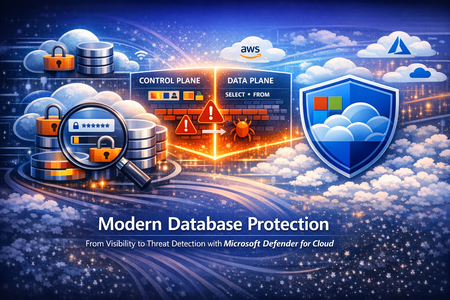
Databases sit at the heart of modern businesses. They support everyday apps, reports and AI tools. For example, any time you engage a site that requires a username and password, there is a database at the back end that stores your login information. As organizations adopt multi-cloud and hybrid architectures, databases are generated all the time, creating database sprawl. As a result, tracking and managing every database, catching misconfigurations and vulnerabilities, knowing where sensitive information lives, all becomes increasingly difficult leaving a huge security gap. And because companies store their most valuable data, like your login information, credit card and social security numbers, in databases, databases are the main target for threat actors. Securing databases is no longer optional, yet getting started can feel daunting. Database security needs to address the gaps mentioned above – help organizations see their databases to help them monitor for misconfigurations and vulnerabilities, sensitive information and any suspicious activities that occur within the database that are indicative of an attack. Further, database security must meet customers where they are – in multi-cloud and hybrid environments. This five part blog series will introduce and explore database-specific security needs and how Defender for Cloud addresses the gaps through its deep visibility into your database estate, detection of misconfiguration, vulnerabilities and sensitive information, threat protection with alerts and Integrated security platform to manage it all. This blog, part one, will begin with an overview of today’s database infrastructure security needs. Then we will introduce Microsoft Defender for Cloud’s unique database protection capabilities to help address this gap. Modern Database Architectures and Their Security Implications Modern databases can be deployed in two main ways: on your own infrastructure or as a cloud service. In an on-premises or IaaS (Infrastructure as a Service) setup, you manage the underlying server or virtual machine. For example, running a SQL Server on a self-managed Windows server—whether in your data center or on a cloud VM in Azure or AWS—is an IaaS deployment (Microsoft Defender for Cloud refers to these as “SQL servers on machines”) that require server maintenance. The other approach is PaaS (Platform as a Service), where a cloud provider manages the host server for you. In a PaaS scenario, you simply use a hosted database service (such as Azure SQL Database, Azure SQL Managed Instance, Azure Database for PostgreSQL, or Amazon RDS) without worrying about the operating system or server maintenance. In either case, you need to secure both the database host (the server or VM) and the database itself (the data and database engine). It’s also important to distinguish between a database’s control plane and data plane. The control plane includes the external settings that govern your database environment—like network firewall rules or who can access the system. The data plane involves information and queries inside the database. An attacker might exploit a weak firewall setting on the control plane or use stolen credentials to run malicious queries on the data plane. To fully protect a database, you need visibility into both planes to catch suspicious behavior. Effective database protection must span both IaaS and PaaS environments and monitor both the control plane and data plane because they are common targets for threat actors. Security teams can then detect suspicious activity such as SQL injections, brute-force attempts, and lateral movement through your environment. A Unified Approach to Database Protection Built for Multicloud Modern database environments are fragmented across deployment models, database ownership, and teams. Databases run across IaaS and PaaS, span control and data planes, and in multiple clouds, yet protection is often pieced together from disconnected point solutions Microsoft Defender for Cloud is a cloud native application protection platform (CNAPP) solution that provides a unified, cloud-native approach to database protection—bringing together discovery, posture management, and threat detection across SQL (Iaas and Paas), open-source relational databases (OSS), and Cosmos DB databases. Defender for Cloud’s database protection uses both agent-based and agentless solutions to protect database resources on-premises, hybrid, multi-cloud and Azure. A lightweight agent-based solution is used for SQL servers on Azure virtual machines or virtual machines hosted outside Azure and allows for deeper inspection, while an agentless approach for managed databases stored in Azure or AWS RDS resources provide protection with seamless integration. Additionally, Defender for Cloud brings in other signals from the cloud environment, surfacing a secure score for security posture, an asset inventory, regulatory compliance, governance capabilities, and a cloud security graph that allows for proactive risk exploration. The value of database security in Defender for Cloud starts with pre and post breach visibility. Vulnerability assessment and data security posture management helps security admins understand their database security posture and, by following Defender for Cloud’s recommendations, security admins can harden their environment proactively. Vulnerability assessments scans surface remediation steps for configurations that do not follow industry’s best practices. These recommendations may include enabling encryption when data is at rest where applicable or database server should restrict public access ranges. Data security posture management in Defender for Cloud automatically helps security admins prioritize the riskiest databases by discovering sensitive data and surfacing related exposure and risk. When databases are associated with certain risks, Defender for Cloud will provide its findings in three ways: risk-based security recommendations, attack path analysis with Defender CSPM and the data and AI dashboard. The risk level is determined by other context related to the resource like, internet exposure or sensitive information. This way, Security admins will have a solid understanding of their database environment pre-breach and will have a prioritized list of resources to remediate based on risk or posture level. While we can do our best to harden the environment, breaches can still happen. Timely post-breach response is just as important. Threat detection capabilities within Defender for Cloud will identify anomalous activity in near real time so SOC analytes can take action to contain the attack immediately. Defender for Cloud monitors both the control and the data plane for any anomalous activity that indicates a threat, from brute force attack detections to access and query anomalies. To provide a unified security experience, Defender for Cloud natively integrates with the Microsoft Defender Portal. The Defender portal brings signals from Defender for Cloud to provide a single cloud-agnostic security experience, equipping security teams with tools like secure score for security posture, attack paths, and incidents and alerts. When anomalous activities occur in the environment, time is of the essence. Security teams must have context and tools to investigate a database resource, both in the control plan and the data plane, to remediate and mitigate future attacks quickly. Defender for Cloud and the Defender portal brings together a security ecosystem that allows SOC analysts to investigate, correlate activities and incidents with alerts, contain and respond accordingly. Take Action: Close the Database Blind Spot Today Modern database environments demand more than isolated controls or point solutions. As databases span hybrid and multiple clouds, security teams need a unified approach that delivers visibility, context, and actionable protection where the data lives. Microsoft Defender for Cloud provides organizations the visibility into all of your databases in a centralized Defender portal using its unique control and data plane findings so that security teams can identify misconfigurations. prioritize them based on cloud-context risk-based recommendations or proactively identify other attack scenarios using the attack path analysis while SOC analysts can investigate alerts and act quickly. Follow this story for part two. We’ll go into Defender for Cloud’s unique visibility into database resources to find misconfiguration gaps, sensitive information exposure, and contextual risks that may exist in your environment. Resources: Get started with Defender for Databases. Learn more about SQL vulnerability assessment. Learn more about Data Security Posture Management Learn more about Advanced Threat Protection Reviewers: YuriDiogenes, lisetteranga, talberdah
SSMS 21/22 Error Upload BACPAC file to Azure Storage
Hello All In my SSMS 20, I can use "Export Data-tier Application" to export an BACPAC file of Azure SQL database and upload to Azure storage in the same machine, the SSMS 21 gives error message when doing the same export, it created the BACPAC files but failed on the last step, "Uploading BACPAC file to Microsoft Azure Storage", The error message is "Could not load file or assembly 'System.IO.Hashing, Version=6.0.0.0, Culture=neutral, PublicKeyToken=cc7b13ffcd2ddd51' or one of its dependencies. The system cannot find the file specified. (Azure.Storage.Blobs)" I tried the fresh installation of SSMS 21 in a brand-new machine (Windows 11), same issue, Can anyone advice? Thanks406Views0likes5CommentsMicrosoft Defender for Cloud Customer Newsletter
Check out monthly news for the rest of the MTP suite here! What's new in Defender for Cloud? Now in public preview, Defender for Cloud provides threat protection for AI agents built with Foundry, as part of the Defender for AI Services plan. Learn more about this in our documentation. Defender for Cloud’s Defender for SQL on machines plan provides a simulated alert feature to help validate deployment and test prepared security team for detection, response and automation workflows. For more details, please refer to this documentation. Check out other updates from last month here. Blogs of the month In February, our team published the following blog post we would like to share: Extending Defender's AI Threat Protection to Microsoft Foundry Agents Defender for Cloud in the field Revisit the announcement on the new Secure Score model and the enhancements available in the Defender Portal. New Secure Score model and Defender portal enhancements GitHub Community Module 12 in Defender for Cloud’s lab has been updated to include alert simulation! Database protection lab - module 12 Customer journey Discover how other organizations successfully use Microsoft Defender for Cloud to protect their cloud workloads. This month we are featuring ContraForce. ContraForce, a cybersecurity startup, built its platform on Microsoft’s robust security and AI ecosystem. Contraforce, while participating in Microsoft for Startup Pegasus program, addressed the issue of traditional, complex, and siloed security stacks by leveraging Microsoft Sentinel, Defender XDR, Entra ID and Microsoft Foundry. ContraForce was able to deliver enterprise-grade protection at scale, without the enterprise-level overhead. As a result, measured key outcomes like 90%+ incident automation, 93% reduced cost per incident, and 60x faster incident response. Join our community! We offer several customer connection programs within our private communities. By signing up, you can help us shape our products through activities such as reviewing product roadmaps, participating in co-design, previewing features, and staying up-to-date with announcements. Sign up at aka.ms/JoinCCP. We greatly value your input on the types of content that enhance your understanding of our security products. Your insights are crucial in guiding the development of our future public content. We aim to deliver material that not only educates but also resonates with your daily security challenges. Whether it’s through in-depth live webinars, real-world case studies, comprehensive best practice guides through blogs, or the latest product updates, we want to ensure our content meets your needs. Please submit your feedback on which of these formats do you find most beneficial and are there any specific topics you’re interested in https://aka.ms/PublicContentFeedback. Note: If you want to stay current with Defender for Cloud and receive updates in your inbox, please consider subscribing to our monthly newsletter: https://aka.ms/MDCNewsSubscribeSQL Agent Jobs in an AlwaysOn / Mirroring Environment
Running SQL Agent Jobs in an AlwaysOn or Database Mirroring environment can be a challenge, as the database might be not accessible at the time when the job starts. This is especially the case for all SAP collector and backup jobs. On the other hand there might be jobs that should not run on primary server (e.g. DBCC Checks), but on a readable secondary or readonly standby database (Log Shipping). In the worst case either the jobs fail or run on the wrong server. To prevent this, SAP created a small stored procedure to control the run of these kind of jobs. To use the stored procedure, use this script use master; GO IF (OBJECT_ID(N'dbo.CheckAccess') IS NOT NULL ) DROP PROCEDURE [dbo].CheckAccess GO CREATE PROCEDURE dbo.CheckAccess @DBName AS NVARCHAR(128) = N'master', @RunOnPrimary AS TINYINT = 1, @RunOnSecondary AS TINYINT = 0, @RunOnReadonly AS TINYINT = 0, RC AS TINYINT = 0 OUTPUT AS BEGIN DECLARE @IsReadOnly TINYINT; DECLARE @State TINYINT; DECLARE @StandBy TINYINT; DECLARE @UserAccess TINYINT; DECLARE @AOState TINYINT; DECLARE @AORole TINYINT; DECLARE @Message NVARCHAR(50); SET RC = 0; SET @Message = N'Everything is OK.'; IF EXISTS(SELECT TOP 1 database_id FROM sys.databases WHERE database_id = DB_ID(@DBName)) BEGIN -- Check for the normal database state SELECT @IsReadOnly = is_read_only, @State = state, @StandBy = is_in_standby, @UserAccess = user_access FROM sys.databases WHERE name = @DBName; IF NOT ((@State + @UserAccess) = 0 AND (@IsReadOnly <= @RunOnReadonly) AND (@StandBy <= @RunOnReadonly)) BEGIN SET RC = 1; SET @Message = N'Database is NOT accessible.'; END; END ELSE BEGIN SET RC = 2; SET @Message = N'Database doesn''t exists.'; END -- Check if we are running in an AlwaysOn Configuration IF EXISTS(SELECT TOP 1 database_id FROM sys.dm_hadr_database_replica_states WHERE database_id = DB_ID(@DBName)) BEGIN SELECT @AOState = db.database_state, @AORole = rs.role FROM sys.dm_hadr_database_replica_states AS db INNER JOIN sys.dm_hadr_availability_replica_states AS rs ON db.group_id = rs.group_id WHERE db.is_local = 1 AND rs.is_local = 1 AND db.database_id = DB_ID(@DBName) IF NOT(@AOState = 0 AND ((@RunOnPrimary != 0 AND @RunOnPrimary = @AORole) OR (@RunOnSecondary != 0 AND @RunOnSecondary = @AORole - 1))) BEGIN SET RC = 3; SET @Message = N'The database is not in the required state for Always-ON access.'; END; END; PRINT @Message END; GO and run it on all nodes of the affected system (either AlwaysOn, Database Mirroring or Log Shipping). It will create a stored procedure CheckAccess in the master database. The procedure has 5 parameters: Parameter Data Type Default Value Description @DBName NVARCHAR(128) N'master' Database to check. @RunOnPrimary TINYINT 1 Should the job run on the primary database ? @RunOnSecondary TINYINT 0 Should the job run on the secondary database ? @RunOnReadonly TINYINT 0 Should the job run on the read only databases (Log Shipping) ? RC TINYINT 0 Return code (0 = Success, 1 = Failure) With the parameters @RunOnPrimary, @RunOnSecondary and @RunOnReadonly you can control in which state of the AlwaysOn database the Job should start. A combination of these parameters is possible, so the job can run on primary and secondary databases if you set both to 1. Even if you do not use AlwaysOn or readonly databases or if you set all the options to 0 the stored procedure will check for the availability of the database. It will return a failure (1) if the database is absent, offline, suspect, in recovery and all the other states that won't let you access the database. A valid call looks like this (Check the TST database if it is accessible and check if it is the primary database in an AlwaysOn configuration): exec dbo.CheckAccess N'TST',1,0,0,@RC OUTPUT To enable the CheckAccess stored procedure for jobs, we have to change the job a bit. In this example it is an SAP Collector Job (SAP_SCU_SAPMonitor_TST_MSSQL_COLLECTOR) for the TST SAP database. Open the properties for the job (right click -> Properties) Switch to the Steps branch on the left and edit the first step with the name DBCOLL. Change the database to master (as the stored procedure lives there) and change the script from EXECUTE sap_dbcoll to DECLARE @Msg NVARCHAR(128) DECLARE RC TINYINT exec dbo.CheckAccess N'TST',1,0,0,@RC OUTPUT IF RC = 0 exec( 'use [TST] EXECUTE sap_dbcoll' ) Ensure that you change the database accordingly (here TST) for your system. The step then should look like: On the advanced tab change the 'On failure action' field to 'Quit the job reporting failure' and save and exit the job definition. This will ensure that the DBCOLL part will only start when the database is accessible and is the primary database in the AlwaysOn Configuration. You can use this stored procedure for any job, when you follow this generic approach: DECLARE @Msg NVARCHAR(128) DECLARE RC TINYINT exec dbo.CheckAccess N'<Database in Question>',1,0,0,@RC OUTPUT IF RC = 0 exec( 'use [<Database in Question>] <Step definition>' ) Regards ClasAlways On - Synchronize SAP login, jobs and objects
SQL Server AlwaysOn is one of the High Availability solutions available for an SAP system. It consists of two or more computers each hosting a SQL Server with a copy of the SAP database. A listener points to the actual primary copy and is used from the SAP system as the only connection point. For details how to setup and configure an SAP system together with SQL Server AlwaysOn see this blog post and its referenced blog posts. During the setup the SAP System is configured from the current primary node and all non-database related objects such as SQL Server Agent Jobs, logins etc. are created only on the current primary database. In a case of a (automatic) failover to one of the secondary nodes of AlwaysOn these objects are then missing. Jürgen has introduced a script (sap_helprevlogin) in his initial blog post about the database load after setting up AlwaysOn. This script will transfer only the logins, but will fall short on transferring jobs, server level permissions and other assignments. One of the SAP developers working in our team has built a comprehensive PowerShell script (sap_synchronize_always_on.ps1) to perform all these tasks and to transfer all the SAP objects from the initial installation to all the other nodes of the AlwaysOn system. The script connects to the primary instance, reads the configuration of the secondary nodes and then synchronizes the objects and jobs with these nodes. The script must be executed by a domain administrator which has SQL Server sysadmin privileges on all AlwaysOn instances. The script uses up to three input variables: The server name of the SQL Server instance or the listener name of the High-Availability group. The default is (local) The name of the SAP database, which must be in an High-Availability group on the given server Single login (optional): Only one login gets copied along with SAP CCMS jobs owned by the login. By default all logins mapped to the database are copied. The script will execute: Create a procedure CheckAccess in the master database (see this blog about the details about it) Discover which logins are mapped to the database Discover which SAP CCMS jobs belong to those logins If the job does not use CheckAccess then change the job step to use CheckAccess and run the job step in master Open a connection to each secondary and: Create procedure CheckAccess in the master database Create the logins if they don't exist already using the same sid. Create the jobs if they don't exist already. If a job exists and if the job does not CheckAccess then change the job step to use CheckAccess and run in master If new SAP CCMS jobs are added because of remote monitoring from a different SAP system using DBACOCKPIT, the script can be re-executed. It will then copy only new objects which have not been copied before. You can find this useful script attached, which makes the synchronization of the SAP Systems in an AlwaysOn environment so much easier. Please ensure that you test the execution in your test environment first, before you run it in production. Neither SAP nor Microsoft takes any responsibility from using this script, you run it on your own risk. Update January 2017: New script version that copies the sid<adm> and SAPService<SID> logins from the SAP System as well. Best regards | Bless! Clas & GuðmundurDeadlock Analysis (Examples)
As promised in my former blog about Deadlock Analysis we proceed today with the deadlock serie with examples and their solutions. Update Locks The first example is a Deadlock with two identical statements, doing deletes on table BC_MON_AGREGATES The statements are: DELETE FROM BC_MON_AGREGATES WHERE AGR_INTERVAL = @P0 AND START_TIME < ; As you can see in the deadlock graph both threads are having (at least) a X locks on a index named PK__BC_MON_A__3214EC272B5F6B28, the primary key on this table. And both are requesting an U lock on the same index. As the U locks are only used for checking if the row matches the WHERE condition, this constellation is very often seen when the threads are scanning the table or index instead of seeking through an index to find the rows. In this case the solution was to create an fitting index for the WHERE clause to get the two thread to seek instead to scan the index. RID Locks In the next case we see, that both threads are requesting RID locks on table GENSETC: The statements were: UPDATE GENSETC SET NAME = ,COMPONENT = ,GENSTATUS = @P3 WHERE PGMID = @P4 AND OBJECT = @P5 AND OBJNAME = P6 RID locks are only used if there is no clustered index on that table. If there is an clustered index, we will see KEY locks. The root cause for this deadlock was the missing clustered index as defined in the SAP dictionary (PGMID, OBJECT, OBJNAME). PAGE locks Here we see PAGE locks on table /1OT/FDA12IT2001: Both statements were running a DELETE on that table: DELETE FROM /1OT/FDA12IT2001 WHERE CLIENT = AND ORDID IN ( ,.....,@P101 ) PAGE locks are used when the SQL Server Optimizer expects a lot of rows to process. The PAGE locks are used from the beginning, means this is not an lock escalation, as there are only lock escalations from PAGE to TABLE and from ROW to TABLE, but not from ROW to PAGE. In this case the solution can be to disallow PAGE locks on the table, to reduce the IN clause or to create an fitting index for the WHERE clause (index on ORDID). Deadlock with a SELECT In the next deadlock we have an UPDATE and a SELECT deadlocking each other: The SELECT is easy to identify by the S locks it is using, the right one is the UPDATE using an fitting index (no scanning). How can a SELECT be part of a deadlock, as SAP is reading most of the data in "READ UNCOMMITED" ? The answer is, that this SELECT runs in "READ COMMITED" mode, means it only reads data that is is already committed and it will be blocked through U and X locks. The application that issues the UPDATE and SELECT statement has to analyze this deadlock and to avoid the parallel execution of these two statement by e.g. semaphores. Multiple Tables A deadlock not only happens between two threads, the SQL Server can detect deadlocks in any depth. A deadlock between three threads is looking like: The SQL Server will kill the thread with the least amount of log used, in this case the left one. In some case the remaining threads will deadlock again as a two node deadlock, but most of the time the deadlock is resolved by kill one out of the chain. The most impressive deadlock I saw was this one: This is a deadlock with 103 threads, the left end with the victim looks like: The victim was an UPDATE on BC_JMSQUEUE and all the other waiting ones were a DELETE on the same table. The root cause was, that there was no fitting index for the DELETE statement, which causes the DELETE to scan the table instead using an index. After creating the index, the problem was resolved. Different tables Deadlock can happen not only on the same table, but between different tables as well: We see a deadlock between table CBS_ACCESSQUEUE and CBS_LOCK. The statements are UPDATE statements on each table. These kind of deadlock are not easy to understand as it only shows the end of the deadlock. The two statements that let to the two initial locks (the KEY lock ACCESSQUEUE from the victim and the KEY lock on CBS_LOCK of the winner) are not part of the deadlock, but might be part of the problem. How to analyse such deadlocks will be part of my third post of this deadlock serie.Deadlock Analysis (Advanced)
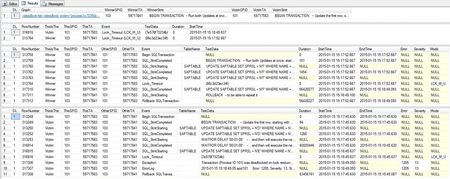
With this blog my small deadlock serie will be completed. We started with the basics , then we discussed several examples and today we will close up with a more advanced approach to solve deadlocks. The intention to build this solution was to get the complete transactions that led to the deadlock, as in some cases the first part of the deadlock (getting the first set of locks) is important to understand and to solve the deadlock. There are three phases in this approach: Collect, Prepare and Analyse, as also described in SAP note 1774085. Collect In the Collect phase we have to set up an SQL Server Profiler trace to get all the statements that belong to the participating threads. Download the attached documents to any directory. To set up and start the profiler trace, proceed as follows: Log on to your SQL Server with the <sid>adm user or any other local administrator Open the registry and navigate to [HKEY_LOCAL_MACHINE\SOFTWARE\Microsoft\Microsoft SQL Server\Instance Names\SQL] and find your SQL Server Instance name on the list (MSSQLSERVER = Default Instance). Keep the Data value of your instance (e.g. MSSQL.1). Change the registry key "NonAlertableErrors" at this place (replace <XXX> with the found data) [HKEY_LOCAL_MACHINE\SOFTWARE\Microsoft\Microsoft SQL Server\<XXX>\SQLServerAgent] Change "NonAlertableErrors"="1204,4002" to "NonAlertableErrors"="4002" Restart the SQL Server Agent Service. Open a new query window and switch to the master Database Load the script from the file Setup Delayed Profilerstop at Deadlock.docx and change the line that starts with set @DirectoryName = N'C:.....' to a file location with enough free space. The default is the directory c:\temp. You need at least 2.5 GB free space in this directory. Save and run the changed script. It will return the ID of the created trace (usually the number 2) and a list of active traces. The trace with the ID = 1 is the built-in default trace in SQL Server 2005 and higher. The script will create and start an SQL Profiler Trace, a SQL Agent Job and an Alert for the SQL Error 1204 (Deadlock). The trace will write 250MB trace files. In SQL 2005 and higher the number of files is limited to 10, under SQL 2000 there is no such limit of files created. Please watch the directory to avoid that the disk is filled up. You can delete older trace files, but you should keep at least the five newest files. As soon the error 1204 occurs in that database, the alert gets fired and will invoke the SQL Server Agent Job. The job will stop the trace after 20 seconds and will clean up all the created stored procedures and the job itself. If you want to stop the trace manually, just start the job with the name 'Stop Profiler at Deadlock'. This will stop the trace and will remove all the objects that the script has created. When done, revert the NonAlertableErrors in the registry to the original value and restart the SQL Server Agent Service. Prepare In this step, the trace is imported into a new database to analyze it. Open the SQL Server Management Studio and connect to the SQL Server instance, where you want to perform the analysis. This does not have to be the instance where the deadlocks occur. It is recommended to NOT run the analysis on the productive SQL Server instance, even when the deadlock occurs there. Open the script 'Step 1 - Read Into a Table.docx' into the query editor and do the following changes: Ensure that the name [DeadlockBlogAdv] is not used on your system as a database name or replace all [DeadlockBlogAdv] entries with a name of a temporary database. Change the path and filename of the line that looks like this: FROM fn_trace_gettable ('C:\Temp\SAP-SQLTrace-2012.10.09-14.11.21', default); Change it to the path and filename of the first file of the collected profiler trace of the Collect step. The SQL Server will then read this file and all subsequent files of the same trace that have the same name and trailing, increasing numbers (e.g. _1, _2 etc.). Execute the script. It creates the database and a trace table and reads the given trace file and all subsequent existing files into this table. Furthermore, it creates some helpful indices on the table to speed up the identification process of the deadlock transactions. If full text search is installed it creates a full text index on the TextData column to enable fuzzy searches. It returns the start and end time of the trace and the number of rows imported. As a last step it will shrink the log of the database as it is no longer needed. Open the script 'Step 2 - Create Data View. sql' and execute it in the same database as the first one. It creates a view over the Trace table to get more readable information from the trace. Analysis As we now have everything prepared, please open and execute the script 'Step 3 - Get Winner and Victims.docx'. It reads the deadlock graph(s) from the trace (the same graph(s) that you get when you follow SAP note 32129 ) and extracts the winner and victims of the deadlock. The result is separated in four sets: The first one gives you a clickable link to open the deadlock in a XML view and a overview over the transactions and their last statements. When you save the XML as a xdl file you can get the same output as in my last blog posts. The second set lists the exact time of the deadlock (when the lock timeout occurs) and the row numbers in the trace file. The third and fourth set gives you the complete transactions of the winner (top) and victim (bottom) transaction. The victim transaction always ends with a 'Lock_Timeout' followed by an exception in the EventClassDesc column which you find close to the bottom. The statement that caused the deadlock is shown before the 'Lock_timeout' as 'Statement Starting' with no matching 'Statement Completed'. The winner also shows a 'Lock_timeout' at the same time, but with the 'Statement Completed' of the Deadlock Statement right after the 'Lock_Timeout'. I have seen multiple victims against one winner. This happens when the winner has already a lot of log generated (see the basics ) and multiple, very fast victims loose against the winner in a short period of time. If the trace contains multiple deadlocks the output looks like this: The different deadlocks can be separated by the column DL (Deadlock) and the matching DL number. In this trace we captured three deadlocks, which are listed here. As an example you can see that in deadlock number 1 the winner and victim deadlocked twice against each other (at 17:22:44.410 and 17:22:44.680). The same is true for deadlock number 2. With this information, you can identify when (Column StartTime) each session (SPID) has acquired locks (TextData) on the given tables (Column TableName). This information can help you to understand the deadlock and then either to modify the application or to create or modify indexes to avoid the deadlock. Have a nice and deadlock free day.