planner
844 Topics
Please Add 'Copy' Function to Buckets
Please add the ability to duplicate or copy a bucket with all it's associated tasks. This really is a basic feature on virtually all kanban board services and it's absolutely baffling that Planner does not have this feature - and I've been personally adding it to every 'How Can We Improve' pop up that appears on Planner for almost four years! There are numerous threads suggesting the same feature with plenty of upvotes and comments supporting it - yet no feature. Including this thread which has been ignored (is the feedback portal obsolete?). https://feedbackportal.microsoft.com/feedback/idea/41d9aa6e-6d7d-f011-95f3-7c1e52d941f838Views0likes1Comment
Bulk task changes
Does anyone know how am I able to add dates to tasks in bulk if it's the same due date? How do I assign tasks in bulk to a specific person? These used to easily be done by selecting the sections and right clicking to change but many settings updated today and I am no longer able to do this.439Views1like2Comments
Microsoft Planner, Icon with an image instead of just text
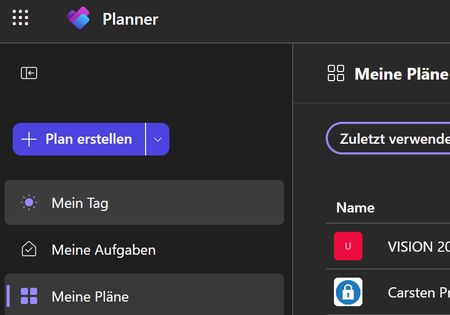
How can I change the icons that appear next to plans in Microsoft Planner? I have created groups and assigned a group image to each one. The issue is that for one Planner plan, the corresponding group image is displayed, but for the other plans, it is not. What settings do I need to adjust so that, instead of text, the team image assigned to the team is displayed as an icon for each plan in Microsoft Planner? I look forward to your assistance. Next to the "Carsten" plan, there is an icon with an image. Next to the "Vision" plan, there is only text. I would like to have an icon with an image for all of the plans. Best regards from Germany Carsten55Views0likes1CommentTimeline view in Microsoft Planner
In our organization (same Microsoft 365 tenant), I can see the "Trial active" (or Free Trial) button in the top-right corner of Microsoft Planner, allowing access to premium features (e.g., Timeline view). However, a colleague in the same organization cannot see the trial button at all in their Planner interface, preventing them from activating or requesting the trial. The trial activation and Timeline button is completely missing for the affected user, even though both accounts belong to the same tenant and share similar roles. Troubleshooting efforts we have tried the following steps, but the issue persists: Cleared Microsoft Teams cache and restarted the application. Signed out and relogged into the account. Verified that "Self-service purchase and request" is enabled (set to "Allow") in the admin portal. Tested accessing Planner via Microsoft Teams Web version (same outcome—button is missing). Here is what it looks like for a user with the trial option vs. one without: How can we enable or show the missing 'Trial Active' and 'Timeline' button in the Planner app in Microsoft Teams for the affected user?143Views0likes1CommentCreate reusable plans faster with custom templates in Planner
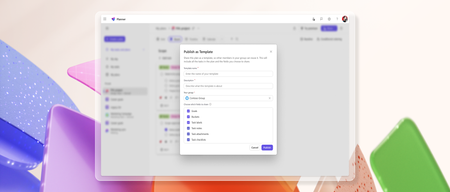
Turn any basic plan in Microsoft Planner into a reusable, shareable template to speed up planning and ensure consistency across plans. Custom templates capture key plan elements such as tasks, goals, buckets, labels, notes, attachments, and checklists to help teams plan faster and stay consistent. To publish a template, create and customize a basic plan to fit your needs. When you're ready, select Share and choose Publish as Template. Enter a template name and description, pick the Microsoft 365 group to share it with, choose which parts of the plan to include, and select Publish. fields selected. Once published, the template can be reused to create new basic plans. To create a plan from a template, click Create a plan, then go to either Shared or Created by me and select a template to use. How teams use custom templates Standardized onboarding processes An HR team onboarding new hires each month can use a custom template to create plans with the right tasks, buckets, and checklists already in place, helping ensure each onboarding follows the same process. Fast project setup with templates A marketing team launches frequent campaigns and uses a custom template to spin up new plans instantly. With pre-filled tasks, attachments, and checklists built in, they save time and stay aligned on key details. Addressing your feedback Tell us what you think about custom templates by selecting the Feedback icon (person with a chat bubble) in the top right corner of the app, then select Feedback from the dropdown menu. We also encourage you to share any feature requests by adding your ideas to the Planner Feedback Portal. Your feedback helps inform our feature updates, and we look forward to hearing from you. Learn more Learn how to use custom templates in Planner. Learn how to export and manage Planner custom template data. Visit planner.cloud.microsoft to access Planner directly from your browser. Sign up to receive future communication about Planner. Check out the Planner adoption page and Planner help & learning page to learn more about Planner. Visit the Microsoft 365 roadmap for feature descriptions and estimated release dates for Planner.14KViews3likes4CommentsManage multiple plans effortlessly with the new Portfolios feature in Microsoft Planner
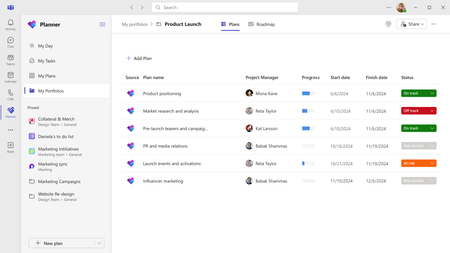
Managing multiple plans across different projects can often become overwhelming for team leads, project managers, or any user handling various deliverables. To simplify the process, we’ve designed a new feature—Portfolios—to help users easily track and manage multiple plans in the Planner app in Microsoft Teams. Portfolios can help simplify complex plan oversight by giving you a consolidated view of all your premium plans and tasks, ensuring nothing slips through the cracks. Once rolled out to your organization, users with a Planner and Project Plan 3 or Planner and Project Plan 5 license will be able to create portfolios to group and manage related plans, track progress at a high level, and visually organize tasks using the Roadmap view. Whether coordinating between various teams or looking for a top-down perspective of multiple plans, the Portfolios feature in the Planner app in Teams makes it all possible in one location—streamlining workflows and improving collaboration A screenshot of the Planner app in Teams displaying a list of plans added to a new portfolio. How it works To get started with Portfolios in Planner once it’s rolled out to your organization, follow the steps below: Navigate to or launch the Planner app in Teams. If you have a Planner and Project Plan 3 or Planner and Project Plan 5 license, you’ll see the new My Portfolios tab in the left navigation directly below My Day, My Tasks, and My Plans. Select the My Portfolios tab to get started with your first portfolio. Then, select the + New Portfolio button. Alternatively, you can select the down arrow directly to the right of the + New plan button at the bottom of the left navigation, then select Portfolio. A screenshot of the Planner app in Teams displaying the new My Portfolios tab with a message that reads, “Get started with your first portfolio!” 3. Add a name for the new portfolio (required), then add it to a group (optional) by selecting the appropriate group from the drop-down. Then, select the Create button. Scenarios to try Below are just a few powerful ways to leverage the new Portfolios feature in Planner. Consolidate multiple plans into a single portfolio: Simplify the process of tracking deliverables and deadlines by creating a portfolio for your ongoing plans. After selecting the Create button, you will see the following message, “There are no plans in your portfolio yet.” Select the + Add Plan button to access a list of all the premium plans you are a member of, including plans you’ve created, as well as those you’ve been added to. A screenshot of the Planner app in Teams displaying the Plans view for My Portfolios with the Add Plan pane open to the right. Select and connect the plan you want to add to the new portfolio as instructed in the Add Plan pane to the right. Properties that are extracted from the plan and displayed in the Plans view include Project Manager, Progress (% complete), Start Date, and Finish Date. The Status field is a drop-down list which enables you to manually select the status of the plan—Not started, On track, At risk, Off track, or Closed—so you can easily identify how the plan is progressing. 2. View your portfolio of plans and their associated tasks as a visual timeline: As soon as you add a plan to the portfolio, a row gets created for that plan on the Roadmap view. In the Roadmap view, you can easily add tasks from the included plans and track them together visually in a timeline view. To add tasks to the timeline, simply select the corresponding plan in the Roadmap view. Upon selection, you will see a Details pane open to the right of Teams with a list of tasks tied to the plan. From here, select the task (or tasks) you want to add to the Roadmap view, then select Add items. A screenshot of the Planner app in Teams displaying the Roadmap view for My Portfolios with the Add items pane open to the right. The selected tasks are displayed as a visual timeline for that plan. A screenshot of the Planner app in Teams displaying a timeline view of plans (and their tasks) added to a new portfolio. 3. Collaborate with your team members: Portfolios in Planner uses the Microsoft 365 group construct to invite users to collaborate on the portfolio. Select the Share button in the top right corner of the portfolio to open the Invite members dialog box. A screenshot of the Planner app in Teams displaying the Plans view for My Portfolios with the Invite members window open in the center. From here, you can create a new Microsoft 365 group by entering each member’s name in the designated text box, then selecting the Create group button. Or, you can add the portfolio to an existing Microsoft 365 group by selecting Add to existing group, then selecting the appropriate group from the drop-down and selecting the Add button. Please note, adding a member to the portfolio does not give the user access to the plan(s) included in the portfolio, but rather enables them to see the portfolio-level aggregations. Availability of Portfolios in Planner The new Portfolios feature is currently rolling out in the Planner app in Teams. Once rolled out to your organization, users with a Planner and Project Plan 3 or Planner and Project Plan 5 license will see the new My Portfolios tab in the left navigation. Users with Planner in Microsoft 365 or a Planner Plan 1 license can view portfolios shared with them in read-only mode. Portfolios will start rolling out in the new Planner for the web in the coming weeks. Share your feedback! We look forward to hearing your feedback and learning more about how you use portfolios in Planner. Please share some of your use cases in the comments below, or let us know how we can help to improve the experience. You can also send feedback via the Planner Feedback Portal or directly in the Planner app by selecting More (the question mark) in the upper right corner, then Feedback.57KViews4likes123Comments
Connecting Planner tasks to employee goals/OKRs - anyone figured this out?
My manager wants us to tie our daily Planner tasks back to our quarterly OKRs but theres no native way to do this. I spent a couple hours trying to set up a Power Automate flow that updates an Excel tracker whenever a Planner task gets completed but it feels hacky. Is there a cleaner way to connect what people are actually doing in Planner to higher level goals?232Views0likes3Comments