need help
1703 Topics
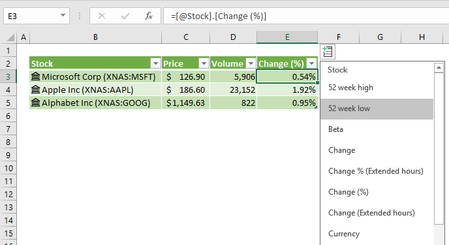
Excel for mac - Stocks data doesnt work
I was never able to get the Share Price or any other fields auto fill in Excel for Mac. It works fine on Windows or Cloud based Excel but not on a macbook. None of the options like Price, Volume... work. I tried to copy paste the formula for those fields from Office 365 to Mac but they never worked. Any ideas?11KViews0likes6Comments
Losing Hyperlinks in Office 365 and OneDrive
Hello, first-time poster here. I hope someone can help with a dilemma I'm experiencing. I have an Excel 2016 workbook which contains 2 worksheets. The first worksheet consists of icons I inserted. I wanted the icons so that I could rotate them to suit my needs. Within the icons, I created a text box and inserted a hyperlink in each one that referred to a specific cell in the 2nd worksheet. In regular Excel, the links work great. However, when trying to test/edit in Office 365 or OneDrive, I find that all of the hyperlinks have disappeared, as well as the ability to create any new ones. This has really stumped me. Does anyone have any suggestions? Many thanks! 🙂5.7KViews0likes8Comments
VLOOKUP help required
I am not sure whether to use nested VLOOKUPs or MATCH/INDEX and VLOOKUP to implement what I’m trying to do. On the main worksheet I have populated the Project Category using VLOOKUP based on the project lifecycle entered by the user. =VLOOKUP(H4,Category,2,FALSE) – this works fine and is using Lookup table 1. On the main worksheet, the user will enter in a score for each of the Project Elements (ranging from 1- unacceptable to 5-excellent). What I need to do is – based on the Category, apply the appropriate Weighting factor to the Project Element Scores (lookup table 3) and output that value into another column (called Project Element Weighted Score). Lookup table 1: Lifecycle Category 1-Investigation 1-Conceive 2-Definition 2-Design 3-Implementation 3-Build 4-Production 3-Build 5-Frozen 4-Manage 6-Phase out Started 4-Manage 7-Phased out 4-Manage Lookup table 2: Category Project Elements Score Output value weighting 1-Conceive Personnel 5 5 1 1-Conceive Personnel 4 4 1-Conceive Personnel 3 3 1-Conceive Personnel 2 2 1-Conceive Personnel 1 1 1-Conceive R&D 5 5 5 1-Conceive R&D 4 4 1-Conceive R&D 3 3 1-Conceive R&D 2 2 1-Conceive R&D 1 1 1-Conceive Infrastructure 5 5 2 I have in the weighted score field on the main spreadsheet and a VLOOKUP formula that was working prior to introducing the Weighting by Category concept. I can’t figure out how to include a lookup to to get the category and the corresponding weighting factor and use the correct weighting factor to apply to the score. I hope I’ve been clear enough - I cannot send my spreadsheet as it has c1.3KViews2likes4CommentsReference cell in previous sheet
How do I reference the value of a cell in a previous sheet without having to name it? I have tried the SHEETOFFSET formula, and it doesn't work on my .xlsm workbook. I am trying to pull in number of hours from previous timesheet in same cell, previous worksheet. From what I saw, =SHEETOFFSET(-1, J23) should return the value from the cell J23 in the previous sheet without having to use ='previoussheet'!,J23. Thanks!51KViews0likes4Comments
sum by color when colors are set by conditional formatting
i have a column of numbers that are color coded (to represent a specific mfg department) and I need to total the values by color. Meaning I need to total all the values that have the same background color. I have done an exhaustive search online and was able to quickly find a way to sum by color, unfortunately it only worked for cells whose color was set manually (NOT using conditional formatting). I have found a few references to VB code that should provide the functionality but I can't get any of them to run (except for the one that works for manually set colors). I have control of the data that I'm trying to sum. is there another method to "tag" values? I thought of adding a letter prefix, but coulnd't find any way to sum a column of numbers that are contained in text strings. Any help would be greatly appreciated!! I'm using Office 365 (excel 2016) on a windows 10 machineSolved265KViews0likes305Comments
Remove text between two characters multiple times
I have a column that has a text string with various lengths. What I'm trying to do is remove text that starts with "|" and ends with ";". The text between those two characters is always going to be 36 characters. There can be multiple occurrences and what is between the two characters will vary from row to row. I cannot use VB only a formula. Example: Here is my text string: Announcements|95029fcd-6b68-45bf-9f80-a2b2d90540f3;Personal Information|8096f02e-25e3-4416-8dbb-b2a58d309d4e;Personnel Statistical Reporting|9f1a73f0-5ce6-4abb-9fe1-44ab59350708; What I need to do is remove from the string what is between "|" and ";" so my new text string looks like this: Announcements, Personal Information, Personnel Statistical Reporting With the formula below I get this. Only one instance is removed. Announcements, Personal Information|8096f02e-25e3-4416-8dbb-b2a58d309d4e;Personnel Statistical Reporting|9f1a73f0-5ce6-4abb-9fe1-44ab59350708 =IFERROR(SUBSTITUTE(A1,MID(LEFT(A1,FIND(";",A1)),FIND("|",A1),LEN(A1)),", "),A1) Thanks.Solved67KViews1like9CommentsExcel Table Appears to Automatically Expand but drop down list doesn't update
I used Excel 2013. I created a drop-down list that is based on an Excel Table via the Data Validation button on the Data ribbon. If I add or delete a row from the middle of the table, my associated drop-downs are updated automatically. However, if I insert a row of data at the very top or bottom of the list (range), even though the table appears to have expanded, the drop-down list does not update automatically. The Auto Correct options "Include new rows and columns in table" and "Fill formulas in tables to create calculated columns" are checked. None of the sheets on my workbook are protected.65KViews0likes11Comments
Writing a formula to return a blank if no data is in an adjacent cell
I've forgoten how to how to write a simple formula that will keep the cell blank if there isn't any data in an adjacent otherwise it should do the calculation. This is how I wrote it. =IF((E7=" "," "),(F6+E7)) Thank you183KViews1like5Comments