Microsoft Sentinel
769 TopicsMicrosoft Sentinel Platform: Audit Logs and Where to Find Them
*Thank you to my teammates Ian Parramore and David Hoerster for reviewing and contributing to this blog.* With the launch of the Sentinel Platform, a new suite of features for the Microsoft Sentinel service, users may find themselves wanting to monitor who is using these new features and how. This blog sets out to highlight how auditing and monitoring can be achieved and where this data can be found. What are Audit Logs? Audit logs are documented activities that are eligible for usage within SOC tools, such as a SIEM. These logs are meant to exist as a paper trail to show: Who performed an action What type of action was performed When the action was performed Where the action was performed How the action was performed Audit logs can be generated by many platforms, whether they are Microsoft services or platforms outside of the Microsoft ecosystem. Each source is a great option for a SOC to monitor. Types of Audit Logs Audit logs can vary in how they are classified or where they are placed. Focusing just on Microsoft, the logs can vary based on platform. A few examples are: - Windows: Events generated by the operating system that are available in EventViewer - Azure – Diagnostic logs generated by services that can be sent to Azure Log Analytics - Defender – Audit logs generated by Defender services that are sent to M365 Audit Logs What is the CloudAppEvents Table? The CloudAppEvents table is a data table that is provided via Advanced Hunting in Defender. This table contains events of applications being used within the environment. This table is also a destination for Microsoft audit logs that are being sent to Purview. Purview’s audit log blade includes logs from platforms like M365, Defender, and now Sentinel Platform. How to Check if the Purview Unified Audit Logging is Enabled For CloudAppEvents to receive data, Audit Logging within Purview must be enabled and M365 needs to be configured to be connected as a Defender for Cloud Apps component. Enabling Audit Logs By default, Purview Auditing is enabled by default within environments. In the event that they have been disabled, Audit logs can be enabled and checked via PowerShell. To do so, the user must have the Audit Logs role within Exchange Online. The command to run is: Get-AdminAuditLogConfig | Format-List UnifiedAuditLogIngestionEnabled The result will either be true if auditing is already turned on, and false if it is disabled. If the result is false, the setting will need to be enabled. To do so: Install the Exchange Online module with: Import-Module ExchangeOnlineManagement Connect and authenticate to Exchange Online with an interactive window Connect-ExchangeOnline -UserPrincipalName USER PRINCIPAL NAME HERE Run the command to enable auditing Set-AdminAuditLogConfig -UnifiedAuditLogIngestionEnabled $true Note: It may take 60 minutes for the change to take effect. Connecting M365 to MDA To connect M365 to MDA as a connector: Within the Defender portal, go to System > Settings. Within Settings, choose Cloud Apps. Within the settings navigation, go to Connected apps > App Connectors. If Microsoft 365 is not already listed, click Connect an app. Find and select Microsoft 365. Within the settings, select the boxes for Microsoft 365 activities. Once set, click on the Connect Microsoft 365 button. Note: You have to have a proper license that includes Microsoft Defender for Cloud Apps in order to have these settings for app connections. Monitoring Activities As laid out within the public documentation, there are several categories of audit logs for Sentinel platform, including: Onboarding/offboarding KQL activities Job activities Notebook activities AI tool activities Graph activities All of these events are surfaced within the Purview audit viewer and CloudAppEvents table. When querying the table, each of the activities will appear under a column called ActionType. Onboarding Friendly Name Operation Description Changed subscription of Sentinel lake SentinelLakeSubscriptionChanged User modified the billing subscription ID or resource group associated with the data lake. Onboarded data for Sentinel lake SentinelLakeDefaultDataOnboarded During onboarding, default data onboard is logged. Setup Sentinel lake SentinelLakeSetup At the time of onboarding, Sentinel data lake is set up and the details are logged. For querying these activities, one example would be: CloudAppEvents | where ActionType == ‘SentinelLakeDefaultDataOnboarded’ | project AccountDisplayName, Application, Timestamp, ActionType KQL Queries There is only one type of activity for KQL available. These logs function similarly to how LAQueryLogs work today, showing details like who ran the query, if it was successful, and what the body of the query was. Friendly Name Operation Description Completed KQL query KQLQueryCompleted User runs interactive queries via KQL on data in their Microsoft Sentinel data lake For querying these activities, one example would be: CloudAppEvents | where ActionType == ‘KQLQueryCompleted’ | project Timestamp, AccountDisplayName, Application, RawEventData.Interface, RawEventData.QueryText, RawEventData.TotalRows Jobs Jobs pertain to KQL jobs and Notebook jobs offered by the Sentinel Platform. These logs will detail job activities as well as actions taken against jobs. This will be useful for monitoring who is creating or modifying jobs, as well as monitoring that jobs are properly running. Friendly Name Operation Description Completed a job run adhoc JobRunAdhocCompleted Adhoc Job execution completed. Completed a job run scheduled JobRunScheduledCompleted Scheduled Job execution completed. Created job JobCreated A job is created. Deleted a custom table CustomTableDelete As part of a job run, the custom table was deleted. Deleted job JobDeleted A job is deleted. Disabled job JobDisabled The job is disabled. Enabled job JobEnabled A disabled job is reenabled. Ran a job adhoc JobRunAdhoc Job is triggered manually and run started. Ran a job on schedule JobRunScheduled Job run is triggered due to schedule. Read from table TableRead As part of the job run, a table is read. Stopped a job run JobRunStopped User manually cancels or stops an ongoing job run. Updated job JobUpdated The job definition and/or configuration and schedule details of the job if updated. Writing to a custom table CustomTableWrite As part of the job run, data was written to a custom table. For querying these activities, one example would be: CloudAppEvents | where ActionType == ‘JobCreated’ | project Timestamp, AccountDisplayName, Application, ActionType, RawEventData.JobName, RawEventData.JobType, RawEventData.Interface AI Tools AI tool logs pertain to events being generated by MCP server usage. This is generated any time that users operate with MCP server and leverage one of the tools available today to run prompts and sessions. Friendly Name Operation Description Completed AI tool run SentinelAIToolRunCompleted Sentinel AI tool run completed Created AI tool SentinelAIToolCreated User creates a Sentinel AI tool Started AI tool run SentinelAIToolRunStarted Sentinel AI tool run started For querying these activities, the query would be: CloudAppEvents | where ActionType == ‘SentinelAIToolRunStarted’ | project Timestamp, AccountDisplayName, ActionType, Application, RawEventData.Interface, RawEventData.ToolName Notebooks Notebook activities pertain to actions performed by users via Notebooks. This can include querying data via a Notebook, writing to a table via Notebooks, or launching new Notebook sessions. Friendly Name Operation Description Deleted a custom table CustomTableDelete User deleted a table as part of their notebook execution. Read from table TableRead User read a table as part of their notebook execution. Started session SessionStarted User started a notebook session. Stopped session SessionStopped User stopped a notebook session. Wrote to a custom table CustomTableWrite User wrote to a table as part of their notebook execution. For querying these activities, one example would be: CloudAppEvents | where ActionType == ‘TableRead’ Graph Usage Graph activities pertain to users modifying or running a graph based scenario within the environment. This can include creating a new graph scenario, deleting one, or running a scenario. Created a graph scenario GraphScenarioCreated User created a graph instance for a pre-defined graph scenario. Deleted a graph scenario GraphScenarioDeleted User deleted or disable a graph instance for a pre-defined graph scenario. Ran a graph query GraphQueryRun User ran a graph query. For querying these activities, one example would be: CloudAppEvents | where ActionType == 'GraphQueryRun' | project AccountDisplayName, IsExternalUser, IsImpersonated, RawEventData.['GraphName'], RawEventData.['CreationTime'] Monitoring without Access to the CloudAppSecurity Table If accessing the CloudAppSecurity table is not possible in the environment, both Defender and Purview allow for manually searching for activities within the environment. For Purview (https://purview.microsoft.com), the audit page can be found by going to the Audit blade within the Purview portal. For Defender, the audit blade can be found under Permissions > Audit To run a search that will match Sentinel Platform related activities, the easiest method is using the Activities – friendly names field to filter for Sentinel Platform. Custom Ingestion of Audit Logs If looking to ingest the data into a table, a custom connector can be used to fetch the information. The Purview Audit Logs use the Office Management API when calling events programmatically. This leverages registered applications with proper permissions to poll the API and forward the data into a data collection rule. As the Office Management API does not support filtering entirely within the content URI, making a custom connector for this source is a bit more tricky. For a custom connector to work, it will need to: Call the API Review each content URL Filter for events that are related to Sentinel Platform This leaves two options for accomplishing a custom connector route: A code-based connector that is hosted within an Azure Function A codeless connector paired with a filtering data collection rule This blog will just focus on the codeless connector as an example. A codeless connector can be made from scratch or by referencing an existing connector within the Microsoft Sentinel GitHub repository. For the connector, an example API call would appear as such: https://manage.office.com/api/v1.0/{tenant-id}/activity/feed/subscriptions/content?contentType=Audit.General&startTime={startTime}&endTime={endTime} When using a registered application, it will need ActivityFeed.Read read permissions on the Office Management API for it to be able to call the API and view the information returned. The catch with the Management API is that it uses a content URL in the API response, thus requiring one more step. Luckily, Codeless Connectors support nested actions and JSON. An example of a connector that does this today is the Salesforce connector. When looking to filter the events to be specifically the Sentinel Platform audit logs, the queries listed above can be used in the body of a data collection rule. For example: "streams": [ "Custom-PurviewAudit" ], "destinations": [ "logAnalyticsWorkspace" ], "transformKql": "source | where ActionType has_any (‘GraphQueryRun’, ‘TableRead’… etc) "outputStream": "Custom-SentinelPlatformAuditLogs” Note that putting all of the audit logs may lead to a schema mismatch depending on how they are being parsed. If concerned about this, consider placing each event into different tables, such as SentinelLakeQueries, KQLJobActions, etc. This can all be defined within the data collection rule, though the custom tables for each action will need to exist before defining them within the data collection rule. Closing Now that audit logs are flowing, actions taken by users within the environment can be used for detections, hunting, Workbooks, and automation. Since the logs are being ingested via a data collection rule, they can also be sent to Microsoft Sentinel data lake if desired. May this blog lead to some creativity and stronger monitoring of the Sentinel Platform!529Views1like2Comments
From “No” to “Now”: A 7-Layer Strategy for Enterprise AI Safety
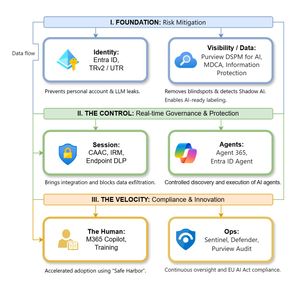
The “block” posture on Generative AI has failed. In a global enterprise, banning these tools doesn't stop usage; it simply pushes intellectual property into unmanaged channels and creates a massive visibility gap in corporate telemetry. The priority has now shifted from stopping AI to hardening the environment so that innovation can run at velocity without compromising data sovereignty. Traditional security perimeters are ineffective against the “slow bleed” of AI leakage - where data moves through prompts, clipboards, and autonomous agents rather than bulk file transfers. To secure this environment, a 7-layer defense-in-depth model is required to treat the conversation itself as the new perimeter. 1. Identity: The Only Verifiable Perimeter Identity is the primary control plane. Access to AI services must be treated with the same rigor as administrative access to core infrastructure. The strategy centers on enforcing device-bound Conditional Access, where access is strictly contingent on device health. To solve the "Account Leak" problem, the deployment of Tenant Restrictions v2 (TRv2) is essential to prevent users from signing into personal tenants using corporate-managed devices. For enhanced coverage, Universal Tenant Restrictions (UTR) via Global Secure Access (GSA) allows for consistent enforcement at the cloud edge. While TRv2 authentication-plane is GA, data-plane protection is GA for the Microsoft 365 admin center and remains in preview for other workloads such as SharePoint and Teams. 2. Eliminating the Visibility Gap (Shadow AI) You can’t secure what you can't see. Microsoft Defender for Cloud Apps (MDCA) serves to discover and govern the enterprise AI footprint, while Purview DSPM for AI (formerly AI Hub) monitors Copilot and third-party interactions. By categorizing tools using MDCA risk scores and compliance attributes, organizations can apply automated sanctioning decisions and enforce session controls for high-risk endpoints. 3. Data Hygiene: Hardening the “Work IQ” AI acts as a mirror of internal permissions. In a "flat" environment, AI acts like a search engine for your over-shared data. Hardening the foundation requires automated sensitivity labeling in Purview Information Protection. Identifying PII and proprietary code before assigning AI licenses ensures that labels travel with the data, preventing labeled content from being exfiltrated via prompts or unauthorized sharing. 4. Session Governance: Solving the “Clipboard Leak” The most common leak in 2025 is not a file upload; it’s a simple copy-paste action or a USB transfer. Deploying Conditional Access App Control (CAAC) via MDCA session policies allows sanctioned apps to function while specifically blocking cut/copy/paste. This is complemented by Endpoint DLP, which extends governance to the physical device level, preventing sensitive data from being moved to unmanaged USB storage or printers during an AI-assisted workflow. Purview Information Protection with IRM rounds this out by enforcing encryption and usage rights on the files themselves. When a user tries to print a "Do Not Print" document, Purview triggers an alert that flows into Microsoft Sentinel. This gives the SOC visibility into actual policy violations instead of them having to hunt through generic activity logs. 5. The “Agentic” Era: Agent 365 & Sharing Controls Now that we're moving from "Chat" to "Agents", Agent 365 and Entra Agent ID provide the necessary identity and control plane for autonomous entities. A quick tip: in large-scale tenants, default settings often present a governance risk. A critical first step is navigating to the Microsoft 365 admin center (Copilot > Agents) to disable the default “Anyone in organization” sharing option. Restricting agent creation and sharing to a validated security group is essential to prevent unvetted agent sprawl and ensure that only compliant agents are discoverable. 6. The Human Layer: “Safe Harbors” over Bans Security fails when it creates more friction than the risk it seeks to mitigate. Instead of an outright ban, investment in AI skilling-teaching users context minimization (redacting specifics before interacting with a model) - is the better path. Providing a sanctioned, enterprise-grade "Safe Harbor" like M365 Copilot offers a superior tool that naturally cuts down the use of Shadow AI. 7. Continuous Ops: Monitoring & Regulatory Audit Security is not a “set and forget” project, particularly with the EU AI Act on the horizon. Correlating AI interactions and DLP alerts in Microsoft Sentinel using Purview Audit (specifically the CopilotInteraction logs) data allows for real-time responses. Automated SOAR playbooks can then trigger protective actions - such as revoking an Agent ID - if an entity attempts to access sensitive HR or financial data. Final Thoughts Securing AI at scale is an architectural shift. By layering Identity, Session Governance, and Agentic Identity, AI moves from being a fragmented risk to a governed tool that actually works for the modern workplace.184Views0likes0CommentsIngesting Windows Security Events into Custom Datalake Tables Without Using Microsoft‑Prefixed Table
Hi everyone, I’m looking to see whether there is a supported method to ingest Windows Security Events into custom Microsoft Sentinel Data Lake–tiered tables (for example, SecurityEvents_CL) without writing to or modifying the Microsoft‑prefixed analytical tables. Essentially, I want to route these events directly into custom tables only, bypassing the default Microsoft‑managed tables entirely. Has anyone implemented this, or is there a recommended approach? Thanks in advance for any guidance. Best Regards, Prabhu Kiran6Views0likes0CommentsUnifying AWS and Azure Security Operations with Microsoft Sentinel
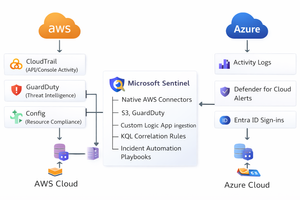
The Multi-Cloud Reality Most modern enterprises operate in multi-cloud environments using Azure for core workloads and AWS for development, storage, or DevOps automation. While this approach increases agility, it also expands the attack surface. Each platform generates its own telemetry: Azure: Activity Logs, Defender for Cloud, Entra ID sign-ins, Sentinel analytics AWS: CloudTrail, GuardDuty, Config, and CloudWatch Without a unified view, security teams struggle to detect cross-cloud threats promptly. That’s where Microsoft Sentinel comes in, bridging Azure and AWS into a single, intelligent Security Operations Center (SOC). Architecture Overview Connect AWS Logs to Sentinel AWS CloudTrail via S3 Connector Enable the AWS CloudTrail connector in Sentinel. Provide your S3 bucket and IAM role ARN with read access. Sentinel will automatically normalize logs into the AWSCloudTrail table. AWS GuardDuty Connector Use the AWS GuardDuty API integration for threat detection telemetry. Detected threats, such as privilege escalation or reconnaissance, appear in Sentinel as the AWSGuardDuty table. Normalize and Enrich Data Once logs are flowing, enrich them to align with Azure activity data. Example KQL for mapping CloudTrail to Sentinel entities: AWSCloudTrail | extend AccountId = tostring(parse_json(Resources)[0].accountId) | extend User = tostring(parse_json(UserIdentity).userName) | extend IPAddress = tostring(SourceIpAddress) | project TimeGenerated, EventName, User, AccountId, IPAddress, AWSRegion Then correlate AWS and Azure activities: let AWS = AWSCloudTrail | summarize AWSActivity = count() by User, bin(TimeGenerated, 1h); let Azure = AzureActivity | summarize AzureActivity = count() by Caller, bin(TimeGenerated, 1h); AWS | join kind=inner (Azure) on $left.User == $right.Caller | where AWSActivity > 0 and AzureActivity > 0 | project TimeGenerated, User, AWSActivity, AzureActivity Automate Cross-Cloud Response Once incidents are correlated, Microsoft Sentinel Playbooks (Logic Apps) can automate your response: Example Playbook: “CrossCloud-Containment.json” Disable user in Entra ID Send a command to the AWS API via Lambda to deactivate IAM key Notify SOC in Teams Create ServiceNow ticket POST https://api.aws.amazon.com/iam/disable-access-key PATCH https://graph.microsoft.com/v1.0/users/{user-id} { "accountEnabled": false } Build a Multi-Cloud SOC Dashboard Use Sentinel Workbooks to visualize unified operations: Query 1 – CloudTrail Events by Region AWSCloudTrail | summarize Count = count() by AWSRegion | render barchart Query 2 – Unified Security Alerts union SecurityAlert, AWSGuardDuty | summarize TotalAlerts = count() by ProviderName, Severity | render piechart Scenario Incident: A compromised developer account accesses EC2 instances on AWS and then logs into Azure via the same IP. Detection Flow: CloudTrail logs → Sentinel detects unusual API calls Entra ID sign-ins → Sentinel correlates IP and user Sentinel incident triggers playbook → disables user in Entra ID, suspends AWS IAM key, notifies SOC Strengthen Governance with Defender for Cloud Enable Microsoft Defender for Cloud to: Monitor both Azure and AWS accounts from a single portal Apply CIS benchmarks for AWS resources Surface findings in Sentinel’s SecurityRecommendations table132Views4likes0Comments
Entity playbook in XDR
Hello All! In my Logic Apps Sentinel automations I often use the entity trigger to run some workflows. Some time ago there was information, that Sentinel will be moved to the Microsoft XDR, some of the Sentinel elements are already there. In XDR I can run playbook from the incident level, but I can't do it from the entity level - for example in the XDR when I clicked in the IP or when I open IP address page I can't find the Run playbook button or something like that. Do you know if the Run playbook on entity feature will be moved to XDR also? Best, Piotr K.51Views0likes3CommentsCall to Action: Migrate Your Classic Alert‑trigger Automations to Automation Rules Before March 2026
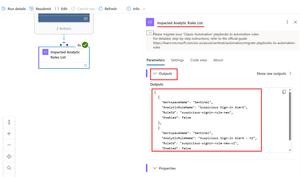
Reminder: Following the Retirement Announcement published in March 2023, classic alert‑trigger automation in Microsoft Sentinel, where playbooks are triggered directly from analytic rules will be deprecated in March 2026. To ensure your alert‑driven automations continue to run without interruption, please migrate to automation rules. How to Identify the Impacted Rules To help you quickly identify if any analytic rules should be updated, we created a Logic App solution that identifies all the analytic rules which use classic automation. The solution is available in two deployment options: Subscription-level version – scans all workspaces in the subscription Workspace-level version – scans a single workspace (useful when subscription Owner permissions are not available) Both options create an output of a list of analytic rules which need to be updated as described in the next section. The solution is published as part of Sentinel's GitHub community solutions with deployment instructions and further details: sentinel-classic-automation-detection After deploying and running the tool, open the Logic App run history. The final action contains the list of the analytic rules which require migration. How to Migrate the identified Analytic Rules from Classic Alert‑trigger Automations Once you have identified the analytic rules using classic automation, follow the official Microsoft Learn guidance to migrate them to automation rules: migrate-playbooks-to-automation-rules In short: Identify classic automation in your analytic rules Create automation rules to replace the classic automation To complete the migration, remove the Alert Automation Classic Actions identified in step #1 by clicking on the three dots and 'Remove' Summary Classic automation will retire in March 2026 Use the detection tool to identify any remaining classic alert-trigger playbooks Follow the official Microsoft documentation to complete the required changes Act now to ensure your SOC automations continue to run smoothly580Views0likes0CommentsSecurity Guidance Series: CAF 4.0 Threat Hunting From Detection to Anticipation
The CAF 4.0 update reframes C2 (Threat Hunting) as a cornerstone of proactive cyber resilience. According to the NCSC CAF 4.0, this principle is no longer about occasional investigations or manual log reviews; it now demands structured, frequent, and intelligence-led threat hunting that evolves in line with organizational risk. The expectation is that UK public sector organizations will not just respond to alerts but will actively search for hidden or emerging threats that evade standard detection technologies, documenting their findings and using them to strengthen controls and response. In practice, this represents a shift from detection to anticipation. Threat hunting under CAF 4.0 should be hypothesis-driven, focusing on attacker tactics, techniques, and procedures (TTPs) rather than isolated indicators of compromise (IoCs). Organizations must build confidence that their hunting processes are repeatable, measurable, and continuously improving, leveraging automation and threat intelligence to expand coverage and consistency. Microsoft E3 Microsoft E3 equips organizations with the baseline capabilities to begin threat investigation, forming the starting point for Partially Achieved maturity under CAF 4.0 C2. At this level, hunting is ad hoc and event-driven, but it establishes the foundation for structured processes. How E3 contributes to the following objectives in C2: Reactive detection for initial hunts: Defender for Endpoint Plan 1 surfaces alerts on phishing, malware, and suspicious endpoint activity. Analysts can use these alerts to triage incidents and document steps taken, creating the first iteration of a hunting methodology. Identity correlation and manual investigation: Entra ID P1 provides Conditional Access and MFA enforcement, while audit telemetry in the Security & Compliance Centre supports manual reviews of identity anomalies. These capabilities allow organizations to link endpoint and identity signals during investigations. Learning from incidents: By recording findings from reactive hunts and feeding lessons into risk decisions, organizations begin to build repeatable processes, even if hunts are not yet hypothesis-driven or frequent enough to match risk. What’s missing for Achieved: Under E3, hunts remain reactive, lack documented hypotheses, and do not routinely convert findings into automated detections. Achieving full maturity typically requires regular, TTP-focused hunts, automation, and integration with advanced analytics, capabilities found in higher-tier solutions. Microsoft E5 Microsoft E5 elevates threat hunting from reactive investigation to a structured, intelligence-driven discipline, a defining feature of Achieved maturity under CAF 4.0, C2. Distinctive E5 capabilities for C2: Hypothesis-driven hunts at scale: Defender Advanced Hunting (KQL) enables analysts to test hypotheses across correlated telemetry from endpoints, identities, email, and SaaS applications. This supports hunts focused on adversary TTPs, not just atomic IoCs, as CAF requires. Turning hunts into detections: Custom hunting queries can be converted into alert rules, operationalizing findings into automated detection and reducing reliance on manual triage. Threat intelligence integration: Microsoft Threat Intelligence feeds real-time actor tradecraft and sector-specific campaigns into the hunting workflow, ensuring hunts anticipate emerging threats rather than react to incidents. Identity and lateral movement focus: Defender for Identity surfaces Kerberos abuse, credential replay, and lateral movement patterns, enabling hunts that span beyond endpoints and email. Documented and repeatable process: E5 supports recording hunt queries and outcomes via APIs and portals, creating evidence for audits and driving continuous improvement, a CAF expectation. By embedding hypothesis-driven hunts, automation, and intelligence into business-as-usual operations, E5 helps public sector organizations meet CAF C2’s requirement for regular, documented hunts that proactively reduce risk, and evolve with the threat landscape. Sentinel Microsoft Sentinel takes threat hunting beyond the Microsoft ecosystem, unifying telemetry from endpoints, firewalls, OT systems, and third-party SaaS into a single cloud-native SIEM and SOAR platform. This consolidation helps enable hunts that span the entire attack surface, a critical step toward achieving maturity under CAF 4.0 C2. Key capabilities for control C2: Attacker-centric analysis: MITRE ATT&CK-aligned analytics and KQL-based hunting allow teams to identify stealthy behaviours, simulate breach paths, and validate detection coverage. Threat intelligence integration: Sentinel enriches hunts with national and sector-specific intelligence (e.g. NCSC advisories), ensuring hunts target the most relevant TTPs. Automation and repeatability: SOAR playbooks convert post-hunt findings into automated workflows for containment, investigation, and documentation, meeting CAF’s requirement for structured, continuously improving hunts. Evidence-driven improvement: Recorded hunts and automated reporting create a feedback loop that strengthens posture and demonstrates compliance. By combining telemetry, intelligence, and automation, Sentinel helps organizations embed threat hunting as a routine, scalable process, turning insights into detections and ensuring hunts evolve with the threat landscape. The video below shows how E3, E5 and Sentinel power real C2 threat hunts. Bringing it all Together By progressing from E3’s reactive investigation to E5’s intelligence-led correlation and Sentinel’s automated hunting and orchestration, organizations can develop an end-to-end capability that not only detects but anticipates and helps prevent disruption to essential public services across the UK. This is the operational reality of Achieved under CAF 4.0 C2 (Threat Hunting) - a structured, data-driven, and intelligence-informed approach that transforms threat hunting from an isolated task into an ongoing discipline of proactive defence. To demonstrate what effective, CAF-aligned threat hunting looks like, the following one-slider and demo walk through how Microsoft’s security tools support structured, repeatable hunts that match organizational risk. These examples help translate C2’s expectations into practical, operational activity. CAF 4.0 challenges public-sector defenders to move beyond detection and embrace anticipation. How mature is your organization’s ability to uncover the threats that have not yet been seen? In this final post of the series, the message is clear - true cyber resilience moves beyond reactivity towards a predictive approach.Efficiently process high volume logs and optimize costs with Microsoft Sentinel data lake
As organizations scale their security monitoring, a key challenge is maintaining visibility while controlling costs. High‑volume logs—such as firewall, proxy, and endpoint data—are essential for achieving full threat visibility and must be ingested to understand the complete threat environment. With Microsoft Sentinel data lake, you can ingest high‑volume logs directly into the data lake tier—significantly reducing storage costs while maintaining full visibility. After ingestion, you can extract, enrich, summarize, or normalize events to highlight what matters most for security. Only the enriched, high-value events are then promoted to the Analytics tier for correlation, detection, and investigation. This approach offers several advantages: Higher ROI : Organizations get more value from their security data by storing infrequently queried or low‑detection‑value logs in the lower‑cost data lake tier—boosting ROI while preserving complete visibility. With raw log storage dramatically cheaper in the data lake tier, teams can retain more data, uncover deeper insights, and optimize spend without compromising security. Performance optimization: Send only high‑value security data to the Analytics tier to keep performance fast and efficient Targeted insights: Post-ingestion processing allows analysts to classify and enrich logs, removing noise and enhancing relevance. Flexible retention: The data lake enables long-term retention with 6x compression rate enabling a historical analysis and deeper insights In this post, we will demonstrate how to leverage the Sentinel data lake by ingesting data into the CommonSecurityLog table. We will classify source and destination IPs as public or private, enrich the logs with IP classification, and then group and summarize repeated SourceIP-DestinationIP- RequestURL pairs to highlight outbound communication patterns. We will highlight how post-ingestion processing can reduce costs while improving the analytical value of your data. You can achieve this via KQL jobs in Microsoft Sentinel data lake. What are KQL jobs? KQL jobs in Sentinel data lake are automated one-time or scheduled jobs that run Kusto Query Language (KQL) queries directly on data lake. These jobs help security teams investigate and hunt for threats more easily by automating processes like checking logs against known threats, and enriching and grouping network logs before they are promoted to the Analytics tier. This automation reduces storage costs while producing high-value, investigation-ready datasets. Scenario Firewall and network logs typically contain a wide range of fields, such as SourceIP, DestinationIP, RequestURL, and DeviceAction. While these logs provide extensive information, much of it may not be required for analytics detections, nor does every log entry need to be available in the Analytics tier. Additionally, these logs often lack contextual details, such as traffic is internal or external, and do not inherently highlight repeated communication patterns or spikes that may warrant investigation. For high-volume logs, organizations can leverage post-ingestion enrichment and summarization within the data lake tier. This process transforms raw logs into structured, context-rich datasets, complete with IP classification and grouped connection patterns, making them ready for targeted investigation or selective promotion to the Analytics tier. This approach ensures that only the most relevant and actionable data is surfaced for analytics, optimizing both cost and operational efficiency. Step 1 - Filter and enrich logs Test and refine your query using lake explorer before automating. The following KQL query filters out empty IPs, classifies each source and destination IP as Public, Private, or Unknown, and groups repeated SourceIP-DestinationIP-RequestURL combinations to reveal meaningful traffic patterns: CommonSecurityLog | where isnotempty(SourceIP) or isnotempty(DestinationIP) | extend SrcIPType = iff(ipv4_is_private(SourceIP), "Private", iff(isempty(SourceIP), "Unknown", "Public")), DstIPType = iff(ipv4_is_private(DestinationIP), "Private", iff(isempty(DestinationIP), "Unknown", "Public")) | summarize Count = count() by SourceIP, SrcIPType, DestinationIP, DstIPType, RequestURL This classification adds context to high-volume network logs, making it easier to identify traffic between internal and external networks, as well as significantly reducing the volume of data surfaced into the Analytics tier. Step 2 - Automate post-ingestion processing using KQL jobs Once the query logic is validated in the lake explorer, you can automate it to run continuously as a KQL job: Scheduled KQL jobs can process new logs and store the results in a custom table in Analytics tier. Using Custom detection rules on prompted data, you can setup alerts for any anomalies. Using Microsoft Sentinel Workbooks you can visualize the enriched data for monitoring and analysis. Automating this workflow ensures that every log batch arriving in the data lake is enriched and included in summarized log in Analytics tier, while maintaining balance between cost and visibility. How to schedule this process using a KQL job To run post-ingestion processing query and retain results periodically, we would like to schedule this job to run every hour to summarize network log and store results in a custom table in Analytics tier. To avoid missing any logs, we recommend adding a delay of 15 minutes in the query to make sure all logs are available in lake and included in the job runs. let dt_lookBack = 1h; // Look back window duration let delay = 15m; // Delay to allow late-arriving data let endTime = now() - delay; let startTime = endTime - dt_lookBack; CommonSecurityLog | where TimeGenerated >= startTime and TimeGenerated < endTime | where isnotempty(SourceIP) or isnotempty(DestinationIP) | extend SrcIPType = iff(ipv4_is_private(SourceIP), "Private", iff(isempty(SourceIP), "Unknown", "Public")), DstIPType = iff(ipv4_is_private(DestinationIP), "Private", iff(isempty(DestinationIP), "Unknown", "Public")) | summarize Count = count() by SourceIP, SrcIPType, DestinationIP, DstIPType, RequestURL | order by Count desc KQL jobs can run ad-hoc or in a schedule (by minutes, hourly, daily, weekly or monthly). To obtain the enriched log continuously in Analytics tier, we will schedule this hourly: Results are automatically available in the Analytics tier and can be used to set up a new custom detection rule. Cost of this KQL job in Sentinel data lake The cost of running KQL jobs in Sentinel data lake depends on the volume of data scanned and how frequently the jobs run. Data lake KQL queries and jobs are priced at Analyzed data. Estimated cost analysis details of data lake: Item Calculation / Notes Cost ($) Data lake ingestion and processing (1TB/month) 1TB × ($0.05 + $0.1) per GB $153.60 Hourly KQL jobs for 1-hour lookback (1.4 GB/hour) 1.4 GB × $0.005 × 24 × 30 $5.04 Enriched data sent to Analytics (10% of 1TB) 102.4 GB × $4.3 per GB $440.32 Total data lake approach $153.6 + $440.32 + 5.04 $598.96 Note: This sample pricing model applies to East US region. This pricing model allows organizations to perform large-scale threat hunting and intelligence matching without the high expenses typically associated with traditional SIEMs. Summary of monthly costs Approach Estimated Monthly Cost ($) Raw data ingestion to Analytics tier (1TB) $4,386 Raw data ingestion to data lake tier + enriched summary to Analytics $598.96 Savings $3,787.04 For more details around Microsoft Sentinel data lake costs for KQL queries and jobs, see https://azure.microsoft.com/en-us/pricing/calculator. Summary and next steps High-volume logs are critical for security visibility, but ingesting all raw data directly into the Analytics tier can be expensive and unwieldy. By storing logs in Sentinel data lake and performing post-ingestion enrichment, organizations can classify and contextualize events, reduce costs, and maintain a lean, high-performing analytics environment. This approach demonstrates that smarter processing, is the key to maximizing both efficiency and security insight in Microsoft Sentinel. Get started with Microsoft Sentinel data lake today. Microsoft Sentinel data lake overview - Microsoft Security | Microsoft Learn KQL and the Microsoft Sentinel data lake - Microsoft Security | Microsoft Learn Microsoft Sentinel Pricing | Microsoft Security
Part 3: Unified Security Intelligence - Orchestrating GenAI Threat Detection with Microsoft Sentinel
Why Sentinel for GenAI Security Observability? Before diving into detection rules, let's address why Microsoft Sentinel is uniquely positioned for GenAI security operations—especially compared to traditional or non-native SIEMs. Native Azure Integration: Zero ETL Overhead The problem with external SIEMs: To monitor your GenAI workloads with a third-party SIEM, you need to: Configure log forwarding from Log Analytics to external systems Set up data connectors or agents for Azure OpenAI audit logs Create custom parsers for Azure-specific log schemas Maintain authentication and network connectivity between Azure and your SIEM Pay data egress costs for logs leaving Azure The Sentinel advantage: Your logs are already in Azure. Sentinel connects directly to: Log Analytics workspace - Where your Container Insights logs already flow Azure OpenAI audit logs - Native access without configuration Azure AD sign-in logs - Instant correlation with identity events Defender for Cloud alerts - Platform-level AI threat detection included Threat intelligence feeds - Microsoft's global threat data built-in Microsoft Defender XDR - AI-driven cybersecurity that unifies threat detection and response across endpoints, email, identities, cloud apps and Sentinel There's no data movement, no ETL pipelines, and no latency from log shipping. Your GenAI security data is queryable in real-time. KQL: Built for Complex Correlation at Scale Why this matters for GenAI: Detecting sophisticated AI attacks requires correlating: Application logs (your code from Part 2) Azure OpenAI service logs (API calls, token usage, throttling) Identity signals (who authenticated, from where) Threat intelligence (known malicious IPs) Defender for Cloud alerts (platform-level anomalies) KQL's advantage: Kusto Query Language is designed for this. You can: Join across multiple data sources in a single query Parse nested JSON (like your structured logs) natively Use time-series analysis functions for anomaly detection and behavior patterns Aggregate millions of events in seconds Extract entities (users, IPs, sessions) automatically for investigation graphs Example: Correlating your app logs with Azure AD sign-ins and Defender alerts takes 10 lines of KQL. In a traditional SIEM, this might require custom scripts, data normalization, and significantly slower performance. User Security Context Flows Natively Remember the user_security_context you pass in extra_body from Part 2? That context: Automatically appears in Azure OpenAI's audit logs Flows into Defender for Cloud AI alerts Is queryable in Sentinel without custom parsing Maps to the same identity schema as Azure AD logs With external SIEMs: You'd need to: Extract user context from your application logs Separately ingest Azure OpenAI logs Write correlation logic to match them Maintain entity resolution across different data sources With Sentinel: It just works. The end_user_id, source_ip, and application_name are already normalized across Azure services. Built-In AI Threat Detection Sentinel includes pre-built detections for cloud and AI workloads: Azure OpenAI anomalous access patterns (out of the box) Unusual token consumption (built-in analytics templates) Geographic anomalies (using Azure's global IP intelligence) Impossible travel detection (cross-referencing sign-ins with AI API calls) Microsoft Defender XDR (correlation with endpoint, email, cloud app signals) These aren't generic "high volume" alerts—they're tuned for Azure AI services by Microsoft's security research team. You can use them as-is or customize them with your application-specific context. Entity Behavior Analytics (UEBA) Sentinel's UEBA automatically builds baselines for: Normal request volumes per user Typical request patterns per application Expected geographic access locations Standard model usage patterns Then it surfaces anomalies: "User_12345 normally makes 10 requests/day, suddenly made 500 in an hour" "Application_A typically uses GPT-3.5, suddenly switched to GPT-4 exclusively" "User authenticated from Seattle, made AI requests from Moscow 10 minutes later" This behavior modeling happens automatically—no custom ML model training required. Traditional SIEMs would require you to build this logic yourself. The Bottom Line For GenAI security on Azure: Sentinel reduces time-to-detection because data is already there Correlation is simpler because everything speaks the same language Investigation is faster because entities are automatically linked Cost is lower because you're not paying data egress fees Maintenance is minimal because connectors are native If your GenAI workloads are on Azure, using anything other than Sentinel means fighting against the platform instead of leveraging it. From Logs to Intelligence: The Complete Picture Your structured logs from Part 2 are flowing into Log Analytics. Here's what they look like: { "timestamp": "2025-10-21T14:32:17.234Z", "level": "INFO", "message": "LLM Request Received", "request_id": "a7c3e9f1-4b2d-4a8e-9c1f-3e5d7a9b2c4f", "session_id": "550e8400-e29b-41d4-a716-446655440000", "prompt_hash": "d3b07384d113edec49eaa6238ad5ff00", "security_check_passed": "PASS", "source_ip": "203.0.113.42", "end_user_id": "user_550e8400", "application_name": "AOAI-Customer-Support-Bot", "model_deployment": "gpt-4-turbo" } These logs are in the ContainerLogv2 table since our application “AOAI-Customer-Support-Bot” is running on Azure Kubernetes Services (AKS). Steps to Setup AKS to stream logs to Sentinel/Log Analytics From Azure portal, navigate to your AKS, then to Monitoring -> Insights Select Monitor Settings Under Container Logs Select the Sentinel-enabled Log Analytics workspace Select Logs and events Check the ‘Enable ContainerLogV2’ and ‘Enable Syslog collection’ options More details can be found at this link Kubernetes monitoring in Azure Monitor - Azure Monitor | Microsoft Learn Critical Analytics Rules: What to Detect and Why Rule 1: Prompt Injection Attack Detection Why it matters: Prompt injection is the GenAI equivalent of SQL injection. Attackers try to manipulate the model by overriding system instructions. Multiple attempts indicate intentional malicious behavior. What to detect: 3+ prompt injection attempts within 10 minutes from similar IP let timeframe = 1d; let threshold = 3; AlertEvidence | where TimeGenerated >= ago(timeframe) and EntityType == "Ip" | where DetectionSource == "Microsoft Defender for AI Services" | where Title contains "jailbreak" or Title contains "prompt injection" | summarize count() by bin (TimeGenerated, 1d), RemoteIP | where count_ >= threshold What the SOC sees: User identity attempting injection Source IP and geographic location Sample prompts for investigation Frequency indicating automation vs. manual attempts Severity: High (these are actual attempts to bypass security) Rule 2: Content Safety Filter Violations Why it matters: When Azure AI Content Safety blocks a request, it means harmful content (violence, hate speech, etc.) was detected. Multiple violations indicate intentional abuse or a compromised account. What to detect: Users with 3+ content safety violations in a 1 hour block during a 24 hour time period. let timeframe = 1d; let threshold = 3; ContainerLogV2 | where TimeGenerated >= ago(timeframe) | where isnotempty(LogMessage.end_user_id) | where LogMessage.security_check_passed == "FAIL" | extend source_ip=tostring(LogMessage.source_ip) | extend end_user_id=tostring(LogMessage.end_user_id) | extend session_id=tostring(LogMessage.session_id) | extend application_name = tostring(LogMessage.application_name) | extend security_check_passed = tostring (LogMessage.security_check_passed) | summarize count() by bin(TimeGenerated, 1h),source_ip,end_user_id,session_id,Computer,application_name,security_check_passed | where count_ >= threshold What the SOC sees: Severity based on violation count Time span showing if it's persistent vs. isolated Prompt samples (first 80 chars) for context Session ID for conversation history review Severity: High (these are actual harmful content attempts) Rule 3: Rate Limit Abuse Why it matters: Persistent rate limit violations indicate automated attacks, credential stuffing, or attempts to overwhelm the system. Legitimate users who hit rate limits don't retry 10+ times in minutes. What to detect: Users blocked by rate limiter 5+ times in 10 minutes let timeframe = 1h; let threshold = 5; AzureDiagnostics | where ResourceProvider == "MICROSOFT.COGNITIVESERVICES" | where OperationName == "Completions" or OperationName contains "ChatCompletions" | extend tokensUsed = todouble(parse_json(properties_s).usage.total_tokens) | summarize totalTokens = sum(tokensUsed), requests = count(), rateLimitErrors = countif(httpstatuscode_s == "429") by bin(TimeGenerated, 1h) | where count_ >= threshold What the SOC sees: Whether it's a bot (immediate retries) or human (gradual retries) Duration of attack Which application is targeted Correlation with other security events from same user/IP Severity: Medium (nuisance attack, possible reconnaissance) Rule 4: Anomalous Source IP for User Why it matters: A user suddenly accessing from a new country or VPN could indicate account compromise. This is especially critical for privileged accounts or after-hours access. What to detect: User accessing from an IP never seen in the last 7 days let lookback = 7d; let recent = 1h; let baseline = IdentityLogonEvents | where Timestamp between (ago(lookback + recent) .. ago(recent)) | where isnotempty(IPAddress) | summarize knownIPs = make_set(IPAddress) by AccountUpn; ContainerLogV2 | where TimeGenerated >= ago(recent) | where isnotempty(LogMessage.source_ip) | extend source_ip=tostring(LogMessage.source_ip) | extend end_user_id=tostring(LogMessage.end_user_id) | extend session_id=tostring(LogMessage.session_id) | extend application_name = tostring(LogMessage.application_name) | extend security_check_passed = tostring (LogMessage.security_check_passed) | extend full_prompt_sample = tostring (LogMessage.full_prompt_sample) | lookup baseline on $left.AccountUpn == $right.end_user_id | where isnull(knownIPs) or IPAddress !in (knownIPs) | project TimeGenerated, source_ip, end_user_id, session_id, Computer, application_name, security_check_passed, full_prompt_sample What the SOC sees: User identity and new IP address Geographic location change Whether suspicious prompts accompanied the new IP Timing (after-hours access is higher risk) Severity: Medium (environment compromise, reconnaissance) Rule 5: Coordinated Attack - Same Prompt from Multiple Users Why it matters: When 5+ users send identical prompts, it indicates a bot network, credential stuffing, or organized attack campaign. This is not normal user behavior. What to detect: Same prompt hash from 5+ different users within 1 hour let timeframe = 1h; let threshold = 5; ContainerLogV2 | where TimeGenerated >= ago(timeframe) | where isnotempty(LogMessage.prompt_hash) | where isnotempty(LogMessage.end_user_id) | extend source_ip=tostring(LogMessage.source_ip) | extend end_user_id=tostring(LogMessage.end_user_id) | extend prompt_hash=tostring(LogMessage.prompt_hash) | extend application_name = tostring(LogMessage.application_name) | extend security_check_passed = tostring (LogMessage.security_check_passed) | project TimeGenerated, prompt_hash, source_ip, end_user_id, application_name, security_check_passed | summarize DistinctUsers = dcount(end_user_id), Attempts = count(), Users = make_set(end_user_id, 100), IpAddress = make_set(source_ip, 100) by prompt_hash, bin(TimeGenerated, 1h) | where DistinctUsers >= threshold What the SOC sees: Attack pattern (single attacker with stolen accounts vs. botnet) List of compromised user accounts Source IPs for blocking Prompt sample to understand attack goal Severity: High (indicates organized attack) Rule 6: Malicious model detected Why it matters: Model serialization attacks can lead to serious compromise. When Defender for Cloud Model Scanning identifies issues with a custom or opensource model that is part of Azure ML Workspace, Registry, or hosted in Foundry, that may be or may not be a user oversight. What to detect: Model scan results from Defender for Cloud and if it is being actively used. What the SOC sees: Malicious model Applications leveraging the model Source IPs and users accessed the model Severity: Medium (can be user oversight) Advanced Correlation: Connecting the Dots The power of Sentinel is correlating your application logs with other security signals. Here are the most valuable correlations: Correlation 1: Failed GenAI Requests + Failed Sign-Ins = Compromised Account Why: Account showing both authentication failures and malicious AI prompts is likely compromised within a 1 hour timeframe l let timeframe = 1h; ContainerLogV2 | where TimeGenerated >= ago(timeframe) | where isnotempty(LogMessage.source_ip) | extend source_ip=tostring(LogMessage.source_ip) | extend end_user_id=tostring(LogMessage.end_user_id) | extend session_id=tostring(LogMessage.session_id) | extend application_name = tostring(LogMessage.application_name) | extend security_check_passed = tostring (LogMessage.security_check_passed) | extend full_prompt_sample = tostring (LogMessage.full_prompt_sample) | extend message = tostring (LogMessage.message) | where security_check_passed == "FAIL" or message contains "WARNING" | join kind=inner ( SigninLogs | where ResultType != 0 // 0 means success, non-zero indicates failure | project TimeGenerated, UserPrincipalName, ResultType, ResultDescription, IPAddress, Location, AppDisplayName ) on $left.end_user_id == $right.UserPrincipalName | project TimeGenerated, source_ip, end_user_id, application_name, full_prompt_sample, prompt_hash, message, security_check_passed Severity: High (High probability of compromise) Correlation 2: Application Logs + Defender for Cloud AI Alerts Why: Defender for Cloud AI Threat Protection detects platform-level threats (unusual API patterns, data exfiltration attempts). When both your code and the platform flag the same user, confidence is very high. let timeframe = 1h; ContainerLogV2 | where TimeGenerated >= ago(timeframe) | where isnotempty(LogMessage.source_ip) | extend source_ip=tostring(LogMessage.source_ip) | extend end_user_id=tostring(LogMessage.end_user_id) | extend session_id=tostring(LogMessage.session_id) | extend application_name = tostring(LogMessage.application_name) | extend security_check_passed = tostring (LogMessage.security_check_passed) | extend full_prompt_sample = tostring (LogMessage.full_prompt_sample) | extend message = tostring (LogMessage.message) | where security_check_passed == "FAIL" or message contains "WARNING" | join kind=inner ( AlertEvidence | where TimeGenerated >= ago(timeframe) and AdditionalFields.Asset == "true" | where DetectionSource == "Microsoft Defender for AI Services" | project TimeGenerated, Title, CloudResource ) on $left.application_name == $right.CloudResource | project TimeGenerated, application_name, end_user_id, source_ip, Title Severity: Critical (Multi-layer detection) Correlation 3: Source IP + Threat Intelligence Feeds Why: If requests come from known malicious IPs (C2 servers, VPN exit nodes used in attacks), treat them as high priority even if behavior seems normal. //This rule correlates GenAI app activity with Microsoft Threat Intelligence feed available in Sentinel and Microsoft XDR for malicious IP IOCs let timeframe = 10m; ContainerLogV2 | where TimeGenerated >= ago(timeframe) | where isnotempty(LogMessage.source_ip) | extend source_ip=tostring(LogMessage.source_ip) | extend end_user_id=tostring(LogMessage.end_user_id) | extend session_id=tostring(LogMessage.session_id) | extend application_name = tostring(LogMessage.application_name) | extend security_check_passed = tostring (LogMessage.security_check_passed) | extend full_prompt_sample = tostring (LogMessage.full_prompt_sample) | join kind=inner ( ThreatIntelIndicators | where IsActive == "true" | where ObservableKey startswith "ipv4-addr" or ObservableKey startswith "network-traffic" | project IndicatorIP = ObservableValue ) on $left.source_ip == $right.IndicatorIP | project TimeGenerated, source_ip, end_user_id, application_name, full_prompt_sample, security_check_passed Severity: High (Known bad actor) Workbooks: What Your SOC Needs to See Executive Dashboard: GenAI Security Health Purpose: Leadership wants to know: "Are we secure?" Answer with metrics. Key visualizations: Security Status Tiles (24 hours) Total Requests Success Rate Blocked Threats (Self detected + Content Safety + Threat Protection for AI) Rate Limit Violations Model Security Score (Red Team evaluation status of currently deployed model) ContainerLogV2 | where TimeGenerated > ago (1d) | extend security_check_passed = tostring (LogMessage.security_check_passed) | summarize SuccessCount=countif(security_check_passed == "PASS"), FailedCount=countif(security_check_passed == "FAIL") by bin(TimeGenerated, 1h) | extend TotalRequests = SuccessCount + FailedCount | extend SuccessRate = todouble(SuccessCount)/todouble(TotalRequests) * 100 | order by SuccessRate 1. Trend Chart: Pass vs. Fail Over Time Shows if attack volume is increasing Identifies attack time windows Validates that defenses are working ContainerLogV2 | where TimeGenerated > ago (14d) | extend security_check_passed = tostring (LogMessage.security_check_passed) | summarize SuccessCount=countif(security_check_passed == "PASS"), FailedCount=countif(security_check_passed == "FAIL") by bin(TimeGenerated, 1d) | render timechart 2. Top 10 Users by Security Events Bar chart of users with most failures ContainerLogV2 | where TimeGenerated > ago (1d) | where isnotempty(LogMessage.end_user_id) | extend end_user_id=tostring(LogMessage.end_user_id) | extend security_check_passed = tostring (LogMessage.security_check_passed) | where security_check_passed == "FAIL" | summarize FailureCount = count() by end_user_id | top 20 by FailureCount | render barchart Applications with most failures ContainerLogV2 | where TimeGenerated > ago (1d) | where isnotempty(LogMessage.application_name) | extend application_name=tostring(LogMessage.application_name) | extend security_check_passed = tostring (LogMessage.security_check_passed) | where security_check_passed == "FAIL" | summarize FailureCount = count() by application_name | top 20 by FailureCount | render barchart 3. Geographic Threat Map Where are attacks originating? Useful for geo-blocking decisions ContainerLogV2 | where TimeGenerated > ago (1d) | where isnotempty(LogMessage.application_name) | extend application_name=tostring(LogMessage.application_name) | extend source_ip=tostring(LogMessage.source_ip) | extend security_check_passed = tostring (LogMessage.security_check_passed) | where security_check_passed == "FAIL" | extend GeoInfo = geo_info_from_ip_address(source_ip) | project sourceip, GeoInfo.counrty, GeoInfo.city Analyst Deep-Dive: User Behavior Analysis Purpose: SOC analyst investigating a specific user or session Key components: 1. User Activity Timeline Every request from the user in time order ContainerLogV2 | where isnotempty(LogMessage.end_user_id) | project TimeGenerated, LogMessage.source_ip, LogMessage.end_user_id, LogMessage. session_id, Computer, LogMessage.application_name, LogMessage.request_id, LogMessage.message, LogMessage.full_prompt_sample | order by tostring(LogMessage_end_user_id), TimeGenerated Color-coded by security status AlertInfo | where DetectionSource == "Microsoft Defender for AI Services" | project TimeGenerated, AlertId, Title, Category, Severity, SeverityColor = case( Severity == "High", "🔴 High", Severity == "Medium", "🟠 Medium", Severity == "Low", "🟢 Low", "⚪ Unknown" ) 2. Session Analysis Table All sessions for the user ContainerLogV2 | where TimeGenerated > ago (1d) | where isnotempty(LogMessage.end_user_id) | extend end_user_id=tostring(LogMessage.end_user_id) | where end_user_id == "<username>" // Replace with actual username | extend application_name=tostring(LogMessage.application_name) | extend source_ip=tostring(LogMessage.source_ip) | extend session_id=tostri1ng(LogMessage.session_id) | extend security_check_passed = tostring (LogMessage.security_check_passed) | project TimeGenerated, session_id, end_user_id, application_name, security_check_passed Failed requests per session ContainerLogV2 | where TimeGenerated > ago (1d) | extend security_check_passed = tostring (LogMessage.security_check_passed) | where security_check_passed == "FAIL" | extend end_user_id=tostring(LogMessage.end_user_id) | extend session_id=tostring(LogMessage.session_id) | extend security_check_passed = tostring (LogMessage.security_check_passed) | summarize Failed_Sessions = count() by end_user_id, session_id | order by Failed_Sessions Session duration ContainerLogV2 | where TimeGenerated > ago (1d) | where isnotempty(LogMessage.session_id) | extend security_check_passed = tostring (LogMessage.security_check_passed) | where security_check_passed == "PASS" | extend end_user_id=tostring(LogMessage.end_user_id) | extend session_id=tostring(LogMessage.session_id) | extend application_name=tostring(LogMessage.application_name) | extend source_ip=tostring(LogMessage.source_ip) | summarize Start=min(TimeGenerated), End=max(TimeGenerated), count() by end_user_id, session_id, source_ip, application_name | extend DurationSeconds = datetime_diff("second", End, Start) 3. Prompt Pattern Detection Unique prompts by hash Frequency of each pattern Detect if user is fuzzing/testing boundaries Sample query for user investigation: ContainerLogV2 | where TimeGenerated > ago (14d) | where isnotempty(LogMessage.prompt_hash) | where isnotempty(LogMessage.full_prompt_sample) | extend prompt_hash=tostring(LogMessage.prompt_hash) | extend full_prompt_sample=tostring(LogMessage.full_prompt_sample) | extend application_name=tostring(LogMessage.application_name) | summarize count() by prompt_hash, full_prompt_sample | order by count_ Threat Hunting Dashboard: Proactive Detection Purpose: Find threats before they trigger alerts Key queries: 1. Suspicious Keywords in Prompts (e.g. Ignore, Disregard, system prompt, instructions, DAN, jailbreak, pretend, roleplay) let suspicious_prompts = externaldata (content_policy:int, content_policy_name:string, q_id:int, question:string) [ @"https://raw.githubusercontent.com/verazuo/jailbreak_llms/refs/heads/main/data/forbidden_question/forbidden_question_set.csv"] with (format="csv", has_header_row=true, ignoreFirstRecord=true); ContainerLogV2 | where TimeGenerated > ago (14d) | where isnotempty(LogMessage.full_prompt_sample) | extend full_prompt_sample=tostring(LogMessage.full_prompt_sample) | where full_prompt_sample in (suspicious_prompts) | extend end_user_id=tostring(LogMessage.end_user_id) | extend session_id=tostring(LogMessage.session_id) | extend application_name=tostring(LogMessage.application_name) | extend source_ip=tostring(LogMessage.source_ip) | project TimeGenerated, session_id, end_user_id, source_ip, application_name, full_prompt_sample 2. High-Volume Anomalies User sending too many requests by a IP or User. Assuming that Foundry Projects are configured to use Azure AD and not API Keys. //50+ requests in 1 hour let timeframe = 1h; let threshold = 50; AzureDiagnostics | where ResourceProvider == "MICROSOFT.COGNITIVESERVICES" | where OperationName == "Completions" or OperationName contains "ChatCompletions" | extend tokensUsed = todouble(parse_json(properties_s).usage.total_tokens) | summarize totalTokens = sum(tokensUsed), requests = count() by bin(TimeGenerated, 1h),CallerIPAddress | where count_ >= threshold 3. Rare Failures (Novel Attack Detection) Rare failures might indicate zero-day prompts or new attack techniques //10 or more failures in 24 hours ContainerLogV2 | where TimeGenerated >= ago (24h) | where isnotempty(LogMessage.security_check_passed) | extend security_check_passed=tostring(LogMessage.security_check_passed) | where security_check_passed == "FAIL" | extend application_name=tostring(LogMessage.application_name) | extend end_user_id=tostring(LogMessage.end_user_id) | extend source_ip=tostring(LogMessage.source_ip) | summarize FailedAttempts = count(), FirstAttempt=min(TimeGenerated), LastAttempt=max(TimeGenerated) by application_name | extend DurationHours = datetime_diff('hour', LastAttempt, FirstAttempt) | where DurationHours >= 24 and FailedAttempts >=10 | project application_name, FirstAttempt, LastAttempt, DurationHours, FailedAttempts Measuring Success: Security Operations Metrics Key Performance Indicators Mean Time to Detect (MTTD): let AppLog = ContainerLogV2 | extend application_name=tostring(LogMessage.application_name) | extend security_check_passed=tostring (LogMessage.security_check_passed) | extend session_id=tostring(LogMessage.session_id) | extend end_user_id=tostring(LogMessage.end_user_id) | extend source_ip=tostring(LogMessage.source_ip) | where security_check_passed=="FAIL" | summarize FirstLogTime=min(TimeGenerated) by application_name, session_id, end_user_id, source_ip; let Alert = AlertEvidence | where DetectionSource == "Microsoft Defender for AI Services" | extend end_user_id = tostring(AdditionalFields.AadUserId) | extend source_ip=RemoteIP | extend application_name=CloudResource | summarize FirstAlertTime=min(TimeGenerated) by AlertId, Title, application_name, end_user_id, source_ip; AppLog | join kind=inner (Alert) on application_name, end_user_id, source_ip | extend DetectionDelayMinutes=datetime_diff('minute', FirstAlertTime, FirstLogTime) | summarize MTTD_Minutes=round(avg (DetectionDelayMinutes),2) by AlertId, Title Target: <= 15 minutes from first malicious activity to alert Mean Time to Respond (MTTR): SecurityIncident | where Status in ("New", "Active") | where CreatedTime >= ago(14d) | extend ResponseDelay = datetime_diff('minute', LastActivityTime, FirstActivityTime) | summarize MTTR_Minutes = round (avg (ResponseDelay),2) by CreatedTime, IncidentNumber | order by CreatedTime, IncidentNumber asc Target: < 4 hours from alert to remediation Threat Detection Rate: ContainerLogV2 | where TimeGenerated > ago (1d) | extend security_check_passed = tostring (LogMessage.security_check_passed) | summarize SuccessCount=countif(security_check_passed == "PASS"), FailedCount=countif(security_check_passed == "FAIL") by bin(TimeGenerated, 1h) | extend TotalRequests = SuccessCount + FailedCount | extend SuccessRate = todouble(SuccessCount)/todouble(TotalRequests) * 100 | order by SuccessRate Context: 1-3% is typical for production systems (most traffic is legitimate) What You've Built By implementing the logging from Part 2 and the analytics rules in this post, your SOC now has: ✅ Real-time threat detection - Alerts fire within minutes of malicious activity ✅ User attribution - Every incident has identity, IP, and application context ✅ Pattern recognition - Detect both volume-based and behavior-based attacks ✅ Correlation across layers - Application logs + platform alerts + identity signals ✅ Proactive hunting - Dashboards for finding threats before they trigger rules ✅ Executive visibility - Metrics showing program effectiveness Key Takeaways GenAI threats need GenAI-specific analytics - Generic rules miss context like prompt injection, content safety violations, and session-based attacks Correlation is critical - The most sophisticated attacks span multiple signals. Correlating app logs with identity and platform alerts catches what individual rules miss. User context from Part 2 pays off - end_user_id, source_ip, and session_id enable investigation and response at scale Prompt hashing enables pattern detection - Detect repeated attacks without storing sensitive prompt content Workbooks serve different audiences - Executives want metrics; analysts want investigation tools; hunters want anomaly detection Start with high-fidelity rules - Content Safety violations and rate limit abuse have very low false positive rates. Add behavioral rules after establishing baselines. What's Next: Closing the Loop You've now built detection and visibility. In Part 4, we'll close the security operations loop with: Part 4: Platform Integration and Automated Response Building SOAR playbooks for automated incident response Implementing automated key rotation with Azure Key Vault Blocking identities in Entra Creating feedback loops from incidents to code improvements The journey from blind spot to full security operations capability is almost complete. Previous: Part 1: Securing GenAI Workloads in Azure: A Complete Guide to Monitoring and Threat Protection - AIO11Y | Microsoft Community Hub Part 2: Part 2: Building Security Observability Into Your Code - Defensive Programming for Azure OpenAI | Microsoft Community Hub Next: Part 4: Platform Integration and Automated Response (Coming soon)Announcing AI Entity Analyzer in Microsoft Sentinel MCP Server - Public Preview
What is the Entity Analyzer? Assessing the risk of entities is a core task for SOC teams - whether triaging incidents, investigating threats, or automating response workflows. Traditionally, this has required building complex playbooks or custom logic to gather and analyze fragmented security data from multiple sources. With Entity Analyzer, this complexity starts to fade away. The tool leverages your organization’s security data in Sentinel to deliver comprehensive, reasoned risk assessments for any entity you encounter - starting with users and urls. By providing this unified, out-of-the-box solution for entity analysis, Entity Analyzer also enables the AI agents you build to make smarter decisions and automate more tasks - without the need to manually engineer risk evaluation logic for each entity type. And for those building SOAR workflows, Entity Analyzer is natively integrated with Logic Apps, making it easy to enrich incidents and automate verdicts within your playbooks. *Entity Analyzer is rolling out in Public Preview to Sentinel MCP server and within Logic Apps starting today. Learn more here. Deep Dive: How the User Analyzer is already solving problems for security teams Problem: Drowning in identity alerts Security operations centers (SOCs) are inundated with identity-based threats and alert noise. Triaging these alerts requires analyzing numerous data sources across sign-in logs, cloud app events, identity info, behavior analytics, threat intel, and more, all in tandem with each other to reach a verdict - something very challenging to do without a human in the loop today. So, we introduced the User Analyzer, a specialized analyzer that unifies, correlates, and analyzes user activity across all these security data sources. Government of Nunavut: solving identity alert overload with User Analyzer Hear the below from Arshad Sheikh, Security Expert at Government of Nunavut, on how they're using the User Analyzer today: How it's making a difference "Before the User Analyzer, when we received identity alerts we had to check a large amount of data related to users’ activity (user agents, anomalies, IP reputation, etc.). We had to write queries, wait for them to run, and then manually reason over the results. We attempted to automate some of this, but maintaining and updating that retrieval, parsing, and reasoning automation was difficult and we didn’t have the resources to support it. With the User Analyzer, we now have a plug-and-play solution that represents a step toward the AI-driven automation of the future. It gathers all the context such as what the anomalies are and presents it to our analysts so they can make quick, confident decisions, eliminating the time previously spent manually gathering this data from portals." Solving a real problem "For example, every 24 hours we create a low severity incident of our users who successfully sign-in to our network non interactively from outside of our GEO fence. This type of activity is not high-enough fidelity to auto-disable, requiring us to manually analyze the flagged users each time. But with User Analyzer, this analysis is performed automatically. The User Analyzer has also significantly reduced the time required to determine whether identity-based incidents like these are false positives or true positives. Instead of spending around 20 minutes investigating each incident, our analysts can now reach a conclusion in about 5 minutes using the automatically generated summary." Looking ahead "Looking ahead, we see even more potential. In the future, the User Analyzer could be integrated directly with Microsoft Sentinel playbooks to take automated, definitive action such as blocking user or device access based on the analyzer’s results. This would further streamline our incident response and move us closer to fully automated security operations." Want similar benefits in your SOC? Get started with our Entity Analyzer Logic Apps template here. User Analyzer architecture: how does it work? Let’s take a look at how the User Analyzer works. The User Analyzer aggregates and correlates signals from multiple data sources to deliver a comprehensive analysis, enabling informed actions based on user activity. The diagram below gives an overview of this architecture: Step 1: Retrieve Data The analyzer starts by retrieving relevant data from the following sources: Sign-In Logs (Interactive & Non-Interactive): Tracks authentication and login activity. Security Alerts: Alerts from Microsoft Defender solutions. Behavior Analytics: Surfaces behavioral anomalies through advanced analytics. Cloud App Events: Captures activity from Microsoft Defender for Cloud Apps. Identity Information: Enriches user context with identity records. Microsoft Threat Intelligence: Enriches IP addresses with Microsoft Threat Intelligence. Steps 2: Correlate signals Signals are correlated using identifiers such as user IDs, IP addresses, and threat intelligence. Rather than treating each alert or behavior in isolation, the User Analyzer fuses signals to build a holistic risk profile. Step 3: AI-based reasoning In the User Analyzer, multiple AI-powered agents collaborate to evaluate the evidence and reach consensus. This architecture not only improves accuracy and reduces bias in verdicts, but also provides transparent, justifiable decisions. Leveraging AI within the User Analyzer introduces a new dimension of intelligence to threat detection. Instead of relying on static signatures or rigid regex rules, AI-based reasoning can uncover subtle anomalies that traditional detection methods and automation playbooks often miss. For example, an attacker might try to evade detection by slightly altering a user-agent string or by targeting and exfiltrating only a few files of specific types. While these changes could bypass conventional pattern matching, an AI-powered analyzer understands the semantic context and behavioral patterns behind these artifacts, allowing it to flag suspicious deviations even when the syntax looks benign. Step 4: Verdict & analysis Each user is given a verdict. The analyzer outputs any of the following verdicts based on the analysis: Compromised Suspicious activity found No evidence of compromise Based on the verdict, a corresponding recommendation is given. This helps teams make an informed decision whether action should be taken against the user. *AI-generated content from the User Analyzer may be incorrect - check it for accuracy. User Analyzer Example Output See the following example output from the user analyzer within an incident comment: *IP addresses have been redacted for this blog* &CK techniques, a list of malicious IP addresses the user signed in from (redacted for this blog), and a few suspicious user agents the user's activity originated from. Conclusion Entity Analyzer in Microsoft Sentinel MCP server represents a leap forward in alert triage & analysis. By correlating signals and harnessing AI-based reasoning, it empowers SOC teams to act on investigations with greater speed, precision, and confidence.