lists
14 TopicsIntroducing "Request sign-off" - an approval flow that requires no set up
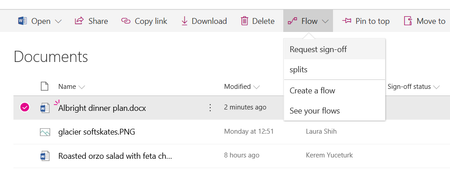
We are happy to announce a new feature in SharePoint called "Request sign-off". The goal is to provide you an easy way to send an item for approval to someone else. This feature enables an open approval process that allows you to easily record whether or not a document or list item was approved or not. There is no setup required. Request sign-off makes use of SharePoint's integration with Microsoft Flow. You can use it by selecting a file or list item (but not a folder), and then pulling down the Flow menu in the modern library or list UI, and selecting "Request sign-off". This flow will appear alongside any other custom flow that you or others may have added to the library. Once it is invoked, Request sign-off will create a new text column in your library called "Sign-off status". This column will record the state of your request. It works just like any other text column, you can sort, filter or group by it to organize your library. On invocation, this will tell you that it will send an approval request on your behalf, and ask your consent. Once this is provided, you can pick one or more approvers, and write a message to them for your approval request. If you add more than one approver, any one of them can approve your request: The person you sent the approval to will receive an approval request. This will be an actionable message on clients that support it (meaning you can approve it directly from within Outlook). The approver can also provide some comments along with their decision. There will also be a link included that lets the approver view the item in question: The sign-off status column is then updated with the decision, and the person who sent the approval request will receive an email with the comments: By saving you the trouble of setting up a flow and creating a new column to track status, we hope that this feature will make it easy to add a lightweight approval process to your libraries and lists. We expect this feature to start rolling out to our customers in targeted release (previously called first release) after April 9. Barring any issues we will continue to roll it out to the rest of our customers in two phases late April and early May.
Pulling URLs from infinite scroll SharePoint page
I'm trying to put together a list of articles and their URL from a corporate intranet that is built on SharePoint. These articles are displayed on pages titled with the name of each department followed by news -- so "Department A News", "Department B News", etc. The pages where they're shown are infinite scroll. Only a few items are shown initially and then more articles are shown as you scroll down until eventually all articles are shown. The URL for the page with the infinite scroll all have the following format: https://<domain>.sharepoint.com/sites/<site>/_layouts/15/news.aspx?newsSource=3&instanceId=xxxxxxxx-xxxx-xxxx-xxxx-xxxxxxxxxxxx&webPartId=xxxxxxxx-xxxx-xxxx-xxxx-xxxxxxxxxxxx&serverRelativeUrl=%2Fsites%2F<site>&pagesListId=xxxxxxxx-xxxx-xxxx-xxxx-xxxxxxxxxxxx Looking through the URL, it appears to have the following IDs built in: instanceId webPartId serverRelativeUrl pagesListId I hoped the articles were just a list and that I could use pagesListId to grab them, but I got a "Enter a valid integer." error when I tried using "Get item" with the pagesListId. I tried using "Send an HTTP request to SharePoint" using the full URL in the uri like: _api/search/query?querytext='path: https://<domain>.sharepoint.com/sites/<site>/_layouts/15/news.aspx?newsSource=3&instanceId=xxxxxxxx-xxxx-xxxx-xxxx-xxxxxxxxxxxx&webPartId=xxxxxxxx-xxxx-xxxx-xxxx-xxxxxxxxxxxx&serverRelativeUrl=%2Fsites%2F<site>&pagesListId=xxxxxxxx-xxxx-xxxx-xxxx-xxxxxxxxxxxx' That gave me an error that read "The query string "querytext" is missing or invalid." Any idea how to pull from these kinds of SharePoint sites?
List index that resets annually.
Hello, I am new to using Microsoft lists, but I am trying to make a better test request system. Each of our test reports are labeled by the following: "GTLB"-YR-index. The index resets every year. For example, the 18th test request we receive in 2021 will be labeled as GTLB-21-18. When 2022 rolls around, I want this list to automatically create the test-id and call it GTLB-22-01. Is there a way I can do this with Microsoft flow, as it doesn't look to be possible to refer to another row in the list within the actual list application. Additionally, we would like to keep the global ID (just called ID and automatically created and populated by sharepoint/list) and have it be visible in another column, in case we want to see how many tests we ran total, and to just keep a unique identifier.
Flow to automate email to user in a list
I'm trying to do something which I really feel shouldn't be that difficult. I have an MS lists page with two columns. One contains users in my organisation (it's not just their name in basic text - it is checked against their active directory record). The other contains a date which they will be on call. What I want to do is use flows to automate an email to be sent to the user when the date assigned to them is reached. Basically, notify them they are on call. Any help much appreciated! ThanksSolved
MS Lists approval status column formatting when browser language changes
Dear all, I've created rules to format the approval status column, but when I've changed the browser language the formatting rules have don't worked correctly. I've noted that the Json created uses the value of the element, but it changes when the language change. How can I solve the problem? Thanks for your help
Send image from SharePoint documents to specific Lists item.
I'm currently in the middle of creating an Asset Tracker using PowerApps. I'm aiming to have the app work as so: Users are able to submit a form which creates an Item in SharePoint Lists, once that form is submitted the app then takes you to a new page where a user can snap a picture of the device, and then send that photo off to SP using Flow (DataUriToBinary), and that photo is automatically added to the Lists Item that the user just created using the PowerApp. So far, we have the forms being submitted successfully, and the picture being snapped of the device is ending up in a SharePoint document store. I am struggling to find a way to get that image from the SP library sent over to the correct List Item, is this something that's possible? Thanks in advance.
Headers doesn't update when exporting to Excel
Hello, guys! So, i have a List on Sharepoint (also MS Teams) which i use to register some user infos. I have headers like LOCALIZATION, NAME, ID, COUNTRY, EMAIL, etc. But, after i changed some of the headers, when i export the list to Excel (it downloads as a query file), it shows other headers entirely different on it. I tried to refresh many times and it doesn't update. Can someone help?Set values for Managed Metadata (aka Taxonomy) columns in PowerApps and Flow! (First Release)
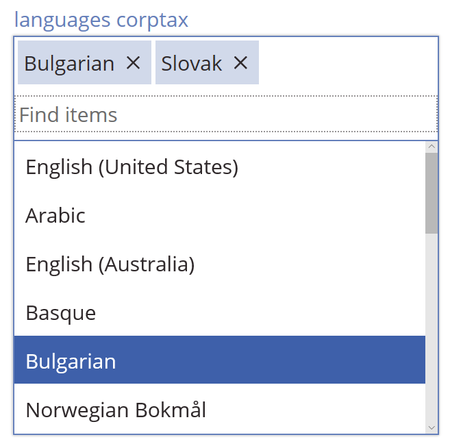
Hi everyone, As of today, you will be able to set the values of your managed metadata columns (sometimes also called taxonomy columns) in PowerApps (for both multi-value and single value) and in Flow (single value for now, but multi-value coming soon...) Here's a sample multi-value taxonomy column that was tied to a termset for languages. We are not fully all the way there: the default values are not yet showing up if they are set, and we don't yet let you disambiguate between different paths while you are typing, but we think this is a great net new add for our customers who love and use the managed metadata columns. Please give it a try, and let us know your feedback. In your First Release tenant, you can create a new app, or custom forms, or go to an existing app and refresh the schema to get the new columns. We expect to start rolling out to Production in the last week of November if we don't hit any blocking issues.
Updates from one list applied to another list (multiple fields)
Hi I have two lists - the first is the master list, the second has 4-5 columns of the same data. Is there a way to make updates to the first list and have them repeat on the second list? I have a matching value for each item across each list. But the updates could be to all the fields and I don't just have one set value - I have around 100. For example - Master List Name Surname Room Pool Notes John Smith A3 Barclay 4 Words, words, words The data above is already on List 2, but if the room, pool or notes were updated in the Master List, is there a way to "copy" that to List 2? Thanks for any help!