getting started
300 TopicsCopilot Chat vsus. Microsoft 365 Copilot. What's the difference?
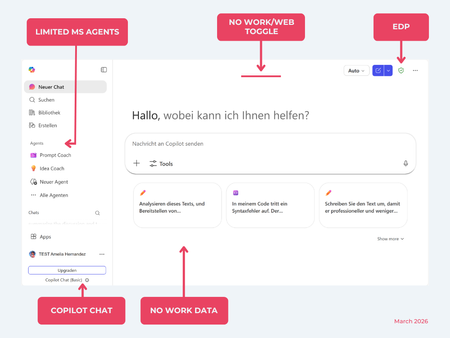
While their names sound similar at first glance, Microsoft 365 Copilot and Microsoft 365 Copilot Chat, they differ in several aspects. And more importantly: one is built on top of the other. What is Copilot Chat (Basic)? First things first. Microsoft 365 Copilot Chat is often simply called Copilot Chat. Copilot Chat (Basic) generates answers based on web content, while Microsoft 365 Copilot (Premium) is also grounded on users' data, like emails, meetings, files, and more. Since early 2025, Microsoft 365 Copilot Chat has been available to all users in organizations, becoming the entry point to AI assistance for many organizations. Copilot Chat (Basic) is the foundational Copilot experience available at no extra cost for everyone with an eligible Microsoft 365 plan, including: Microsoft 365 E3 / E5 Microsoft 365 A3 / A5 Microsoft 365 Business Standard & Business Premium Copilot Chat (Basic) is secured, compliant, and it does not required the full Copilot add-on license. Copilot Chat (Basic) is able to ground responses on: Public web content. Content explicitly shared or work data manually uploaded to the chat by the user. On-screen content or content displayed on-screen in apps like Outlook, Word, Excel, PowerPoint, and OneNote. When it comes to agents, Copilot Chat (Basic) offers these features: You can create your own declarative agents grounded on public web content with Agent Builder. You can use agents built by your org grounded on organizational data with the pay-as-you-go method. There are Microsoft prebuilt agents available like Prompt Coach, however Microsoft premium prebuilt agents like Researcher or Analyst are not included. The screenshot below shows how Copilot Chat looks and highlights its main capabilities. Note the Upgrade button, meaning this is not Microsoft 365 Copilot, but the Copilot Chat (Basic) experience. Note that EDP (Enterprise Data Protection) is available in Copilot Chat (Basic). What is Microsoft 365 Copilot (Premium)? Microsoft 365 Copilot (Premium) is a paid add-on license that builds on top of Copilot Chat and unlocks Copilot's full power. It is available for selected Microsoft 365 plans, including: Microsoft 365 E3 / E5 Microsoft 365 A3 / A5 Microsoft 365 Business Standard & Business Premium With a Microsoft 365 Copilot license, users get everything Copilot Chat (Basic) offers, plus much more: Data grounding: Microsoft 365 Copilot (Premium) includes Copilot Chat grounded on web and/or on user's Microsoft 365 data like emails, meetings, chats, and documents. Office apps: It integrates deeply into Microsoft 365 apps like Outlook, Teams, Word, Excel, and more. The integration includes features like Edit with Copilot allowing Copilot to adjust live your documents or email based on your prompts. Custom agents: It brings the capability to create your own declarative agents grounded in organizational data and/or web data. You can create agent either using Agent Builder or Copilot Studio. MS prebuilt agents: Premium prebuilt agents like Researcher and Analyst are included in Microsoft 365 Copilot (Premium). The screenshot below shows the Copilot chat experience for users who have a Microsoft 365 Copilot license. Note that EDP or Enterprise Data Protection also applies here How can I access Microsoft 365 Copilot Chat? Today, Copilot Chat is accessible via https://m365.cloud.microsoft or https://copilot.cloud.microsoft using your Entra ID (work or school account). One important difference in day-to-day experience: Users with a Microsoft 365 Copilot license typically see Copilot prominently surfaced across Microsoft 365 apps. Users with Copilot Chat only may not see it pinned by default on the Microsoft 365 home page. To improve discoverability, Microsoft 365 Copilot administrators can pin Copilot Chat via the Microsoft 365 admin center, ensuring that users can easily access it without friction. Especially convenient is that if you use the M365 Copilot Chat app on Windows, you can open Copilot using the keyboard shortcut Ctrl + C. What’s the difference? The differences between Copilot Chat and Microsoft 365 Copilot mainly come down to: Licensing Data grounding (web-only vs. personal work data) Integration depth within Microsoft 365 apps I’ve listed the key differences in the comparison below. 👇Solved395Views4likes13CommentsAgentOps: The Missing Layer Between DevOps and AIOps
In the last decade, the way we build and operate software has transformed dramatically. DevOps broke down the walls between development and operations, enabling faster delivery, continuous integration, and scalable infrastructure. Then came AIOps, promising to harness artificial intelligence to monitor, analyze, and automate IT operations at scale. https://dellenny.com/agentops-the-missing-layer-between-devops-and-aiops/24Views0likes0CommentsCost Optimization for Copilot and AI Agents on Azure
Artificial Intelligence is no longer experimental it’s operational. Organizations are rapidly deploying copilots, AI agents, and generative AI solutions on Azure to drive productivity, automate workflows, and unlock insights. But there’s a reality that quickly follows every successful deployment: cost becomes a concern. https://dellenny.com/cost-optimization-for-copilot-and-ai-agents-on-azure/24Views0likes0CommentsInside Microsoft 365 Copilot: How It Actually Works
An architect’s perspective on grounding, orchestration, and the real engine behind AI productivity If you’ve used Microsoft 365 Copilot, you’ve probably had that moment: “How is this thing actually doing all of this?” It reads your emails, summarizes meetings, drafts documents, and somehow feels aware of your work context. But beneath the polished UX lies a system that’s far more structured—and deliberate—than a simple chatbot. https://dellenny.com/inside-microsoft-365-copilot-how-it-actually-works/30Views1like0CommentsCopilot Studio vs Azure AI Agents: What Should You Use?
As a solution architect, I’ve seen a recurring pattern in enterprise AI discussions: teams jump into building “AI agents” without first deciding what kind of platform they actually need. That’s where confusion often begins especially when comparing Microsoft Copilot Studio and Azure-based custom AI agents (via Azure AI Foundry / Azure AI Studio). https://dellenny.com/copilot-studio-vs-azure-ai-agents-what-should-you-use/28Views0likes0CommentsGovernance of AI Agents with Microsoft Entra & Agent 365
As organizations accelerate their adoption of AI-driven automation, the emergence of autonomous and semi-autonomous AI agents is reshaping how work gets done. These agents capable of making decisions, executing workflows, and interacting with enterprise systems introduce a new layer of complexity in identity, access, compliance, and lifecycle management. https://dellenny.com/governance-of-ai-agents-with-microsoft-entra-agent-365/75Views0likes1CommentReal Use Cases: 5 Agentic AI Workflows That Actually Save Time
Agentic AI has quickly moved from buzzword to business tool but not every implementation delivers real value. Many organizations experiment with AI agents only to find themselves drowning in complexity without measurable return. The difference between hype and impact comes down to one thing: practical workflows that save time, reduce manual effort, and produce clear ROI. https://dellenny.com/real-use-cases-5-agentic-ai-workflows-that-actually-save-time/188Views0likes1CommentAgentic AI in Microsoft Teams: The Future of Workplace Automation (Technical Deep Dive)
Over the years, enterprise collaboration has steadily evolved—from siloed communication tools to unified digital workspaces. Today, as a Solution Architect, I see organizations standing at the edge of a new transformation: Agentic AI embedded directly into collaboration platforms like Microsoft Teams. https://dellenny.com/agentic-ai-in-microsoft-teams-the-future-of-workplace-automation-technical-deep-dive/64Views0likes0CommentsReference Architecture for Agentic AI in Enterprise IT
Enterprise IT is entering a new era where artificial intelligence is no longer just a passive tool that analyzes data or generates content. Instead, we are witnessing the rise of Agentic AI systems that can autonomously plan, reason, act, and continuously improve toward defined goals. For organizations aiming to scale this capability responsibly, a well-defined reference architecture becomes critical. https://dellenny.com/reference-architecture-for-agentic-ai-in-enterprise-it/51Views1like0CommentsHow to become a Frontier 💪
If the Workflows agent sounds like a mystery to you, or you doubt of the existence of the =Copilot() function in Excel at all, then keep reading becasue this tip may be for you! Features like the =Copilot() function in Excel, the Workflows agent, or the Learning agent are part of the Frontier program. But what's the Frontier program and how to join it, this what this post is all about. What's the Frontier program? The Frontier program can help you get early-taste of Microsoft 365 Copilot features before they go public. If you care about Copilot new features, and want to help new features improve, then the Frontier program is for your. It is great stuff to give feedback and help Copilot product development. 💪 Here's Microsoft official definition of the program: The new Frontier program gives customers early access to experimental Microsoft 365 Copilot innovations in their own environment. Frontier agents are previews designed for evaluation and feedback. Features may change as development continues. How to join Frontier program? Follow the instructions below to turn it on: Web apps Desktop apps And Agent store Step 1: Go to M365 Admin Center Log in as M365 Global Admin Click on Copilot and then Settings Step 2: Search for "Frontier" Search for "Frontier" Click on Copilot Frontier Step 3: Pick your choice Select the "Web apps" tab to enable for your web apps Select "Specific users" to add the security group you want to enable the Copilot Frontier for Want to enable on desktop apps too? Step 4: Select Desktop and mobile apps Select the "Desktop and mobile apps" tab to enable for desktop Follow the link to find out the deployment option that best fit your environment ( In my environment, adding a reg key worked best How do you know what's new in Frontier? Want to find out the latest Frontier innovations? In this page you can find it: Frontier program – Microsoft AdoptionSolved449Views2likes2Comments