feedback
129 Topics
Repeated prompt "Some information has changed" when reconnecting to mobile hotspot
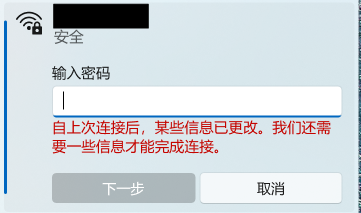
Problem Description When attempting to reconnect Windows 11 to a personal mobile hotspot, the connection frequently fails to connect automatically. Instead, Windows displays the following prompt: "Some information has changed since the last time you connected. We need additional information to complete the connection." (自上次连接后,某些信息已更改。我们还需要一些信息才能完成连接。) The system forces re-entering the Wi-Fi security key every time, even though the SSID, password, and security type on the phone have not changed. Steps to Reproduce Turn on the personal mobile hotspot on the smartphone (WPA3-Personal). Connect the Windows PC to the hotspot, check "Connect", and verify successful connection. Disconnect or disable the mobile hotspot. Turn on the hotspot again later and try to reconnect from Windows. Windows fails the handshake and displays the "information has changed" prompt requiring manual password entry. Observations & Potential Causes Forgetting the network via `Settings > Network & internet > Wi-Fi > Manage known networks` temporarily resolves the issue for one session, but it recurs on subsequent reconnections. Device & OS Environment OS Version: Windows 11 Insider Preview (Build 26340.9577) Network Adapter: [Intel Wi-Fi 6E AX210 160MHz] Hotspot Device: Android 16 Smartphone Hotspot WPA3-Personal 5GHz101Views0likes3Comments
Why Metro design should make a grand return
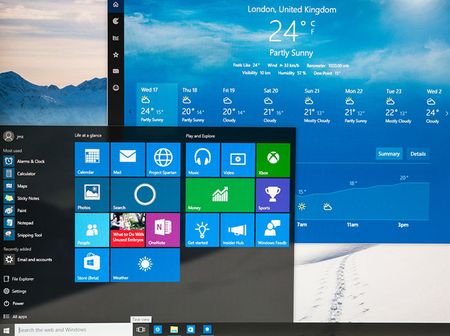
Metro UI wasn’t just a design language. It was a declaration. It respected motion, space, clarity, and user autonomy. It gave us live tiles that pulsed with relevance, panoramic pivots that guided flow, semantic zoom that revealed structure, and full-screen hubs that anchored experience. It was unapologetically modern, minimal, and meaningful. Then came the drift. Fluent UI buried Metro under acrylic, chrome, and overlays. It softened the edges, blurred the motion, and diluted the clarity. What was once a bold interface became ornamental. Metro was never about decoration—it was about discipline. Im still using Metro UI in my projects, not because I need too, because i like how it looks, but you created fluent design, that ruined it all. Microsoft, you knew Metro was good. You launched it with pride. You made it the face of Windows Phone, Zune, Xbox, and Windows 8. You called it “authentically digital.” You were right. So stop burying it. Stop apologizing for it. Stop pretending Fluent is a replacement. It’s not. Bring back Metro UI: As a first-class design option With full support for live tiles, semantic zoom, and panoramic navigation Without overlays, blur, or ornamental drift Not as nostalgia. As correction. Metro was clarity. Metro was discipline. Metro was good. Let it speak again.1.7KViews3likes8CommentsWhere to obtain Windows XP in 2025?
I am putting together a retro PC from the XP era and haven't used XP in at least 10 years. I have since tossed all my OS discs, but also know XP is insecure to use now. I heard you can install an unofficial SP4 to get it much safer though. Anyway, where is a legit/"safe" place to get an XP installer or ISO that is "secure" that isn't going to be full of malware? I am just trying to run old benchmarks and a handful of games, but would like to be online. Any advice from those running XP on retro PCs welcome, this is my first one!31KViews2likes10Comments
A Vision for Windows 12: Familiar Power Meets Modern Innovation
Dear Microsoft Windows Development Team and Community Hub, With the inevitable speculation around Windows 12, I wanted to share a comprehensive vision for the next iteration of Windows. The goal is to blend the best elements of past versions with modern needs, creating a truly powerful and personalizable operating system. Here’s what many users like myself are hoping to see: 1. A Revitalized Start Menu & Screen Fresh, Resizable Layout: A clearly divided Start Menu with dedicated zones: Account Area (top-left), Shortcut Area (far left for common folders), List Area (pinned, most-used, and suggested apps), and a Pinned Tiles Area (right side, four-column layout). It should be resizable by dragging its edges. Full-Screen Start Screen Option: A return of the full-screen Start that combines the easy-to-browse list from Windows 7 with the dynamic Windows 8.1-style Live Tiles, supporting both horizontal and vertical arrangements. Enhanced Tile Flexibility: Tiles in five sizes (small, medium, long, wide, large, tall) with smooth resizing animations. New customization options should include colorful, gradient, light, dark, transparent, and semi-transparent tones. Migration Friendly: When upgrading from Windows 7, 8.1, 10, or 11, all pinned apps and websites should automatically migrate. Copilot Integration: A dedicated, prominent Copilot Tile to highlight the AI assistant's role, perhaps with a new rainbow effect for visual flair. 2. A More Functional Taskbar & Search Comprehensive Taskbar: Featuring the Cortana icon, mobile devices, Start, Search, Task View, Chat, applications, and the system tray. Prominent Search Box: The search box should be more prominent, changing from a circle to a rectangular shape, serving as a stronger entry point. Flexible Search Menu: The search interface should be highly adjustable and consistent with the new Start menu's style. 3. Personalized User Experience Lock Screen Customization: Options for left or center-aligned date and time. New photo effects that highlight the main subject, allowing it to overlay the time. Windows Hello: Facial recognition that works while wearing a mask. Enhanced Widgets: Desktop Pinning: Widgets should be pinnable anywhere on the desktop, not just in a sidebar. Full-Screen Widgets Board: A full-screen mode with a widget panel on the left and news/feeds on the right, supporting up to six columns. New Widgets: Introduction of a 'Calendar', 'People', 'Microsoft Edge', 'Cortana Suggestions', and a dedicated 'Microsoft Store' widget. 4. Peak Productivity & Multitasking Task View & Virtual Desktops: A return to the mature Windows 10 experience, allowing windows to be dragged directly to other desktops in Task View. Timeline Returns: The Timeline feature should come back, including cross-device history. Classic Alt+Tab: The Windows 10 Alt+Tab window switcher experience should be restored. Supercharged Snap Assist: Enhanced Snap Layouts supporting up to 8 segments for large screens, with specific, intelligent layouts for ultrawide (21:9, 32:9) monitors. 5. Application & Ecosystem Evolution App Updates: New versions of Mail, Calendar, and People. The new Outlook app should fully support popular third-party email services like QQ, 163, and 126. A New Cortana: Multilingual support with the return of consumer skills (music control, smart home, third-party skills). It could be offered in two visual forms and power the 'Cortana Suggestions' widget. Screenshot Tool Upgrade: Should support full-screen recording. Media Player: The return of an appearance selector and support for live tiles. Microsoft Store Revamp: UWP Return: High-quality UWP and classic Metro apps should return to the store, with PWAs transitioning to UWP. Gaming Expansion: Addition of dedicated PlayStation and Nintendo Switch apps, including a Nintendo game section. 6. Visual & Nostalgic Enhancements Refined Aesthetics: Improved window transparency with a new glass effect, rounded rectangle system avatars, and a new top bar (weather, system tray, time). Dynamic wallpaper effects would be a welcome addition. Keep the Win11 Sound: The Windows 11 startup sound is great and should be retained. The "Bold Strategy" – Legacy Feature Return: To satisfy power users and nostalgia, consider the large-scale return of beloved features like MSN apps, Windows 7 Desktop Gadgets, Windows Media Center, Groove Music, HomeGroup, a significantly enhanced Tablet Mode, and Windows Ink Workspace. 7. Hardware, Compatibility & Core System Broad Controller Support: Native compatibility with DualShock 4/5, Joy-Con, and others. Android Subsystem (WSA) Return: WSA should return with a focus on fixing previous pain points, especially full-screen landscape app support. Separated Notification Center: The Notification Center and Calendar quick actions should be separated for a cleaner interface. "Next-Gen PC" Promise: Windows 12 should deliver on larger storage, longer battery life, more power, and enhanced security/stability. Enhanced Backup & Transfer: Windows Backup should expand to more regions and add support for backing up personal files and apps to external drives, including migration from old PCs or to new hard drives. 8. Core Versioning & Hardware Requirements A Fresh Start: Version 26H1, with an internal OS version reset to 12.0.0.0. Tiered Editions: Windows 12e (for education, 2GB RAM), Windows 12 (mainstream, 4GB RAM, removing strict TPM restrictions), and Windows 12 Ultra (flagship, 8GB RAM, unlocking all AI and performance features). Extensive Free Upgrade Path: A critical strategy, offering free upgrades from Windows 11 (including SE), Windows 10 (including S), Windows 8/8.1 (including RT), and Windows 7. Doubled Support Lifecycle: Home/Pro/Workstation: 24 months → 48 months. Enterprise/Education/IoT: 36 months → 72 months. In summary, we envision a Windows 12 that isn't afraid to learn from its rich history while pushing forward with modern innovation. It should be a system that respects user choice, empowers productivity, and welcomes everyone from legacy users to those with the latest hardware. If you like this vision and want to support it, you can upvote it here: https://aka.ms/AAylqhw Thank you for considering this feedback. Sincerely, A Passionate Windows User10KViews1like10Comments
CRITICAL REGRESSION: Build 26200 broke Mic, Game FPS & Cursors!
System Specifications: Device: Acer Aspire 5 A515-57 Memory: 16GB RAM Storage: 2x 250GB SSDs OS Build: Windows Insider Preview Build 26200 (KB5120998) Edição Windows 11 Home Single Language Versão 25H2 Instalado em 18/07/2026 Compilação do SO 26200.9278 Pacote de recursos Pacote de Experiência de Recursos do Windows 1000.26100.360.0 Issue 1: Integrated Microphone Failure Immediately after installing this build, the integrated microphone completely stopped working and disappeared from the system inputs. The audio jack still accepts headset microphones, but the internal laptop mic is dead and undetected. Issue 2: Severe Performance/FPS Drop in Gaming Game performance has been severely crippled. In Dragon Quest X S Definitive Edition (Steam), I consistently reached 40 to 50 FPS prior to this update. Post-update, the game is heavily bottlenecked, only reaching 20 to 30 FPS. This feels like a major regression in GPU scheduling, driver compatibility, or background AI/VBS overhead introduced in this preview build. Issue 3: Custom Cursors (.cur, .ani, .ini) Blocked Applying custom cursors manually no longer works. Even after moving the custom cursor files directly into the official C:\Windows\Cursors directory, the system refuses to apply .ini, .ani, or .cur files. This feature worked perfectly prior to the update. Please investigate and fix these regressions in the 26200 flight. Attached are screenshots demonstrating the update build and the issues.425Views0likes2Comments[SOLVED] Memory Integrity bounces back to "turned off" state after Windows restart - fast ring 19536
This is an old post and the issue is no longer relevant. This has been happening since a couple of builds ago as well. I turn on the Memory Integrity in Core isolation section of Windows Defender, then after a restart or two, I go check again and see it's turned off. it usually happens when I uninstall a program that needs to be restarted. but it also happens when I uninstall a software that does Not need Windows restart to finish uninstall process. https://aka.ms/AA6xajf34KViews3likes23Comments
Memory Integrity Switches Back Off
Hello! I’ve had this problem for about 3 days now since valorant needs HVCI to be able to launch i noticed everytime i turn the setting on it returns back to off mode. Heres all the steps i’ve done beforehand Reset Pc Turned on VTX Turned on safe boot Turned on IOMMU Disabled Hibernation mode Followed steps from other forums. Whenever i would try to enable it through regedit it would cause my pc to go through a repair loop and i’d have to turn off Virtualization In BIOS im thinking the problem is with one of my files such as an intel driver. I’d appreciate some help please and thank you!2.1KViews1like5Comments