.net
38 Topics.NET 10 and Memory: Less Heap, Smarter GC, Faster Apps
As Microsoft steps into the Ignite 2025 era of “AI-first everything” across Azure, Foundry, and cloud-native workloads, .NET quietly got its own big upgrade: .NET 10, a new long-term support (LTS) release and the official successor to .NET 9, supported for three years. The release was celebrated at .NET Conf 2025 in November, where Microsoft shipped .NET 10 alongside Visual Studio 2026 and highlighted performance, memory efficiency and cloud-readiness as core pillars of the platform. A few days later at Microsoft Ignite 2025 in San Francisco, the story zoomed out: AI agents, Azure-hosted workloads, and App Service / Functions all moved forward with first-class .NET 10 support, positioning this runtime as the default foundation for modern cloud and AI solutions. I’m Hazem Ali, a Microsoft MVP, Principal AI & ML Engineer / Architect, and Founder & CEO of Skytells. In this article, I’ll walk through what .NET 10 actually changes in memory, heap, and stack behavior—and why that matters if you’re building high-throughput APIs, AI agents, or cloud-native services in the post-Ignite world. At a high level, .NET 10 does three big things for memory: Allocates more objects on the stack instead of the heap. Teaches the JIT to understand more “hidden” allocations (delegates, spans, small arrays). Leans on a smarter GC mode (DATAS) that adapts heap size to your app instead of your machine. Let’s unpack that in plain language. 1. Heap vs Stack in 60 Seconds Quick mental model: Stack Used for short-lived data. Allocation is extremely fast — often just advancing a pointer. Memory is released automatically when the function returns. Very cache-friendly due to tight, contiguous layout. Heap Used for long-lived or shared objects. Allocation is slower and requires runtime management. Objects are tracked by the garbage collector (GC) in managed runtimes. Creating too many short-lived objects on the heap increases GC pressure, which can lead to pauses and more cache misses. So any time the runtime can say: “This object definitely dies when this method returns” …it can put it on the stack instead, and the GC never has to care. .NET 10’s main memory trick is expanding how often it can safely do that. 2. From Heap to Stack: .NET 10 Gets Serious About Escape Analysis The JIT in .NET 10 spends more effort answering one question: “Does this object escape the current method?” If the answer is “no”, it can be stack-allocated. This is called escape analysis, and .NET 10 pushes it much further than .NET 9. 2.1 Delegates and Lambdas That Don’t Leak Consider this simple closure: int SumTwice(int y) { Func<int, int=""> addY = x => x + y; return DoubleResult(addY, y); static int DoubleResult(Func<int, int=""> f, int v) => f(v) * 2; }</int,></int,> The C# compiler turns that into: A hidden closure class with a field y . A delegate object pointing at a method on that closure. In .NET 9, both of these lived on the heap. In .NET 10, if the JIT can inline DoubleResult and prove the delegate never escapes the method, the delegate object is stack-allocated instead. Benchmarks in the official performance blog show: ~3× faster for this pattern ~70% fewer bytes allocated (only the closure remains on the heap) You don’t change the code; the JIT just stops paying the “lambda tax” as often. 2.2 Small Arrays of Value Types on the Stack .NET 10 adds the ability to stack-allocate small, fixed-size arrays of value types (that don’t hold GC references) when they clearly don’t outlive the method. Example from the official docs: static void Sum() { int[] numbers = { 1, 2, 3 }; int sum = 0; for (int i = 0; i < numbers.Length; i++) sum += numbers[i]; Console.WriteLine(sum); } The runtime article explicitly states that numbers is now stack-allocated in this scenario, because: The size is known at compile time ( int[3] ). The array never escapes the method. Result: no heap allocation for that small buffer, and one less thing for the GC to track. 2.3 Small Arrays of Reference Types Historically, arrays of reference types ( string[] , object[] , etc.) have always been heap allocations in .NET, and this remains true in .NET 10. The GC must track the references stored in these arrays, which makes stack allocation impossible. However, .NET 10 significantly reduces the cost of using small ref-type arrays by improving escape analysis around the patterns that create and consume them. While the array itself still lives on the heap, many of the associated allocations that previously accompanied these patterns can now be eliminated entirely. Example: static void Print() { string[] words = { "Hello", "World!" }; foreach (var s in words) Console.WriteLine(s); } In .NET 9, using a small string[] like this typically incurred extra hidden allocations (iterator objects, closure artifacts, helper frames). In .NET 10, if the JIT can prove the code is fully local and non-escaping: Iterator-related allocations can be removed, Delegate and closure helpers may be stack-allocated or optimized away, The only remaining heap object is the array itself — with no additional GC noise. A similar pattern appears in the performance blog’s benchmark: [Benchmark] public void Test() { Process(new string[] { "a", "b", "c" }); static void Process(string[] inputs) { foreach (string input in inputs) Use(input); static void Use(string s) { } } } On .NET 10, this benchmark shows zero additional heap allocations beyond the array itself, because the runtime eliminates the iterator and closure allocations that .NET 9 would create. The array still resides on the heap, but the overall memory footprint effectively drops to zero for the surrounding pattern. 2.4 Structs, Spans, and “Hidden” References .NET 10’s improved escape analysis can recognize when neither the struct nor its referenced array escapes, enabling the runtime to eliminate unnecessary heap allocations around the pattern. From the runtime docs: struct GCStruct { public int[] arr; } public static int Main() { int[] x = new int[10]; GCStruct y = new GCStruct() { arr = x }; return y.arr[0]; } In .NET 9, x is treated as escaping (through y ) and lives on the heap. In .NET 10, the JIT understands that neither y nor x escapes, so it can stack-allocate the array and associated data. This also benefits types like Span (which is just a struct with a reference and a length) and unlocks more cases where spans and small arrays become stack-only, not heap noise. 3. DATAS: The GC That Adapts to Your App Size On the GC side, the key concept is DATAS – Dynamic Adaptation To Application Sizes. Introduced as an opt-in mode in .NET 8. Enabled by default in .NET 9. By the time you land on .NET 10 LTS, DATAS is the default GC behavior for most apps, with more tuning and guidance from the GC team. 3.1 What DATAS Actually Does Official docs describe DATAS as a GC mode that: Adapts the heap size to the app’s memory requirements, Keeps the heap size roughly proportional to the live (long-lived) data size, Shrinks when the workload gets lighter and grows when it gets heavier. That’s different from classic Server GC, which: Assumes your process “owns” the machine, Grows the heap aggressively if there’s memory available, May end up with very different heap sizes depending on hardware. DATAS is especially targeted at bursty workloads and containerized apps where memory actually costs money and you might have many processes on the same node. 3.2 How You Control It From the GC configuration docs: DATAS can be toggled via: Environment variable: DOTNET_GCDynamicAdaptationMode=1 → enable DOTNET_GCDynamicAdaptationMode=0 → disable runtimeconfig.json : "System.GC.DynamicAdaptationMode": 1 or 0 MSBuild property: 1 But again: starting with .NET 9, it’s on by default, so in .NET 10 you typically only touch this if you have a very specific perf profile where DATAS isn’t a good fit. 4. What This Means for Your Apps Putting it together: You get fewer “silly” allocations for free .NET 10’s runtime now: Stack-allocates more delegates, closures, spans, and small arrays when they don’t escape. Reduces the abstraction penalty of idiomatic C# (LINQ, foreach , lambdas, etc.), so you don’t have to micro-optimize everything yourself. The GC behaves more like “pay for what you really use” With DATAS: Your heap won’t balloon just because you moved your app to a bigger SKU. Memory usage tracks live data instead of “whatever the machine has spare”. You still keep control when needed If you have: A latency-critical, always-hot service on a big dedicated machine, Or you’ve benchmarked and found DATAS not ideal for a specific scenario, …you can still flip DOTNET_GCDynamicAdaptationMode off and go back to classic Server GC semantics. 5. TL;DR for Busy Teams If you’re scanning this on a Friday: Upgrading from .NET 8 → 10 LTS gives you: Tuned DATAS GC as the default, Better JIT escape analysis, Stack-allocation of more small arrays and delegates. You don’t need to rewrite your code to benefit; just recompile and deploy. For critical services, benchmark with and without DATAS (toggle via DOTNET_GCDynamicAdaptationMode ) and pick what fits your SLOs. That’s the memory game-changer in .NET 10: the runtime quietly moves more stuff off the heap, while the GC learns to grow and shrink based on your real live data, not just the machine it’s sitting on.1.2KViews1like1Comment.NET MAUI on Linux with Visual Studio Code
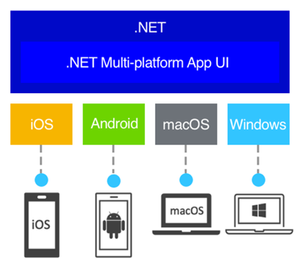
Explore Cross-Platform Development with .NET MAUI on Linux! Dive into the latest release of the .NET MAUI extension for Visual Studio Code, enabling Linux users to develop apps for Android, Windows, iOS, and macOS. This guide offers a step-by-step tutorial on setting up your Linux system for .NET MAUI development, including installation of essential tools and leveraging the C# Dev Kit extension. Whether you're working on Ubuntu or another Linux distribution, this article, enriched with a video walkthrough by Gerald Versluis, simplifies the journey to creating powerful, versatile applications with .NET MAUI.98KViews4likes12CommentsHow to Use SemanticKernel with OpenAI and Azure OpenAI in C#
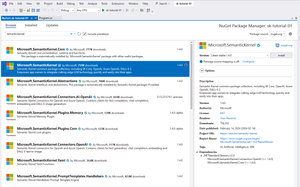
Discover the future of AI with Semantic Kernel for C# — your gateway to integrating cutting-edge language models. Jumpstart your projects with our easy-to-follow guides and examples. Get ready to elevate your applications to new heights!6.2KViews2likes1CommentSeamless File Management in ASP.NET Core: Azure Blob Storage with Configurable Local Mode
Setting up the Project Before we dive into the implementation, let’s set up the basic structure: Create an ASP.NET Core Web API project. Add the Azure.Storage.BlobsNuGet Package for Azure Blob Storage integration. Update appsettings.json to include storage configurations: "Storage": { "Mode": "Local", "BlobStorage": { "ConnectionString": "YourAzureBlobStorageConnectionString", "ContainerName": "YourContainerName" } } Mode: Determines whether to use Local or Azure Blob Storage. ConnectionString and ContainerName: Azure Blob Storage details. Implementing the Storage Service Here is a custom StorageService that handles file uploads, deletions, and downloads. It dynamically decides the storage location based on the configuration mode. public class StorageService : IStorageService { private readonly IConfiguration _configuration; private readonly IHttpContextAccessor _httpContextAccessor; private readonly string _storageMode; public StorageService(IConfiguration configuration, IHttpContextAccessor httpContextAccessor) { _configuration = configuration; _httpContextAccessor = httpContextAccessor; _storageMode = _configuration["Storage:Mode"]; } public async Task<string> UploadFile(IFormFile file) { try { if (_storageMode == "Local") { var uploads = Path.Combine(Directory.GetCurrentDirectory(), "wwwroot", "uploads"); var fileName = $"{DateTime.Now:MMddss}-{file.FileName}"; var filePath = Path.Combine(uploads, fileName); if (!Directory.Exists(uploads)) Directory.CreateDirectory(uploads); using (var fileStream = new FileStream(filePath, FileMode.Create)) { await file.CopyToAsync(fileStream); } var host = string.Format("{0}{1}", _httpContextAccessor.HttpContext!.Request.IsHttps ? "https://" : "http://", _httpContextAccessor.HttpContext.Request.Host); return $"{host}/uploads/{fileName}"; } else { var container = new BlobContainerClient(_configuration["Storage:BlobStorage:ConnectionString"], _configuration["Storage:BlobStorage:ContainerName"]); await container.CreateIfNotExistsAsync(PublicAccessType.Blob); var blob = container.GetBlobClient(file.FileName); using (var fileStream = file.OpenReadStream()) { await blob.UploadAsync(fileStream, new BlobHttpHeaders { ContentType = file.ContentType }); } return blob.Uri.ToString(); } } catch (Exception ex) { throw; } } public async Task<bool> DeleteFile(string fileName) { try { if (_storageMode == "Local") { var uploads = Path.Combine(Directory.GetCurrentDirectory(), "wwwroot", "uploads"); var filePath = Path.Combine(uploads, fileName); if (File.Exists(filePath)) { File.Delete(filePath); return true; } } else { var container = new BlobContainerClient(_configuration["Storage:BlobStorage:ConnectionString"],_configuration["Storage:BlobStorage:ContainerName"]); var blob = container.GetBlobClient(fileName); await blob.DeleteIfExistsAsync(); return true; } } catch (Exception ex) { return false; } } public byte[] DownloadFile(string fileName) { var blobServiceClient = new BlobServiceClient(_configuration["Storage:BlobStorage:ConnectionString"]); var container = blobServiceClient.GetBlobContainerClient(_configuration["Storage:BlobStorage:ContainerName"]); var blobClient = container.GetBlobClient(fileName); using (var memoryStream = new MemoryStream()) { blobClient.DownloadTo(memoryStream); return memoryStream.ToArray(); } } } Static File Middleware Add app.UseStaticFiles(); in Program.cs to serve local files. Usage Example Here’s how to use the UploadFile method in a Web API: public async Task<ServiceResponse<List<ProductPicture>>> UploadImages(List<IFormFile> images) { ServiceResponse<List<ProductPicture>> response = new(); try { List<ProductPicture> pictures = new(); foreach (var file in images) { var imageUrl = await _storageService.UploadFile(file); pictures.Add(new ProductPicture { Url = imageUrl, FileName = Path.GetFileName(imageUrl) }); } response.Data = pictures; } catch (Exception ex) { response.Success = false; response.Message = ex.Message; } return response; } Conclusion By integrating Azure Blob Storage and providing a configurable local storage mode, this approach ensures flexibility for both development and production environments. It reduces development friction while leveraging Azure’s scalability when deployed. For further details, explore the Azure Blob Storage Documentation and Quickstart: Azure Blob Storage.763Views0likes0CommentsA Guide to .NET Development Technologies
Enter the world of .NET — Microsoft’s cross-platform framework that serves as the backbone for a spectrum of powerful application development technologies. In this journey through the Microsoft ecosystem, we’ll explore the unique features of WinForms, WPF, WinUI, .NET MAUI, Blazor and ASP.NET Core APIs. Before we dive into the details of each technology, it’s important to note that the information here is gathered from trusted sources like Microsoft’s official Learn blogs, the .NET official website, and other reputable sources. Microsoft’s commitment to transparent and detailed documentation ensures that you’re getting accurate insights. WinForms Windows Forms is a UI framework for building Windows desktop apps. It provides one of the most productive ways to create desktop apps based on the visual designer provided in Visual Studio. Functionality such as drag-and-drop placement of visual controls makes it easy to build desktop apps. With Windows Forms, you develop graphically rich apps that are easy to deploy, update, and work while offline or while connected to the internet. Windows Forms apps can access the local hardware and file system of the computer where the app is running. To learn how to create a Windows Forms app, see Tutorial: Create a new WinForms app. Windows Presentation Foundation (WPF) A UI framework that is resolution-independent and uses a vector-based rendering engine, built to take advantage of modern graphics hardware. WPF provides a comprehensive set of application-development features that include Extensible Application Markup Language (XAML), controls, data binding, layout, 2D and 3D graphics, animation, styles, templates, documents, media, text, and typography. WPF is part of .NET, so you can build applications that incorporate other elements of the .NET API. If you want to create a skinned user interface, dynamically load some areas of the UI components from a web service, bind to XML or want to develop a desktop application which has the web-like navigation style, then WPF is a great choice. To learn how to create a WPF app, see Tutorial: Create a new WPF app. Windows UI Library (WinUI) The Windows UI Library (WinUI) is a native user experience (UX) framework for both Windows desktop and UWP applications. By incorporating the Fluent Design System into all experiences, controls, and styles, WinUI provides consistent, intuitive, and accessible experiences using the latest user interface (UI) patterns. With support for both desktop and UWP apps, you can build with WinUI from the ground up, or gradually migrate your existing MFC, WinForms, or WPF apps using familiar languages such as C++, C#, Visual Basic, and JavaScript (using React Native for Windows). At this time, there are two generations of the Windows UI Library (WinUI): WinUI 2 for UWP and WinUI 3 in the Windows App SDK. While both can be used in production-ready apps on Windows 10 and later, each have different development targets. .NET WAUI .NET Multi-platform App UI (MAUI) is an open-source, cross-platform framework for building Android, iOS, macOS, and Windows applications that leverage the native UI and services of each platform from a single .NET code base. Because .NET MAUI favors platform native experiences, it uses WinUI 3 and the Windows App SDK so apps get the latest user experience on Windows. This gives your apps access to everything you get with WinUI 3 plus the ability to reach to other platforms. .NET MAUI for Windows is a great choice if: You want to share as much .NET code as possible across mobile and desktop applications. You want to ship your application beyond Windows to other desktop and mobile targets with native platform experiences. You want to use C# and/or XAML for building cross-platform apps. You’re using Blazor for web development and wish to include all or part of that in a mobile or desktop application. For more information about .NET MAUI visit the link. Blazor Blazor is a web framework that is part of the ASP.NET Core framework. Blazor enables you to create progressive web apps using C#, having significantly less reliance on JavaScript that was necessary in previous versions of ASP.NET. This model is intended to make Blazor appealing to current C# developers, since they can focus less on JavaScript and write more in C# for full-stack development. In Blazor, both the server-side code (APIs, models, etc.) and the client are written in C#. This enables Blazor developers to do full-stack development all in .NET, though it’s also possible to write JavaScript if desired. Blazor Tutorials: Build your first web app with ASP.NET Core using Blazor. ASP.NET Core APIs In the realm of backend development, ASP.NET Core APIs take the spotlight. These APIs provide a robust foundation for building scalable and high-performance backend services, supporting modern application architectures such as microservices. With ASP.NET you use the same framework and patterns to build both web pages and services, side-by-side in the same project. Conclusion From WinForms to .NET MAUI, we’ve explored Microsoft’s tech universe. Each tool adds a unique touch to the toolkit. Whether you’re into desktop apps, web experiences, or robust backends, Microsoft’s ecosystem has you covered. But it doesn’t end here. Microsoft keeps evolving. Stay curious, explore, and find more on their official blogs, the .NET website, and other reliable sources. Resources: For further exploration and in-depth information, consider checking out these resources: .NET Official Website .NET Documentation985Views0likes0CommentsGetting Started with Entity Framework Core
Today, we’ll discover a method to integrate database support into an ASP.NET Core API using Entity Framework Core. A database stands as a vital component in many applications, serving as the storage and retrieval hub for data. Traditionally, developers had to convert C# data access code into SQL statements, a process open to errors and time-consuming. However, with Entity Framework Core, you can delegate the tasks to the framework, allowing you to concentrate on application development.822Views0likes0CommentsEarn your C# certification with new learning series
We are excited to announce our new C# for Certification email learning series. This eight-week email series is intended to provide you with all the resources you need to complete the Foundational C# Certification training and take the exam. The learning series will give you a structured learning path and new content to learn each week. 22KViews5likes5Comments
Building Intelligent Applications with Local RAG in .NET and Phi-3: A Hands-On Guide
Let's learn how to do Retrieval Augmented Generation (RAG) using local resources in .NET! In this post, we’ll show you how to combine the Phi-3 language model, Local Embeddings, and Semantic Kernel to create a RAG scenario.19KViews5likes13Comments