User Profile

RockB115
Copper Contributor
Joined Dec 22, 2020


User Widgets
Recent Discussions
Re: Using named range with FILTER function in data validation list (dynamic dropdown)
SergeiBaklan Thanks! This solution works. I was looking to avoid VBA since I was planning to upload this file to Onedrive and use Excel Online. This solution just made this possible. One very small correction in your XLOOKUP formula was to change "L10 to $L10" Also, the helper table =Table2[[Unit]:[Area]] is dynamic but the FILTER formula on the adjacent cell (N9) didn't update as size of helper table increased. =TRANSPOSE(FILTER(Table1[Name],(Table1[Unit]=L9)*(Table1[Area]=M9))) However, it was an easy fix. I just dragged down the formula to fill the entire N column. I suspect this somehow made my excel workbook slower. Saving takes a little more time now. But should be OK and everything works as excepted. Thanks Again!51KViews1like1CommentRe: Using named range with FILTER function in data validation list (dynamic dropdown)
Riny_van_Eekelen Here is the link to the file: https://drive.google.com/file/d/13Hp6ecu2ttYJTs94UgeCF7fFfv2nhxhP/view Take a look at the sheet "Employee Leave Tracker". There is a table called "Leave Tracker". I want all the rows of the table to have dynamic filtered dropdown for column "Employee Names". User selects values in first two columns "Unit" and "Area". The dropdown in the third column (Employee Names) should have a dynamic dropdown based on values selected in the previous two columns and this should work for all rows of the table. The master data for all the filtering is located in the sheet "List of Employees" in a table called "Employees" I was only able to get it working for only one row of the table.51KViews0likes0CommentsRe: Using named range with FILTER function in data validation list (dynamic dropdown)
Riny_van_Eekelen I tried this method, but it only works for single row. If you look at my table "Leave Tracker", I need the dynamic drop down to work for all rows of the table. Unfortunately, the dropdown for "Employee Name" column for rows 2 and beyond wont change irrespective of selections in "Unit" and "Area" columns. Only the first row is functional. Any suggestions on how this can be implemented to multiple rows?53KViews1like10CommentsUsing named range with FILTER function in data validation list (dynamic dropdown)
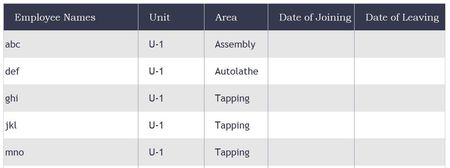
Hello, I am trying to use a named range as a data validation list but unsuccessfull do far. The named range is created using Excel's Name manager under Formulas Tab. The named range has a formula that filters a specific column of a table based on two criteria (AND condition). Here is the main table called "Employees" (see tblEmployees.jpg). It is located in a sheet called "List of Employees" In another sheet called "Employee Leave Tracker", I have a table called "Leave Tracker". The structure of the table is shown in image tblLeaveTracker.jpg The user selects "Unit" and "Area" (dropdowns using data list validation are already created), but in the thrird column (Employee Name), I want to display only the list of employees that belong to specific Unit and Area selected in the first and second column. For this, I used a simple filter function: FILTER(Employees[Employee Names],(Employees[Unit]=LeaveTracker[@Unit])*(Employees[Area]=LeaveTracker[@Area]),"Not Found") This formula works just fine. I can see the correct results when I use this formula in a cell outside the table. However, I want the dropdown in the third column (Employee Name) to be dynamic based on selection in the first two columns, so I thought of creating a named range using the above "FILTER" formula. I created a named range called "lstEmpNameDynamic". (see Named_Range.jpg) However, When i try to use this named range in the Data Validation List source, I get an error (see Error.jpg) How can I solve this? I need the dynamic dropdown to work for each row of the Leave Tracker table.Solved57KViews1like14Comments
Recent Blog Articles
No content to show