User Profile

davidbump
Copper Contributor
Joined Mar 25, 2019


User Widgets
Recent Discussions
Re: Import excel into existing list (with data already in it)
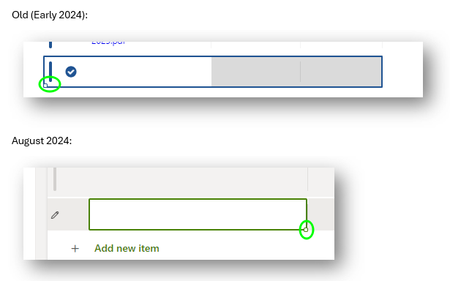
Username635 I just used this technique earlier today with several rows of text columns (including one multiple lines of text column), and it worked fine. It is tricky selecting the first empty cell after enabling edit in grid view, without getting the active cursor element there (which will result in the paste filling just that single cell with all of the data, as you're seeing). Since the recent changes to bring the Lists App visual improvements over to SPO lists, that seems less predictable than it used to be, where you could click on a very subtle, tiny square in the lower left corner, to the left of the select row icon. Actually, it looks like the select icon is gone entirely for the Add new item row, but there is a similar tiny square in the lower _right_ corner instead that appears to work reliably. My emphasis in green circles:4.1KViews1like0CommentsRe: New Teams - Backgrounds Folder
Some additional info, specifically answering the OP's question of where the Classic Teams backgrounds went. In my case, they did not get copied to the New Teams location mentioned above. However, as soon as I toggled the switch in New Teams to go back to Classic, the \Backgrounds\ folder was re-created in %appdata%\Microsoft\Teams, and it included all of the custom uploads, allowing me to copy those out. At least you could manually add those as backgrounds in New Teams (one by one) if you didn't want to use the fancy UUID automation--though that is a very useful link!210KViews0likes3CommentsRe: Import excel into existing list (with data already in it)
Patience is definitely called for. Also, a coworker used this method quite recently and found that if he switched to another tab in the same browser session, the tab where the paste operation was running timed out and only saved partial results. However, deleting all rows and retrying, but not changing tabs did work. I've gone above 600 with a _lot_ of columns and it worked, though it took nearly 10 minutes to sync and commit all the rows.6.1KViews0likes1CommentRe: Import excel into existing list (with data already in it)
Rebar, it's quirkier than I think it should be, but I've used it within the last month. I'm just using Edge (SharePoint stopped accepting connections from IE or Edge/IE-mode earlier this year), but Chrome should work as well. After switching to edit in grid mode, what I usually do is click in the add new item area to make that cell active, but if you see the "|" cursor, you then need to click anywhere else in blank space in the list, leaving the cell selected, but without the cursor actively displayed. Then paste the multi-row results from Excel (or similar) and it should work. Sometimes I have to click in and out a couple of times before it works.6.6KViews0likes3CommentsRe: Import excel into existing list (with data already in it)
It's great to see that you can paste multiple rows in without using IE/IE mode, esp. since SharePoint is going to stop accepting input from IE in early 2023. Here's a quirk I ran into with a list that has content management enabled and has two different content types: Initially I was getting an error for required fields from content type A, even when I had set the default new content type to B. As a workaround, I created a view that corresponded to all of the editable columns of content type B, but was getting an error that my view was missing required fields. As a test, I identified the required columns in content type A that did not also exist in B, and I set those to not required, and after a ctrl-F5 force refresh of the new view, I was able to import multiple rows with no issue. My plan is to import all rows of content type B, then switch the default content type back to A, then import all type A rows. I will also need to disable any required columns that only exist in type B for the import of the type A rows. This is a crude workaround to being unable to choose a content type when adding items in grid view. PowerAutomate would probably be the more elegant approach but sometimes quick and dirty > elegant for one-offs. For PowerAutomate, you could specify the ContentTypeID column, and get the right ID of the lists's sub-version of the site content type ID, found in the URL when in the "Edit All" mode of editing an item of the content type you want the ID for. For example: https://powerusers.microsoft.com/t5/Building-Power-Apps/How-to-pass-content-type-Id-from-PowerApps-to-SharePoint-List/td-p/437498.25KViews0likes0Comments
Recent Blog Articles
No content to show