User Profile

WilsonSu
 Microsoft
Joined Feb 28, 2019


User Widgets
Recent Discussions
Re: OneDrive for Business | Known folder silently redirection not work
NAMGuy Some ideas for your reference: a. KFM and silent sign in are two different functions. First of all, we need to ensure that the account login successfully, then KFM could be triggered no matter manual or registry key/GPO. b. OneDrive auto sign in needs the 'Silently sign in users to OneDrive sync app with their WIndows credentials' policy. However, as you disabled it, you need to sign out OneDrive in the machines first. Because OneDrive could store the credential, if we do not sign out, the OneDrive keeps using this credential until password changed. c. If we sign out the account, but still fail on sign in OneDrive with pop-up windows. It should be an Identity issue. Somehow the authentication process fail.6.1KViews0likes0CommentsRe: OneDrive for Business | Known folder silently redirection not work
JGwinnerTrio Ohh, it is a billing question. I am not sure about that, but I know F1/E3/E5, when you grant these three licenses to an account in your O365 AAD user, the account will auto-generate an OneDrive for business on this account. <Please mention it is never pointing to personal OneDrive.> Then, let me give you the exact scenario on silent sign-on GPO without PC Azure joined. The devices do not Azure AD joined, but AD joined. When a new user just on board, you could ask them to login <School and Work Account> in the system with their O365 (Azure AD) account. After restart, the auto-sign in GPO could work. (However, this step is not easier than login OneDrive directly) Otherwise, you could also make GPO which lets OneDrive become auto start application when to start PC. Then it will pop up login interface which ask user login when they first use PCs.22KViews0likes1CommentRe: OneDrive for Business | Known folder silently redirection not work
JGwinnerTrio Sorry for the bad experience. The issue is on the sequence. I should suggest you open an O365 ticket in the first place. Then you could do the GPO configuration with the support engineer in the right understanding. From my perspective, this GPO <Known folder silently redirection> as the title is based on the users have logged in their OneDrive for Business on their desktop. Or this GPO has no impact on anything. I checked the comments you left before in here, all in all, you should solve the <Silent Sign in>. As my former reply, it needs PC Azure joined. Meanwhile, please mention that it is OneDrive for Business, the users should log in to your tenant accounts' OneDrive, not personal. (In the process, you also input your tenant id, it could only match the corresponding users in this tenant.) After the users logging in their OneDrive, KFM GPO could take effect. In short, the symptom you met now is not only related to this OneDrive GPO, but the whole structure designed and some prerequisites for KFM GPO. I would suggest opening an O365 ticket to advise.22KViews0likes3CommentsRe: OneDrive for Business | Known folder silently redirection not work
JGwinner [HKLM\SOFTWARE\Policies\Microsoft\OneDrive]"KFMOptInWithWizard"="1111-2222-3333-4444" (number is your tenant ID, only the users in this tenant could take effect) https://docs.microsoft.com/en-us/onedrive/use-group-policy#KFMOptInWithWizard By default, it should have no registry inside this location until you have configured other OneDrive GPOs or key. KFM is not related to Azure Dir Sync and SSO. Normally, if the GPO take effect, when you sign in your O365 account in the devices' OneDrive, it will pop up the start backup interface.23KViews0likes0CommentsRe: OneDrive for Business | Known folder silently redirection not work
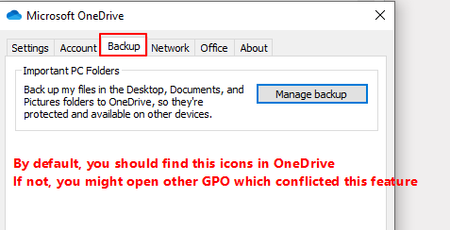
JGwinner Please refer to above response‘s screenshot. If you could not find 'Backup' tab in OneDrive settings, GPO is not taking effect. You need to try local registry for testing first. As the Doc I provided on last response, you could try registry on <Prompt KFM> first in your local device to see whether these KFM policies working in the device. Then go further to see GPOs.62KViews0likes7CommentsRe: OneDrive for Business | Known folder silently redirection not work
JGwinner For silent sign on, refer to following Document. https://docs.microsoft.com/en-us/onedrive/use-group-policy#SilentAccountConfig <users who are signed in on a PC that's joined to Azure AD can set up the sync client without entering their account credentials. > For KFM policies, it doesn't need Device Azure joined. But in your side, "Settings" doesn't show up 'Backup' as a icon as following screenshot. It means that this feature is not activated in this computer. I assume whether you have enable <Prevent users from redirecting their Windows known folders to their PC> [HKLM\SOFTWARE\Policies\Microsoft\OneDrive]"KFMBlockOptOut"="dword:00000001" However, first of all, you could try to use registry to activate it first, then test from GPO side. https://docs.microsoft.com/en-us/onedrive/use-group-policy#prompt-users-to-move-windows-known-folders-to-onedrive62KViews0likes9CommentsRe: OneDrive for Business | Known folder silently redirection not work
JGwinner Another thing to check is whether your OneDrive application has been the latest version and "Backup" tab has been shown in the 'settings' interface. If it is, the most of possibility is some conflicts between other GPOs. To get the silent sign on, it is better to make the devices both domain joined and azure joined. Or you could also log in O365 by <Access work or school account> in system setting. Then you will automatically log in in next restart. For Device Azure joined, you could refer to following document. https://docs.microsoft.com/en-us/azure/active-directory/devices/azureadjoin-plan62KViews0likes11CommentsRe: OneDrive for Business | Known folder silently redirection not work
JGwinner Hi John, it depends on which GPO you are using. For KFM related policies, it doesn't need <domain-joined device>. But <silently sign on> policy in OneDrive needs device Azure joined. Non silent redirection is corresponding to this GPO <Prompt users to move Windows known folders to OneDrive>, and you also need to check whether you have other GPOs which has conflict with KFM redirection. The normal symptom on this policy is that each time you start the device, it will pop up an interface to ask users "Start Backup". However, you could try to manually open "Manage Backup" in your OneDrive settings to see whether it could be activated first. Then you could know whether it has some other policies conflicted with it.62KViews0likes13CommentsRe: OneDrive for Business | Known folder silently redirection not work
Mario Pastora Nope, this key will automatcially become 1 once the GPO works at the first time. But it is related to the User key, so it is 0 by default with new user account. For the error code, you'd better check the Azure hybird or device Azure AD joined. Because Silent Sign On GPO should work with Device Azure hybird, so if you run <dsregcmd /status> in cmd and the Azure AD joined is 'no', you will definitely meet this issue. How to confirm whether Azure AD joined is the cause? Let's open a browser and access office 365. If the browser could automatically sign in with the current account (no need to input accout and password), the OneDrive silent sign in should also work.63KViews0likes18CommentsRe: OneDrive for Business | Known folder silently redirection not work
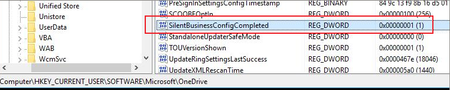
Mario Pastora It should be related to another registry key as following. You could check or change the registry key <SilentBussinessConfigCompleted> to 0 in <Computer\HKEY_CURRENT_USER\SOFTWARE\Microsoft\OneDrive>. Then the silently sign on will be triggerred again when you restart the computer.64KViews1like21CommentsRe: OneDrive for Business | Known folder silently redirection not work
msmyth The issue might be still related to the conflict of Known Folder redirection in Group Policy. Here are two conflict policies in my experience as below. The first path of the GPO is “User Config -> Policies -> Administrative Templates -> Desktop -> Prohibit User from manually redirecting Profile Folders”. The second path of the GPO is “User Configuration -> Policies -> Windows Settings -> Folder Redirection -> Desktop/Documents/Pictures”. Another point is that KFM GPO needs to input your <tenant ID> and only be available in OneDrive for Business. Otherwise, to confirm whether it is the conflict of GPO cause this issue, you could try to use a PC to manually backup your known folders in settings to see whether it has error message.65KViews0likes23CommentsRe: OneDrive for Business | Known folder silently redirection not work
Mario Pastora It seems that your domain has configured group policy to redirect your three known folder to other location rather than default one. Then it will show this error message. You could check the registry on your local to confirm. (HKEY_CURRENT_USER\Software\Microsoft\Windows\CurrentVersion\Explorer\Shell Folders)65KViews0likes0CommentsOneDrive for Business | Known folder silently redirection not work
Hi Everyone, Recently, one of my customers meet the issue on "Silent move Windows Known folders to OneDrive". When we configure the correct registry in local machine as following KB, the policy will not work as expected. And we have no redirection policy or <Prohibit User from manually redirecting Profile Folders> policy in Group Policy Result. Official Document: https://docs.microsoft.com/en-us/onedrive/use-group-policy#silently-move-windows-known-folders-to-onedrive The root cause is that the silent KFM function will be only triggered in the first time. It is supposed to avoid repeating request when we open the OneDrive every time. It has a corresponding registry <KfmIsDoneSilentOptIn> in “Computer\HKEY_CURRENT_USER\Software\Microsoft\OneDrive\Accounts\Business1”. Here is the solution. 1. Step1. Delete registry key from below path: Path: Computer\HKEY_CURRENT_USER\Software\Microsoft\OneDrive\Accounts\Business1 Key: KfmIsDoneSilentOptIn: 2 2. Close the OneDrive and open it again 3. You will see that the notification on “Silent KFM” automatically start to work again.82KViews1like27Comments
Recent Blog Articles
No content to show