User Profile

Derek_Su
 Microsoft
Joined Jun 26, 2023


User Widgets
Recent Discussions
Understanding the Public Preview of Windows 365 Customer Lockbox
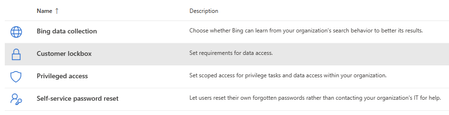
As a cloud PC provider, we recognize that organizations understandably want to have full control over access to their content stored in cloud offerings. Therefore, as announced during last year’s Ignite, we are excited to roll out the Public Preview of Windows 365 Customer Lockbox feature. What is Customer Lockbox? Customer Lockbox ensures that Microsoft support engineers cannot access your content in your Cloud PCs to do service operations without your explicit approval. Customer Lockbox brings you into the approval workflow process to ensure only authorized requests allow access to your content. For more information about Customer Lockbox as a feature in general, please see this documentation on Microsoft Purview Customer Lockbox. Please note that Windows 365 Customer Lockbox is only available with an M365 E5 subscription or higher. How to enable Windows 365 Customer Lockbox: Customer Lockbox requests on or off You can turn on Customer Lockbox controls in the Microsoft 365 admin center. When you turn on Customer Lockbox, Microsoft must obtain your organization’s approval before accessing any of your tenants’ content. Using a work or school account that has the global administrator role, go to https://admin.microsoft.com/ and sign in. Choose Settings > Org Settings > Security & Privacy In Security & Privacy, select Customer Lockbox. Once you select Customer Lockbox, a right-hand column will appear. Check the Require approval for all data access request checkbox and press the Save button on the bottom of the column to turn on the feature. Submit a Support Ticket for your Windows 365 Cloud PC (CPC) Using a work or school account that has role assigned or an Azure Active Directory (Azure AD) role that must include the action microsoft.office365.supportTickets, go to https://intune.microsoft.com/ and sign in. For more information on specific Azure AD roles that contain the action microsoft.office365.supportTickets, please visit Azure AD built-in roles - Microsoft Entra | Microsoft Learn and search for the action in CTRL + F. Examples of the roles are Authentication Administrator, Azure Information Protector Administrator, etc. On the left-hand side, go to Troubleshooting + support and select Help and support to open a full screen experience of Help and support. Under the title What can we help you with?, select “Windows 365” option. For the search bar under How can we help?, type in “Cloud PC” and select the option “Cannot connect to Cloud PC” Scroll down and select the “Contact Support” button on the bottom of the screen. Under Contact Support, select “Email” Under description put in Fill out your number, email address, and consent to recordings of all calls necessary to resolve this service request. Press “Contact Me” button on the button once everything is filled out. Wait for Customer Lockbox request We will process your support ticket request with our Support as a Feature team. Once we go through all the steps you should be receiving a Customer Lockbox request email in your inbox for Windows 365 to access your troubleshooting CPC. An example of a Customer Lockbox request email notification is shown below: Approve or deny a Customer Lockbox request Using a work or school account that has either the global administrator or the Customer Lockbox access role assigned, go to https://admin.microsoft.com/ and sign in. Choose Support > Customer Lockbox Requests A list of Customer Lockbox requests displays. Select the Customer Lockbox request, and then choose Approve or Deny. Checking Audit Once just-in-time (JIT) access expires and the troubleshooting ticket is completed, users can go to compliance.microsoft.com and go to the audit section to see what was done during the session. Additional Resources For more information on Customer Lockbox requests please see this documentation: Customer Lockbox requests | Microsoft Learn For more information on submitting support tickets on Microsoft Intune admin center, please see this documentation: Get support in the Microsoft Intune admin center - Microsoft Intune | Microsoft Learn1.2KViews1like0CommentsUnderstanding Secure Boot and Trusted Launch
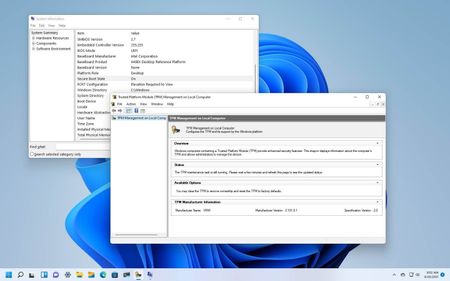
What is Secure Boot? Secure Boot is a feature designed to prevent malware and corrupted components from loading when a Win11 device is starting. So, Secure Boot makes a safe and trusted path from the Unified Extensible Firmware Interface (UEFI) through the Window kernel's Trusted Boot sequence. This is done through signature-enforcement handshakes throughout the entire boot sequence to block malware attacks during this process. As the PC/Cloud PC begins the boot process, Secure Boot will: Verify if the firmware is digitally signed (reducing firmware rootkit risks). Check all code that runs before the OS. Check the OS bootloader's digital signature. Secure Boot is checking whether this signature is trusted by the Secure Boot policy and hasn't been tampered with Therefore, it is used to ensure that only signed OS and drivers can boot. What is the chronological flow of the Windows boot sequence? When you apply power on a Windows device, here are the sequence of steps to effectively boot the device: Power on self-test (POST): initial diagnostic test performed by PC when it's switched on prior to OS loading. Find a boot device that contains the OS. If Secure Boot is enabled: Verify if the firmware is digitally signed (reducing firmware rootkit risks). Check all code that runs before the OS. Check the OS bootloader's digital signature. Load the OS into memory and start it up. UEFI firmware initializes the hardware and starts the bootloader. Bootloader then loads the kernel into memory and starts it up. Bootloader's main function is to load the OS into memory and start it up. Kernel is the core component of the OS that manages system resources and provides services to applications. Kernel initializes the drivers and services that are required for the OS to function properly. The application environments are loaded. As you can see from the section “What is Secure Boot?”, in the Windows boot sequence flow steps, Secure Boot is enabled right before Step 4. Without Secure Boot, Windows will automatically load the OS into memory and start it up, without verifying if the firmware or OS bootloader is digitally signed. If Secure Boot is enabled, then Trusted Boot is automatically enabled as well, where it works in conjunction with Secure Boot to help prevent malware and corrupted components from loading. What is Trusted Launch then? How is that related to Secure Boot? Trusted Launch is a feature that serves to improve security of Gen2 VMs and protect against advanced & persistent attack techniques. However, Trusted Launch is not just one standalone feature, instead it composed of a collection of several, coordinated infrastructure technologies that can be enabled independently. Do note that Trusted Launch is an Azure-specific term. The way Trusted Launch relates to Secure Boot is that Secure Boot is one of the infrastructure technologies that composes it. Trusted Launch is composed of three main technologies: Secure Boot vTPM This is the virtualized version of the Trusted Platform Module hardware that is compliant with the TPM2.0 specs to run Win11. It serves as a dedicated secure vault for keys and measurements. Integrity Monitoring This uses Microsoft Defender for Cloud integration to help validate that one's VM is booted in a healthy way. It issues an assessment and indicates to you the status of remote attestation. How do you enable Secure Boot on W365? Nothing unique, just assign and provision a Cloud PC! How do I enable Secure Boot on an existing Cloud PC? Any new Cloud PC has two default properties: it is a Gen 2 VM and Secure Boot is enabled by default (users cannot opt-out). However, if someone does have an existing Cloud PC but does not have Secure Boot enabled, then the only way for them to get Secure Boot enabled is to re-provision their Cloud PCs.2.5KViews1like0Comments