User Profile

SHeathfield
Brass Contributor
Joined Jul 21, 2021


User Widgets
Recent Discussions
Re: Effects of changing the Organization name
“Currently, updating the organization name does not update it for configured clients.” This statement makes me curious as to how problematic this change might become if this means OneDrive and SharePoint would need to be reconfigured on each device after the change to receive the new organisation name. I’m not sure if this would mean that all users would be kicked out of OneDrive or if they would continue to keep working on the old organisation name until they naturally replace their computer. I don't want to update the org name manually for my entire organisation, only to work around the Windows character limit for a couple of users.1.1KViews0likes0CommentsRe: Teams update to 1.5.00.33362 - will not launch or crashes
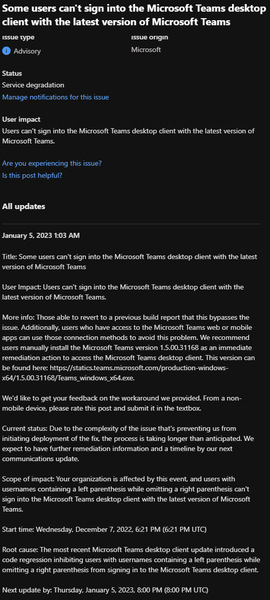
Final status: Our fix deployment has completed, and we've internally validated that it has addressed the offending code regression and remediated the impact. Scope of impact: Your organization was affected by this event, and users with usernames containing a left parenthesis while omitting a right parenthesis couldn't sign into the Microsoft Teams desktop client with the latest version of Microsoft Teams. Start time: Wednesday, December 7, 2022, 6:21 PM (6:21 PM UTC) End time: Tuesday, January 17, 2023, 7:29 PM (7:29 PM UTC) Root cause: The most recent Microsoft Teams desktop client update introduced a code regression inhibiting users with usernames containing a left parenthesis while omitting a right parenthesis from signing into the Microsoft Teams desktop client. Next steps: - We're further analyzing the Microsoft Teams desktop client update along with the introduced code regression to help us identify similar problems during our validation process and before they're able to produce impact. This is the final update for this event.2.7KViews0likes0CommentsRe: Teams update to 1.5.00.33362 - will not launch or crashes
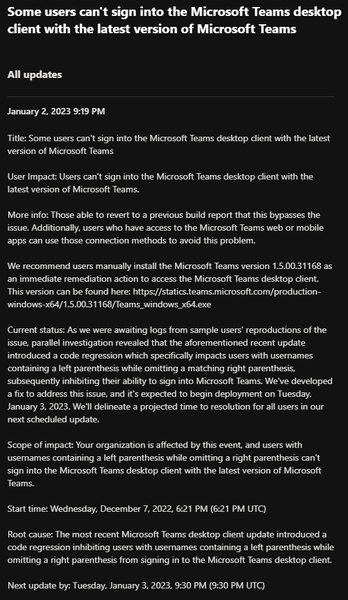
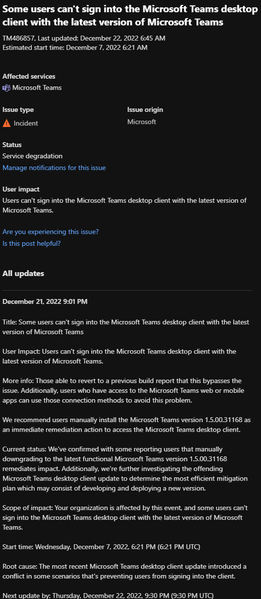
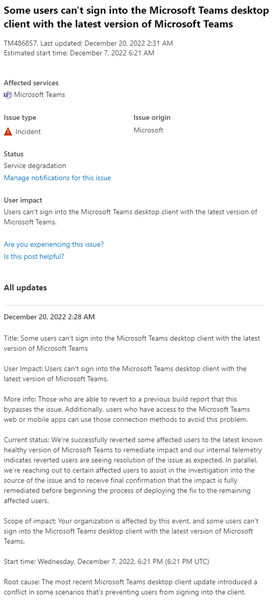
January 13, 2023 6:44 PM Title: Some users can't sign into the Microsoft Teams desktop client with the latest version of Microsoft Teams User Impact: Users can't sign into the Microsoft Teams desktop client with the latest version of Microsoft Teams. More info: Those able to revert to a previous build report that this bypasses the issue. Additionally, users who have access to the Microsoft Teams web or mobile apps can use those connection methods to avoid this problem. We recommend users manually install the Microsoft Teams version 1.5.00.31168 as an immediate remediation action to access the Microsoft Teams desktop client. This version can be found here: https://statics.teams.microsoft.com/production-windows-x64/1.5.00.31168/Teams_windows_x64.exe. While we continue to work on fully resolving this issue, we recommend that users periodically check their Microsoft Teams desktop client version to ensure that they're using the aforementioned previous version. Those who have reverted their clients but are back on their current impacted build should uninstall the client and reinstall using the previous link provided, reach out to their support representative, and request that automated updates should be halted until the resolution of this event. Current status: The fix deployment is approximately 50 percent complete, and we suspect that the fix will complete deployment by Tuesday, January 17, 2023. Scope of impact: Your organization is affected by this event, and users with usernames containing a left parenthesis while omitting a right parenthesis can't sign into the Microsoft Teams desktop client with the latest version of Microsoft Teams. Start time: Wednesday, December 7, 2022, 6:21 PM (6:21 PM UTC) Estimated Time to Resolve: We anticipate impact to be fully resolved by Tuesday, January 17, 2023. Root cause: The most recent Microsoft Teams desktop client update introduced a code regression inhibiting users with usernames containing a left parenthesis while omitting a right parenthesis from signing into the Microsoft Teams desktop client. Next update by: Tuesday, January 17, 2023, 10:00 PM (10:00 PM UTC)2.9KViews0likes2CommentsRe: Teams update to 1.5.00.33362 - will not launch or crashes
Microsoft updated thier status to confirm the parenthisis theory and included the link to download version 31168. https://statics.teams.microsoft.com/production-windows-x64/1.5.00.31168/Teams_windows_x64.exe It's almost as if they are reading these posts!4.9KViews0likes6CommentsRe: Teams update to 1.5.00.33362 - will not launch or crashes
Hi SystemsFirst, We use the Teams Machine-Wide installer, as we previously had some problems deploying Teams via intune automatically. It downloads as an MSI, so it's super easy to deploy via intune and means any user that logs in to any windows hot desk will always have Teams installed! Look for the commercial x64 installer: https://learn.microsoft.com/en-us/microsoftteams/msi-deployment Once installed, it will drop a full offline installer into C:\Program Files (x86)\Teams Installer I just tested for you, and can confirm it installed version 1.5.0.34154 that is working for me. EDIT: 1.5.0.34154 is also broken, it stopped working a few minutes after I posted this. Here is the download link from my browser history for version 1.5.0.31168 https://statics.teams.cdn.office.net/production-windows-x64/1.5.00.31168/Teams_windows_x64.msi6.2KViews1like1CommentRe: Teams update to 1.5.00.33362 - will not launch or crashes
My org is also seeing problems with this Teams version; users are prompted to log in and then the app sits on a blank screen. I've shared an old copy of teams for users to roll back to, and then they work fine. Otherwise pointing them at https://teams.microsoft.com/13KViews0likes5CommentsWindows 10 Pro AAD organization provisioning requires hidden administrator UAC elevation to proceed.
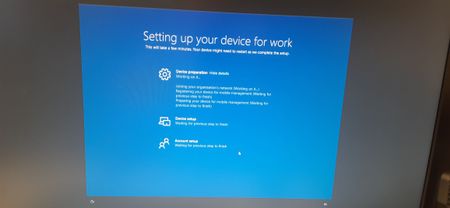
Hello, I came across this problem recently and wanted to share my solution. When provisioning a Windows device that is connected to the internet, using the "Connect to an Organisation" option or rebuilding an existing device using Win+Ctrl+R , the provisioning gets stuck on the "Device preparation" screen and does not proceed any further. I found that holding down Alt+TAB revealed a User Account Control pop-up that was not visible on the screen. I assume that my organization's policies have been applied at some point, and our requirement for any administrative changes to be authorized has blocked the Windows setup process (OOBE - Out of box experience). Tapping through Alt+TAB , selects the UAC window. You will not see the UAC window but so long as you do not click on the screen, it will be selected. Type your username and it will fill the username box. Press TAB and enter your password, and it will fill the password box. Press Enter on the keyboard and it should let you proceed. At any time you can also hold down Alt+TAB to view your progress. The provisioning should then proceed very quickly and you can select "Continue Anyway" to skip the other steps. I hope this helps someone. Please let me know if you find a better solution? Thanks, Samuel.590Views0likes0Comments
Recent Blog Articles
No content to show