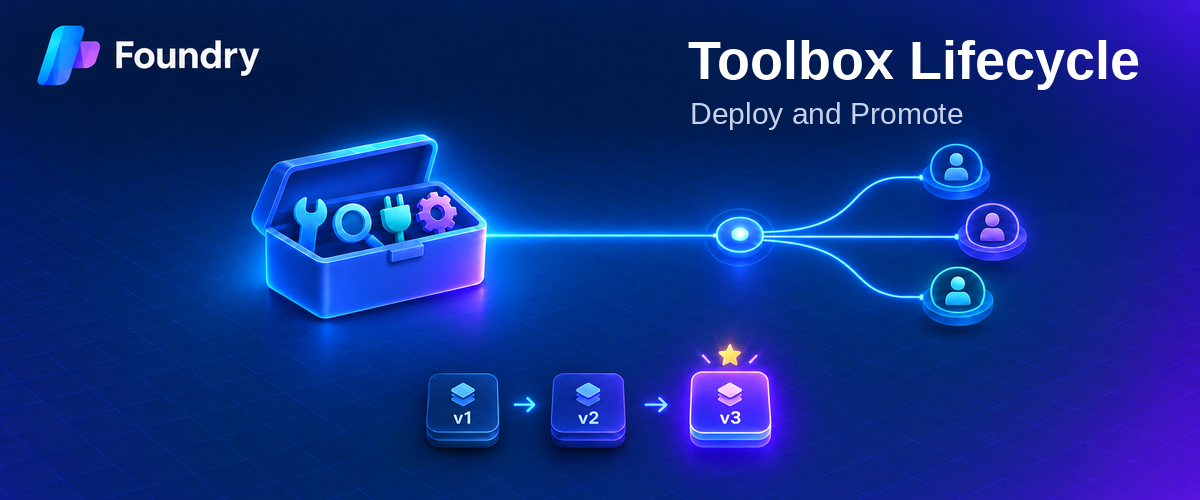
Deploy a Microsoft Foundry Toolbox with azd and GitHub Actions. Learn how to manage versions, promote releases, and verify the default endpoint.
Foundry Toolbox Lifecycle: Deploy and Promote
For developers looking to manage Microsoft Foundry tools across agents, this article presents one recommended pattern: define each Toolbox in its own azure.yaml , deploy it separately from project infrastructure and agents, and pass environment-specific Bicep outputs through GitHub Actions.
Why Manage a Foundry Toolbox Separately?
Organizations are integrating agent development into established software development lifecycles, raising questions about how teams govern and reuse tools. In this post, a “tool” means an external capability an agent invokes such as web search, a tool exposed by a Model Context Protocol (MCP) server, or a third-party application. Tools let agents retrieve live data or take actions in external systems.
How can teams avoid rebuilding the same integrations? Microsoft Foundry Toolbox offers a shared way to manage tools. This post explores how to structure Toolbox ownership and deployment so a reusable collection doesn’t become a Toolshed.
What Is a Microsoft Foundry Toolbox?
A Toolbox in Foundry is a versioned collection of tools exposed through a single MCP-compatible endpoint. It is created in the context of a Foundry Project, and agents connect to that endpoint to use its tools.
Microsoft’s Toolbox overview describes a way to define shared tools once and expose them through a single MCP-compatible endpoint. It centralizes tool access, credentials, governance, and versioning so teams can reuse approved tools across agents without rebuilding each integration.
Instead of embedding a separate Web IQ integration in every Finance agent, teams can configure Web IQ once in a shared Toolbox. Each agent then connects to the Toolbox’s MCP endpoint and invokes the tools it exposes. The Toolbox and its project connections provide the shared configuration and credentials.
Should a Toolbox Be Deployed with an Agent?
Foundry examples show toolboxes created through SDKs and consumed by agents. The key design decision is which deployment lifecycle owns toolbox version changes. When multiple agents share a toolbox, manage its versions separately from any one agent’s deployment.
- A Foundry Project can contain zero or more agents.
- Agent deployments should be idempotent and managed independently.
- An agent’s availability should not depend on another agent.
- A Toolbox has its own lifecycle and versioning.
- A Toolbox lives outside any single agent, within a Foundry Project.
Creating a toolbox with the Python SDK does not, by itself, make the toolbox part of an agent; the SDK call creates a version in the Foundry Project. The coupling arises when the agent’s deployment pipeline also owns and publishes that toolbox. To keep the lifecycles independent, manage toolbox versions through a project-level pipeline and have agents consume the toolbox endpoint. This avoids redeploying an unrelated agent for toolbox changes and avoids making shared tool availability depend on one agent’s lifecycle.
Provision the Project, Then Deploy the Toolbox
A Foundry project is provisioned as an Azure resource (`Microsoft.CognitiveServices/accounts/projects`), while toolbox versions are created through the Foundry project API. In this deployment pattern, we need to provision the project and any required connections first, then create and deploy the toolbox using the project endpoint. See the toolbox version API reference for details.
The Foundry project and its project-level role-based access control (RBAC) and connections are infrastructure prerequisites that can be managed with infrastructure as code (IaC). The toolbox version is then created in a separate deployment step using the project endpoint, with environment-specific values supplied as Bicep outputs. This keeps the Toolbox alongside the project’s lifecycle without coupling it to any one agent.
Where to Store the Toolbox Configuration
Like the Foundry Project, a Toolbox is shared across agents and should follow the project’s lifecycle rather than an individual agent’s lifecycle. Store its definition alongside the project’s IaC and include its deployment in the project-level infrastructure workflow.
Create a separate folder and `azure.yaml` for each Toolbox. This gives each Toolbox its own deployment step and `azd` environment, so teams can deploy, update, and version Toolboxes independently without coupling their release cycles. This post uses that structure to make each Toolbox’s lifecycle explicit.
Foundry Toolbox Versioning and Promotion
Foundry stores each Toolbox version as an immutable snapshot of its configuration. Changes create a new version rather than modifying an existing one. The first version becomes the default automatically; subsequent versions must be promoted explicitly. See Foundry Toolbox version managementfor details.
Agents using the Toolbox’s stable consumer endpoint receive the default version. Developers can use a version specific endpoint to validate changes before promotion. Promoting a version changes what the consumer endpoint serves without requiring a rebuild and deploy of the agents code. To roll back, promote a previously retained version.
Foundry provides these versioning and promotion capabilities, but the team still decides how changes are tested, approved, retained, and retired. A version captures Toolbox configuration not a frozen copy of the external services it calls—so rolling back the Toolbox does not necessarily reverse downstream service changes. i.e. changes that were made to tools of a custom downstream MCP server.
Teams can remove older or unwanted versions after confirming they aren’t needed for rollback or used through version specific endpoints. If multiple versions exist, promote another version before deleting the current default. When using `azd`, deleting the only remaining version also removes the Toolbox.
One important connection to our example: its `postdeploy` hook promotes immediately. We should distinguish that sample behavior from a production process that validates a candidate version before promotion.
Deploy a Foundry Toolbox with GitHub Actions
In this example, the Toolbox is deployed as a separate step in the same GitHub Actions workflow, after the Bicep deployment provisions the Foundry Project. This lets the workflow populate the Toolbox’s `azd` environment with the infrastructure outputs before deployment. You can also split the deployments across jobs or workflows, provided the Toolbox step receives the required outputs and runs after its prerequisites are ready.
Prerequisites
- Foundry Project and region: Create the Foundry Project and any project connections required by the Toolbox before deployment. Confirm that the target region supports the Toolbox’s tool types and models using the tool support by region and model table
- Identity and access: Configure GitHub Actions to authenticate to Azure using OpenID Connect (OIDC), as in the linked sample. The identity that creates or updates Toolbox versions needs the Foundry User role on the project (Toolbox prerequisites). If the same workflow deploys Bicep, that identity also needs permission to deploy the template’s resources and create its role assignments at the applicable scopes.
- Tooling: Install Azure Developer CLI 1.37.0+, as required by the unified `microsoft.foundry` extension. Install the extension with `azd ext install microsoft.foundry`, following the Foundry extension installation guidance. The linked sample pins `azd` 1.37.1 and installs `azure.ai.toolboxes` separately.
Configuration
Provide the project endpoint, environment name, location, and every downstream endpoint or connection name referenced by the Toolbox’s `azure.yaml`. Create the required Foundry project connections before deploying the Toolbox. Configure credentials on those connections or in an approved secret store, not in Bicep outputs; see Toolbox authentication.
- name: Deploy and promote the toolbox
  working-directory: foundation/toolboxes/fibey-toolbox
  env:
    AZURE_ENV_NAME: ${{ steps.infrastructure.outputs.AZURE_ENV_NAME }}
    FOUNDRY_PROJECT_ENDPOINT: ${{ steps.infrastructure.outputs.FOUNDRY_PROJECT_ENDPOINT }}
    AZURE_AI_PROJECT_ENDPOINT: ${{ steps.infrastructure.outputs.AZURE_AI_PROJECT_ENDPOINT }}
  run: |
    azd deploy fibey-toolbox --no-prompt
The infrastructure deployment should expose the values the Toolbox needs as outputs—in this case, Bicep outputs. The linked sample uses `AZURE_ENV_NAME`, `AZURE_LOCATION`, `FOUNDRY_PROJECT_ENDPOINT`, and `AZURE_AI_PROJECT_ENDPOINT` for the deployment context. Its Toolbox configuration also consumes `INVENTORY_MCP_URL`, `WORK_ORDERS_API_URL`, `KB_MCP_URL`, and `KB_CONNECTION_NAME`. Expose the corresponding values for each target environment and region.
The Toolbox’s `azure.yaml` references the imported values, so the same definition can be reused across environments and regions. For each target, provide that target’s infrastructure outputs instead of manually changing endpoint values, and confirm that the required services and tools are supported in the target region.
The example references `steps.infrastructure.outputs` because the infrastructure and Toolbox deployment steps run in the same GitHub Actions job. If they run in separate jobs, expose the required values as job outputs and consume them through `needs`.
This keeps the deployments connected without tying their release cycles together: infrastructure provides the deployment context, and the Toolbox consumes it. Keep credentials in managed identities or approved secret stores rather than ordinary deployment outputs.
The complete workflow demonstrates authentication, infrastructure outputs, and environment initialization. Its extension-install step currently uses `azure.ai.toolboxes`; replace that step with `azd ext install microsoft.foundry` when following the current Learn guidance above. Version promotion is handled by the `postdeploy` hook in the Toolbox’s `azure.yaml`.
Verify Toolbox Deployment and Promotion
The sample’s `postdeploy` hook promotes the deployed version to the default and checks that promotion succeeded. Redeploying an unchanged Toolbox definition does not create a new version. To inspect the versions and confirm which one is default, run:
azd ai toolbox versions list fibey-toolbox
The default version is marked with `*`.
This confirms which version is default, but not that its tools work. For runtime verification, follow the Toolbox verification guidance to initialize MCP and list tools using the version-specific endpoint. Test a tool call only with a safe, read-only operation. The developer needs the Foundry User role on the project; prompt-agent and OAuth scenarios can require additional permissions for the agent identity or end user.
Troubleshooting
If deployment or promotion fails, check that the deployment identity has the required project role, that the project endpoint and Toolbox configuration values were supplied, and that the required project connections and tools are available in the target region.
Conclusion
Toolbox provides a shared way to manage tools across agents without tying their lifecycle to any one agent. Keeping toolbox definitions alongside your Foundry Project infrastructure, while deploying them as a separate step, lets teams update and version tools independently while retaining a clear dependency on the project.
As your organization adopts this pattern, consider who owns each toolbox, how changes are tested and promoted, and who can access its tools. That governance will help keep a useful Toolbox from becoming a Toolshed.

 Microsoft