onenote
796 Topics
OneNote breaks if I move it onto an external display
Hi guys I use OneNote extensively for work as my virtual notepad. At most of my working locations, I use my laptop - Dell Latitude 7440 - connected to either a Dell Docking station + 2 monitors, or a pair of samsung monitors which have an inbuilt hub, connect via USB-C and are daisychained together. I've never had any issues with OneNote in the past, but recently have found that if I try and move my OneNote window onto either external monitor, it seems to break OneNote - the whole window becomes just the index list which is normally a column on the left (where it shows all your notebooks and pages) and it won't actually display any of the content from the notebooks/pages. If I try minimizing that column, it has a complete breakdown as if its unable to properly load the actual page content. The only way to fix this is to drag the window back to my laptop screen and then close it and reopen. Has anyone else experienced this? It's really frustrating and affecting my productivity as I often need it side-by-side with other screens.17Views0likes0CommentsClassic LTI App Retirements, Preview of OneDrive LTI Migration Tool for Canvas
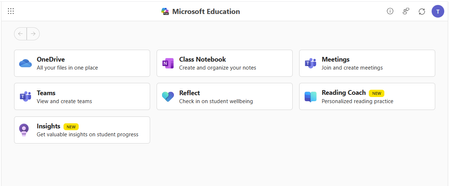
Classic Microsoft LTI® Apps Retiring in 2026: What You Need to Know and How to Prepare Microsoft is continuing its investment in a unified, modern Microsoft 365 LTI experience. As part of this evolution, several classic Microsoft LTI apps will be retired in September 2026. This post outlines: Which classic LTI apps are retiring and when What happens to existing course links and content created in classic LTIs retiring What actions you should take now to prepare, and start transitioning to Microsoft 365 LTI New migration tooling available to support transition Classic Microsoft LTI® Apps Retiring September 17, 2026 As we shared last September in our Microsoft 365 LTI GA release Blog, the following classic Microsoft LTI apps will be retired on September 17, 2026: Microsoft OneDrive LTI (1.3) OneNote Class Notebook LTI (1.1) Microsoft Reflect LTI (1.3) Microsoft Teams Assignments LTI (1.3) After September 17, 2026, any links or placements of these classic apps in courses will stop working. However, the files, notebooks, assignments, and check-ins created by these classic apps will continue to be available to copy and reuse. Replacements for these classic experiences are now available through the unified Microsoft 365 LTI built on the LTI® 1.3 Advantage standard. This delivers modern security, simplified identity mapping with Microsoft Entra, LMS enrollment and grade syncing, and a single deployment model for LMS administrators. We’ll continue to update our migration guides as additional tools and guidance become available. NEW: Preview the OneDrive LTI Migration Tool for Canvas Canvas LMS Customers: We are excited to announce that the Microsoft OneDrive LTI Migration Tool for Canvas is now available in Preview! This tool helps institutions using Canvas LMS migrate OneDrive content links from the classic Microsoft OneDrive LTI app to the new Microsoft 365 LTI app — preserving existing file links in courses so educators and students experience a seamless transition. For new preview deployments: detailed deployment instructions are available in the Canvas migration guide, which has been updated with configuration steps and guidance for using the migration tool. If you participated in the private preview: If you have already deployed the OneDrive LTI Migration Tool in Canvas during the private preview, no action is required. Your existing deployment will continue to work as part of the Public Preview, and in GA. If you deployed the private preview in a testing environment, we suggest that you follow the new Canvas migration guide in your production environment. Below is guidance to assist with transition from the other classic LTI apps and on additional LMS platforms. We will continue to communicate updates to this guidance as it evolves. If you use the classic Microsoft OneDrive LTI 1.3 with an LMS other than Canvas Deploy Microsoft 365 LTI with the OneDrive app enabled and guide educators to use the new Microsoft 365 LTI (Microsoft Education menus) to create file links or embeds in course content. Disable/hide/remove placements of the classic Microsoft OneDrive LTI app in your LMS but do not uninstall or disable the app. Files linked or embedded with the classic Microsoft OneDrive LTI will stop working when the app is retired, so those links and embeds must be replaced using the new Microsoft 365 LTI (Microsoft Education) app ahead of the retirement date. OneNote Class Notebook LTI 1.1 (All LMS platforms) The new OneNote Class Notebook LTI 1.3 integration is now available in the Microsoft 365 LTI app, with automatic roster sync and streamlined setup. Deploy Microsoft 365 LTI with the OneNote Class Notebook app enabled, and guide educators to use the new app. Disable/hide/remove placements of the classic OneNote integration, but do not uninstall the app to avoid migration issues during transition. While there is no direct migration path from OneNote Class Notebook LTI 1.1 notebooks to Microsoft 365 LTI Class Notebooks, educators can copy sections/pages from one notebook to another using the right-click menu on Sections and Pages (and selecting “Move/Copy”) in OneNote on Windows, OneNote Web, and OneNote for Mac. Instructions are also available for content transfer using OneNote on Mac, iOS, or Android. Microsoft Teams Assignments LTI 1.3 (All LMS platforms) Deploy Microsoft 365 LTI with the Assignments app enabled, and guide educators to create assignments using the new app. Disable/hide/remove placements of the legacy Teams Assignments LTI app as soon as you install the new Microsoft 365 LTI and enable the Assignments app, and guide you users to copy their existing assignments using the new app. Teams Assignments created by the classic LTI 1.3 app can be reused as in the new Microsoft 365 LTI Assignments experience (which does not require a Team) Assignments created in the LMS or via the Assignments app in Microsoft Teams can be copied and reused using the Create from Existing functionality in the Microsoft 365 LTI (Microsoft Education) Assignment instructor flow. Microsoft Reflect LTI 1.3 (All LMS platforms) Deploy Microsoft 365 LTI with the Reflect app enabled, and guide educators to create new Reflects in the new Microsoft 365 LTI experience. There is no migration path for reflects created in the classic Reflect LTI 1.3 app to the Reflect experience in the new Microsoft 365 LTI Reflect app. We recommend transitioning to the new Reflect experience in Microsoft 365 LTI as soon as possible, and remove the classic app ahead of the September 17, 2026 retirement. Stay Connected We love hearing from you! There are a few ways to stay engaged with Microsoft and your peers on the LMS integrations. Follow this blog! Click Register at the top right to create an account and profile for the Microsoft Tech Community and Follow the Education Blog so you don’t miss any of our updates. Join the free Education Insiders Program to preview updates, get support from other community members, meet the team, and influence the roadmap. Join us for Microsoft 365 LTI office hours to connect with your peers and share feedback directly with Microsoft experts. When: 1st and 3rd Thursday of each month @ 11AM EST Where: https://aka.ms/LTIOfficeHours Getting help and giving feedback LMS and Microsoft 365 admins can contact Microsoft Education Support to help resolve configuration and deployment issues, for themselves or on behalf of users. Educators and Learners can contact support or give feedback directly from the app through the help and feedback menu. TJ Vering Principal Product Manager Microsoft Education https://linkedin.com/in/tvering Learning Tools Interoperability® (LTI®) is a trademark of the 1EdTech Consortium, Inc. (https://1edtech.org/)258Views0likes0CommentsOneDrive, Assignments, and Learning Accelerators are now Generally Available in Microsoft 365 LTI
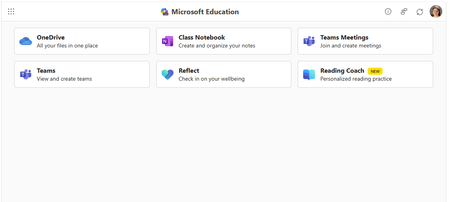
Enhance your LMS with the power of Microsoft 365 Today, Microsoft is announcing general availability of the OneDrive and Assignments (including Learning Accelerators) experiences as part of Microsoft 365 LTI®—bringing seamless integration of Microsoft 365 tools into learning platforms to simplify workflows and enhance teaching and learning whether you’re using Canvas, Schoology, Brightspace, Blackboard, Moodle or other LMS platforms. Microsoft 365 LTI makes it easier than ever for educators and students to leverage the full suite of Microsoft 365 Education tools within existing workflows. And now, the OneDrive, Assignments and Learning Accelerators (Reading Progress, Speaker Progress and more) experiences previewed in July with the new Microsoft 365 LTI build on all the capabilities of the classic tools and add additional features in one convenient tool. Educators and students benefit from a more seamless and up-to-date LMS experience with Microsoft 365 Education. Teach and learn with confidence knowing that Microsoft 365 LTI is backed by Microsoft's industry-leading security and compliance tools with Microsoft 365 Education. Deploy and access the new Microsoft 365 LTI in your LMS today with the overview and deployment guides. IMPORTANT: If you have deployed the Microsoft 365 LTI previously, you do not need to redeploy in your LMS – however, we do recommend reviewing the deployment guide for any new recommendations or deployment guidance, and revisit your Admin Settings to check your M365 Admin Consent status and review the apps enabled for your educators to have access to in their courses. Classic LTI retirements Microsoft OneDrive LTI, OneNote LTI, Teams Assignments LTI and Reflect LTI are set to retire next September 17, 2026. The Microsoft 365 LTI replaces these separate LTI tools going forward and we encourage you to start proactively migrating your course this term. You will find migration guidance in our admin documentation to help take steps now. We will continue to provide any additional migration guidance as necessary OneDrive and Microsoft 365 files with embedded editors and new placements The new Microsoft 365 LTI tool expands beyond the capabilities of the existing OneDrive LTI tool with capabilities for Word, PowerPoint, and Excel, including Microsoft 365 Copilot - and is now available within your LMS experience by embedding or linking documents, videos, PDFs, and images into course materials like assignments, discussions, modules, announcements and more. Microsoft 365 LTI orchestrates management of permissions to prevent oversharing, and with dedicated course-level storage to support proper document lifecycle management, assignment workflows, and use of Microsoft 365 Copilot. With Canvas, Collaborations are supported along with students editing and submitting Microsoft 365 documents as an external tool assignment without leaving your LMS. This functionality replaces the classic Microsoft OneDrive LTI which will retire September 17, 2026. Learning Accelerators and AI-enhanced assignments available in your LMS - without the requirement for Microsoft Teams With Assignments in Microsoft 365 LTI, you will be able to use Learning Accelerators, multiple-document submissions, AI rubric and instructions generation, AI-assisted feedback, auto-graded Forms and other assignment capabilities directly within your learning management system (LMS), without the need to create and sync a Microsoft Team for your class. Assignments in Microsoft 365 LTI no longer require Teams access, enabling more LMS users to benefit from AI-enhanced experiences that were formerly exclusive to Microsoft Teams for Education. And Assignments can be created, managed, completed, and graded, without leaving your LMS with grades and feedback available to sync automatically to the LMS gradebook. New: Improve student speaking and presenting skills in 13 languages with Speaker Progress Exciting new AI Feedback features for educators to leverage, students can practice for in-class presentations or save class time by presenting and turning in their presentations for grading. This capability is included automatically in the new Microsoft 365 LTI tool. Existing, Teams-based assignments will continue to work and can be copied to new courses, so no migration is necessary. The assignments functionality in Microsoft 365 LTI replaces the classic Teams Assignments which will retire September 17, 2026. Dive into the new Microsoft 365 LTI to streamline your LMS experience We are bringing our Microsoft 365 Education capabilities for learning management systems together into a single, unified tool to streamline the user experience. Educators will be able to access Learning Accelerators, Reflect, OneDrive, Teams, and more in their LMS courses, without having to enable multiple tools separately, and without overcrowding menus where LTI tools surface. Whether adding content to a module, creating an assignment, or scheduling a meeting for a class, you will be able to easily access Microsoft 365 Education related features directly in your LMS workflow. Microsoft 365 LTI is available for supported LMS platforms, including Canvas by Instructure, PowerSchool Schoology Learning, Blackboard by Anthology, D2L/Brightspace, Moodle™, and for any LTI 1.3 Advantage compliant platform. Migration guidance and tools Guidance for migrating users from the classic LTI tools to the Microsoft 365 LTI can be found in our First Time Configuration guide. We strongly recommend guiding users to leverage the new experiences for OneDrive, Assignments, Reflect and OneNote Class Notebooks in the Microsoft 365 LTI as the classic experiences are set to retire on September 17 th , 2026. We are working on additional guidance to help with migration of existing content ahead of classic LTI retirements, and more information will be available soon. Compliance and regulatory resources Visit the Microsoft Service Trust Portal to learn how Microsoft cloud services protect your data, and how you can manage cloud data security and compliance for your organization. You will find our latest HECVAT assessment along with other resources for Microsoft 365 LTI and all Microsoft apps and services. For more information, and to keep up with future product announcements Please visit the Microsoft Tech Community Education Blog and subscribe to keep up with what’s new in Microsoft Education. We also hold bi-monthly office hours every first and third Thursday where lots of LMS + Microsoft 365 customers come to discuss scenarios and get assistance from peers, please join us. Microsoft 365 LTI Office Hours 1 st and 3 rd Thursday of each month at 11am EST Join link: https://aka.ms/LTIOfficeHours How to get help or send feedback For any issues deploying the integration, our Education Support team is here to help. Please visit https://aka.ms/EduSupport Once deployed, there are links to Contact Support and Send Feedback from right within the app. These can be found in the user voice menu in the upper right on any view that appears within the LMS. Learn more about Microsoft feedback for your organization. Learning Tools Interoperability® (LTI®) is a trademark of the 1EdTech Consortium, Inc. (1edtech.org) The word Moodle and associated Moodle logos are trademarks or registered trademarks of Moodle Pty Ltd or its related affiliates.956Views1like1Comment
Markdown and OneNote
2025 and still no markdown support in OneNote(touch supported version). This is Post ChatGPT era and all the LLMs generate text in markdown format. And I am pretty sure, a lot of people out there nowadays generate quick and concise notes through LLMs. But no, OneNote does not wanna render markdown. However, keeping source formatting can format text somewhere close to LLMs output. But not perfectly. The code snippets and tables does not render and appear as a mess. In simple words, I cannot copy LLM output for "Give me code examples of Rust's thread::spawn() function" directly into OneNote because it will be just appear gibberish. NOTE: There are two types of copying. 1) Select text and copy 2) Dedicated copy button in LLM output. So when I say copy I mean *2 as it preserves the markdown syntax.5.1KViews10likes4Comments
Disable incessant nagware popups
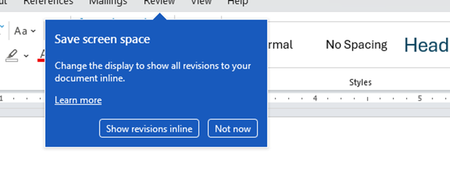
I don't know about everyone else, but I am sick and tired of the nagware pop ups in Word, Excel, PowerPoint, Outlook, etc. Every single product harasses me with pop ups trying to tell me "hey, did you know this feature was here?", "you can do this if you click that", "let me hold your hand through using products you've used for decades even though you don't want daddy Microslop to do that". This is a prime example. I keep getting the same ones again and again and again and everything I've read indicates they should only appear once. But they don't. They keep coming back like a psychotic stalker ex who wants alimony even though you were never married. How do I get this nagware to stop?!86Views0likes1Comment
OneNote - Inserting Code Blocks
Are there any plans for a way to format code blocks in OneNote without inserting a 1 column/row table or an ugly print out? The most relevant Google search brings up a post from 2018 where the top answer says its been requested on UserVoice and directs OP there, but 3 years later, still no code block formatting options and Microsoft isn't using UserVoice anymore so I don't where else I can submit feature requests besides this discussion board. Thanks!359KViews25likes27Comments