Forum Discussion

NSrebro
Aug 30, 2022Copper Contributor
vba Function for COUNT Condition Color Cells
Hello community! I have a spreadsheet that is require manual input (about about 50-100 new rows per day). The spreadsheet has about 30 columns and each column has different conditional formatted ...
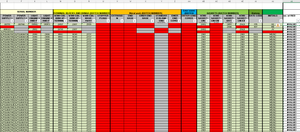
- Aug 30, 2022
1) Copy the following code into a standard module.
Sub CountColors()
    Dim r As Long
    Dim m As Long
    Application.ScreenUpdating = False
    m = Range("E:AJ").Find(What:="*", SearchOrder:=xlByRows, SearchDirection:=xlPrevious).Row
    For r = 4 To m
        Cells(r, 37).Value = CountRed(r)
    Next r
    Application.ScreenUpdating = True
End Sub

Function CountRed(r As Long) As Long
    Dim c As Long
    For c = 5 To 36 ' E to AJ
        If Cells(r, c).DisplayFormat.Interior.Color = vbRed Then
            CountRed = CountRed + 1
        End If
    Next c
End Function
2) Run the Countcolors macro once to populate column AK. It can easily be expanded if you want to count green and grey in other columns.
3) Right-click the sheet tab.
Select 'View Code' from the context menu.
Copy the following code into the worksheet module.
Private Sub Worksheet_Change(ByVal Target As Range)
    Dim rng As Range
    Dim r As Long
    If Not Intersect(Range("E4:AJ" & Rows.Count), Target) Is Nothing Then
        Application.ScreenUpdating = False
        Application.EnableEvents = False
        For Each rng In Intersect(Range("E4:AJ" & Rows.Count), Target).Rows
            r = rng.Row
            Cells(r, 37).Value = CountRed(r)
        Next rng
        Application.EnableEvents = True
        Application.ScreenUpdating = True
    End If
End Sub
This will update the count automatically when you edit cells in columns E to AJ.

Zoolander
Nov 12, 2022Copper Contributor
So in your solution the output displays in column AK in rows (AK4,AK5,AK6,AK7, etc)
Can you make it so it reads the conditional formatting by column?
In which the output could display at the bottom. For example the output would be on E100, F100, G100, H100, etc
Can you make it so it reads the conditional formatting by column?
In which the output could display at the bottom. For example the output would be on E100, F100, G100, H100, etc

HansVogelaar
Nov 12, 2022MVP
Let's say you want to count the red cells in rows 2 to 99 starting in column E.
In a standard module:
Sub CountColors()
    Dim c As Long
    Dim m As Long
    Application.ScreenUpdating = False
    m = Range("2:99").Find(What:="*", SearchOrder:=xlByColumns, SearchDirection:=xlPrevious).Column
    For c = 5 To m
        Cells(100, c).Value = CountRed(c)
    Next c
    Application.ScreenUpdating = True
End Sub

Function CountRed(c As Long) As Long
    Dim r As Long
    For r = 2 To 99
        If Cells(r, c).DisplayFormat.Interior.Color = vbRed Then
            CountRed = CountRed + 1
        End If
    Next r
End Function
And in the worksheet module:
Private Sub Worksheet_Change(ByVal Target As Range)
    Dim rng As Range
    Dim c As Long
    If Not Intersect(Range(Cells(2, 5), Cells(99, Columns.Count)), Target) Is Nothing Then
        Application.ScreenUpdating = False
        Application.EnableEvents = False
        For Each rng In Intersect(Range(Cells(2, 5), Cells(99, Columns.Count)), Target).Rows
            c = rng.Column
            Cells(100, c).Value = CountRed(c)
        Next rng
        Application.EnableEvents = True
        Application.ScreenUpdating = True
    End If
End Sub- HansVogelaarNov 14, 2022MVP
Just changing a color won't work - it doesn't trigger an event in Excel.
- ZoolanderNov 14, 2022Copper ContributorDo I have to indicate it as E2:J99?
I only indicate as shown above (“2:99”) and it works when I run it.
Just doesn’t seem to automate when I make red changes. - HansVogelaarNov 14, 2022MVP
The counts should be updated automatically when you change the value of one or more cells in E2:XFD99.
- ZoolanderNov 14, 2022Copper ContributorSo now through testing.
Can’t seem to get the automation portion to work. The first one runs great but I can’t seem to get an automatic calculation from the second portion.
Pasted everything on the worksheet portion but nothing changes when new red cells are highlighted. Only works when module code is ran - ZoolanderNov 13, 2022Copper ContributorThis is it! Will give multiple colors a try and if I can’t figure that out I will message back.
Thank you so much Hans