Forum Discussion

Pierre73
Apr 18, 2023Copper Contributor
Script to convert CSV to table
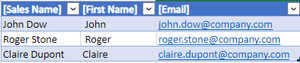
Hello, I am trying to create a script that convert csv to an excel table to use in power automate to send emails from that script. The emails need to be clickebale My csv example [Sales Name],...

Pierre73
Apr 18, 2023Copper Contributor
I added the URL (file based on OneDrive), but I still have the errors

NikolinoDE
Apr 18, 2023Platinum Contributor
The script i provided is an Office Script for Excel on the web, not a Power Automate flow. Office Scripts and Power Automate are two separate technologies, and a script written for one cannot be directly used in the other.
If you want to use this script in Excel on the web, you can do so by opening the Excel workbook in your web browser, selecting the “Automate” tab, and then selecting “Code Editor”. This will open the Office Scripts code editor, where you can paste the script and run it.
If you want to use this script in a Power Automate flow, you will need to create a new flow and use the “Run script” action to run the script in an Excel workbook. You will also need to make sure that the flow has access to the Excel file and that the file is stored in a location supported by Power Automate, such as OneDrive or SharePoint.
If you are encountering a “Power Automate incompatible error” when trying to run this script, it may be because you are trying to run it as a Power Automate flow instead of as an Office Script. Please make sure that you are using the correct technology for your needs.
If you want to use this script in Excel on the web, you can do so by opening the Excel workbook in your web browser, selecting the “Automate” tab, and then selecting “Code Editor”. This will open the Office Scripts code editor, where you can paste the script and run it.
If you want to use this script in a Power Automate flow, you will need to create a new flow and use the “Run script” action to run the script in an Excel workbook. You will also need to make sure that the flow has access to the Excel file and that the file is stored in a location supported by Power Automate, such as OneDrive or SharePoint.
If you are encountering a “Power Automate incompatible error” when trying to run this script, it may be because you are trying to run it as a Power Automate flow instead of as an Office Script. Please make sure that you are using the correct technology for your needs.
- NikolinoDEApr 18, 2023Platinum Contributor
If you have copied the script into the Office Scripts code editor in Excel on the web and it is not working as expected, there could be several reasons for this. Here are some common issues and troubleshooting steps you can try:
- Make sure that you have replaced correctly <YOUR_FILE_URL> with the URL of the CSV file in OneDrive. The URL should be enclosed in quotation marks.
- Check if there are any error messages in the console of the code editor. These messages can provide more information about what might be causing the issue.
- Make sure that the CSV file is formatted correctly and that its contents match the expected format of the script. For example, the script expects the CSV data to be separated by commas and newlines.
- Verify that you have permission to access the CSV file in OneDrive and that its sharing settings allow it to be accessed by the script.
If you have tried these steps and are still encountering issues, If this didn't help either, I can't help, unfortunately, because I'm at my wits end.
Thank you for your understanding and patience
- Pierre73Apr 18, 2023Copper ContributorThis is how I have done it.
I copied the scripte in excel online. But the tests are not working