Forum Discussion

How Do I Calculate Different Cells Using Different Formulas?
- May 14, 2021
Try this:
=(N5+Q5*(Q5<0))*C5+B6The part (Q5<0) return TRUE (or 1) is Q5 is negative, FALSE (or 0) if positive. Hence, in the first instance you will multiply Q5 by 1, in the other instance Q5 by zero.

=SUM(O5:P5)
...so I typed the following in cell Q5...
=ROUND(O5:P5, 2)
...but I get #VALUE! error in both cells Q5 and now T10 (which is the total). ???

Nickerz_2020 Use =ROUND(SUM(O5:P5),2)
- Nickerz_2020May 21, 2021Brass Contributor
Yep, that tool found it and I was able to correct it! Thanks again Riny!!!
Turns out that my spreadsheet had a tab (Billing Wk #06 - this was the invoice week I found that was positive so the formula above needed to be revised to round up) and when I was copying and pasting formulas, I accidentally pasted the wrong info into a different cell with a formula (note to self...see your screenshots for today for details in case you have to reference this fix in the future). So I feel much better now knowing exactly why this started happening and I was able to correct it thanks to that very useful and easy to use findlink tool!
I had to add the findlink as an add-in even though it says it can be ran once. I did this using the steps they had in that link...
- To install as an add-in in Excel 2010 or later
- File > Options > Add-Ins > Manage: Excel Add-Ins > Go > Browse to where you saved FindLink.xlam, Select FindLink.xlam and click OK
Below are some screenshots with more detail...
findlink Add-in Tool (added to the Ribbon in 'Data' Tab):
Found Formula Link Screenshot:Confirmed - No Excel Formula Links (after correcting the formulas myself instead of having findlinks delete them - I just wanted to be sure and glad I did it myself as the cells still had formulas so not sure if those would have been lost):
No Excel Links Found:
You're the best Riny and you have been VERY helpful this entire time. Again, thank you sir!
Nick
- To install as an add-in in Excel 2010 or later
- Riny_van_EekelenMay 20, 2021Platinum Contributor
Nickerz_2020 A link to an external workbook must have been inserted somewhere at some point. You can use the tool in the attached link to find it and decide what to do with it.
- Nickerz_2020May 20, 2021Brass Contributor
Got it, thanks for the tip Riny and the quick reply!
I guess I'm confused as to why this suddenly started happening. ? I don't share this spreadsheet and I've only been updating the formulas from these forums, which is why I thought this has something to do with the recent formulas I copied and pasted.
I opened my Trust Center and I have all the default options that you show in your screenshot above but to try to get rid of the pop up window (which now happens each time I open my spreadsheet, no matter which option I choose, update/don't update) I tried selecting "Disable..." for the 3 options above but I'm still being prompted to update/don't update for the latest data. ????
Again, I'm just confused as to what my spreadsheet is trying to do but even more confused as to why I'm now having to deal with this when I haven't changed any of these settings. Just weird...***UPDATE***
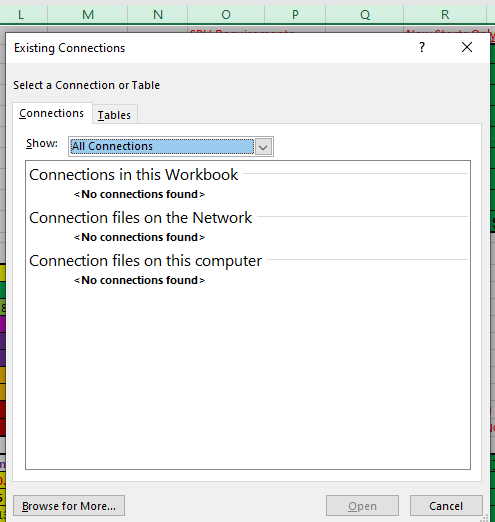
Just now, I clicked on the Data tab>Existing Connections but found none (see attached screenshot below...)So then I tried Data>Edit Links>Break Link
...and it pops up a warning, I then clicked on Break Links (since I have another copy of this spreadsheet saved) and I'm no longer prompted to Update the links!
My spreadsheet looks fine as do the formulas (as far as I can tell at the moment) but again, I have NO idea how this issue started. ? Just came out of left field all of a sudden. ?????
- Riny_van_EekelenMay 20, 2021Platinum Contributor
Nickerz_2020 The comment regarding a new thread was a tip for the future. Anyway, in the Trust Center (File, Options) you can change the settings. You'll see that "Enable automatic update of links is NOT RECOMMENDED.
- Nickerz_2020May 20, 2021Brass ContributorOk I'll open a new thread then if this is unrelated but but I was thinking this is related to the last formula since it wasn't happening before that. ? ?
- Riny_van_EekelenMay 20, 2021Platinum Contributor
Nickerz_2020 Better to open a new thread if the question is not related to the original question.
As to the warning messages, I believe it's clearly explained in the article. It's basically a safety measure so that you do not accidentally connect to and update links to an external data source. So, you need to judge yourself if you want to update the links or not. It's just one click.
- Nickerz_2020May 19, 2021Brass Contributor
Hi again Riny,
Can you please help with this new issue? Is there a way around it as I have to do this every time I open my spreadsheet now?
When I now open my excel spreadsheet I'm prompted to edit it (see #1 attachment below) and then when I save it and close it and open it again, I'm prompted to Update it, not update it or click on Help (see #2 attachment below). If I click on the Help button, it opens a help link to the following...
Help Link:
https://support.microsoft.com/en-us/office/control-when-external-references-links-are-updated-21e995b5-bab1-4328-8ab3-dd357fe0e653?ns=excel&version=16&syslcid=1033&uilcid=1033&appver=zxl160&helpid=xlmain11.chm196754&ui=en-us&rs=en-us&ad=us
- Nickerz_2020May 15, 2021Brass ContributorYEP! That worked!!! THANK YOU AGAIN! You are awesome Riny!!!! 😃