Forum Discussion

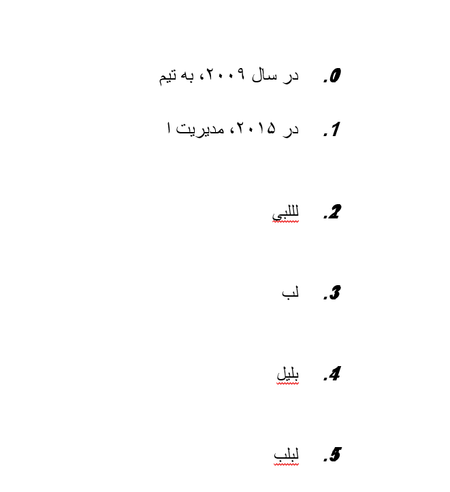
Overlapping numberss
- Jul 17, 2025
The Adjust List Indents dialog box isn't always sufficient when it comes to list formatting. However, the overlapping numbers are caused by the the Spacing setting for the list numbers, and you can fix this using the Multilevel List dialog box.
Do the following: Click in the very first item in the numbered list. On the Home tab, click Multilevel List (in the Paragraph group) and then click Define New Multilevel List. In the dialog box, click level 1 and then click Font. In the Font dialog, go to the Advanced tab and change the Spacing back to "Normal" (it is currently set to "Condensed" as shown in the screen shot). Confirm with OK. Repeat this step for other numbering levels, if necessary.


Adjusting the indentation and line spacing will solve the problem of overlapping numbers, and in the case of list numbering, right-click and select Adjust List Indentation.