Forum Discussion

MS word indenting numbered list more than usual
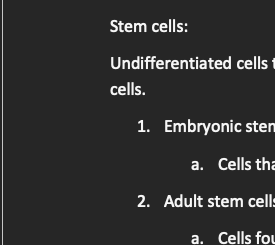

Click in the very first level 1 list item. In Word for Windows, go to Home tab > Paragraph group > Multilevel List > Define New Multilevel List. Word displays the multilevel list dialog box in which you can adjust indentation for each numbering level.
In the dialog box, "Aligned at" sets the position of the list symbol (number/letter). "Text indent at" defines the indent for the second and subsequent lines of the numbered paragraph. "Add tab stop at" determines where the text starts on the first line, following the number. All measurements are from the left margin. For a hanging indent, you'll have to set "Add tab stop at" equal to "Text indent at" (and the value should be larger than "Aligned at"). See the screen shot below.
Long-term, multilevel lists should be set up so that each level is associated with a unique paragraph style.
For more on multilevel lists and the multilevel list dialog box, see also https://shaunakelly.com/word/numbering/numbering20072010.html.