Forum Discussion

How can I get my Table of Contents in Word to ignore line breaks that are in the body of my text?
- Jul 18, 2023
TomVassos The word Dedication was still in the Heading 2 Style
After changing it to the Normal Style
and then updating the table of contents, this was the result


I agree with Doug that a sample document would be helpful to diagnose this in detail.
Generally, though, regarding #1, many aspects of direct font formatting (font name, font color) will be reflected in a table of contents. See the screen shot below.

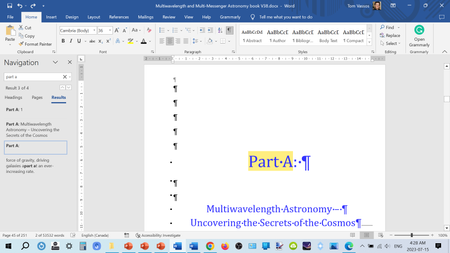
Stefan_Blom You're wonderful, here is a screen capture of the offending page:
...and attached is a copy of the Word document... Thanks! 🙂
- Jul 17, 2023
TomVassos Stefan has given you the reason for the Dedication entry in the table of contents appearing in the way that it does. The same also applies to the Chapter by Chapter Overview and Appendix by Appendix Overview entries.
The work around for that is to remove the Heading style for such entries and insert a TC field (which being formatted as hidden text, will not be printed and thus will not interfere with the layout - as it does in the following screen shot)
It is then necessary to modify the Table of Contents so that it is also based on The use of Table entry fields
The issue with the indent of the Part A entry in the table of contents is that the TOC 1 style is formatted with a first line indent of 9 mm.
That style should almost certainly have a first line indent of 0 which will result in the following layout
- TomVassosJul 17, 2023Copper Contributor
Thanks so much. For the "Part" titles, I thought I already made that change but I guess not... I tried it and it worked... thanks!
Regarding the "Dedication" TC entry, I can't find where to insert a TC entry, where is that? Instead I just manually added this TC entry and it didn't work:
It was hard for me to read the screen capture you sent me... does that entry include "1 2" or "I 2"? The screen capture was too blurry.
Thanks!!!
- Jul 17, 2023
TomVassos It's a lower case L standing for level
The easiest way to insert it is via the Insert>Field dialog