Forum Discussion

Why is the uninstall button greyed out in Windows 11 for app removal?
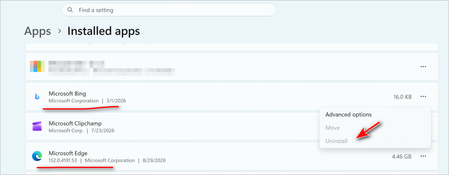

When the uninstall button is greyed out for Microsoft Edge on Windows 11, using the registry cleanup method is a well-known workaround that can restore the uninstall option, effectively solving the Edge uninstall greyed out on Windows 11 issue. This involves modifying a specific registry key that controls the uninstall permissions for Edge.
Here is a typical registry modification method:
1. Press Windows Key + R, type regedit, and press Enter to open the Registry Editor.
2. Navigate to the following path:
HKEY_LOCAL_MACHINE\SOFTWARE\WOW6432Node\Microsoft\Windows\CurrentVersion\Uninstall\Microsoft Edge
3. Find a value named NoRemove.
4. Double-click NoRemove and change its value data from 1 to 0.
5. Click OK and close the Registry Editor.
6. Open the Control Panel, go to Programs and Features (or Uninstall a program), and you should now see an active Uninstall button for Microsoft Edge.
Important Caveats and Other Approaches
- Effectiveness Varies: This registry method has been reported to be successful by some users. However, it's important to know that other users have found it ineffective. In some cases, while the "Uninstall" button reappears, it may fail to actually remove the Edge browser.
- Force Uninstall Command: Besides registry modification, a common method to tackle the Edge uninstall greyed out on Windows 11 issue is to navigate to the Edge installation folder and run its built-in uninstaller with a force command. The typical path is C:\Program Files (x86)\Microsoft\Edge\Application\[version number]\Installer, where you can execute setup.exe --uninstall --system-level --verbose-logging --force-uninstall.
Safety Warning: Editing the Windows Registry is a powerful system-level operation. Incorrect changes can lead to system instability. It is strongly recommended to back up the registry or create a system restore point before making any modifications.