Forum Discussion

Why is the uninstall button greyed out in Windows 11 for app removal?
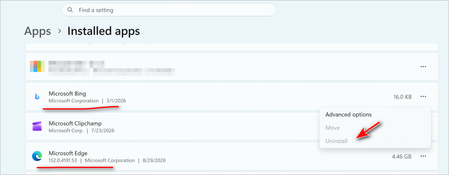

Using PowerShell is one of the most effective methods when the uninstall button is greyed out in Windows 11. This is because many built-in or pre-installed apps are deployed as system-level packages (AppxPackages) where the graphical interface lacks the necessary permissions, but PowerShell can bypass this limitation.
The process involves two key steps: identifying the exact package name of the app, and then using the correct command to remove it.
1. Find the App's Package Name
First, you need to find the app's full package name. To do this, open PowerShell as an administrator (right-click the Start button and select "Terminal (Admin)" or "Windows PowerShell (Admin)").
Then, run the following command to list all apps and their full names:
powershell
Get-AppxPackage | Select Name, PackageFullName
You can also narrow the search by using a keyword. For instance, if you're trying to solve the Uninstall Bing button greyed out in Windows 11, you would use:
powershell
Get-AppxPackage *Bing*
This will list all packages containing "Bing." Look for the one with the name you want to remove, like Microsoft.BingNews or Microsoft.BingWeather, and copy its PackageFullName.
2. Remove the App Using PowerShell
Once you have the PackageFullName, you can remove it with this command:
powershell
Remove-AppxPackage "PackageFullName"
Replace "PackageFullName" with the string you copied. For example, if you are targeting the News app and have found the Uninstall Bing button greyed out in Windows 11 issue, you can use a more direct command that doesn't require copying the full name:
powershell
Get-AppxPackage *BingNews* | Remove-AppxPackage
This command finds the Bing News package and removes it in one step.