Forum Discussion

macOS monterey download for creating a bootable usb installer?
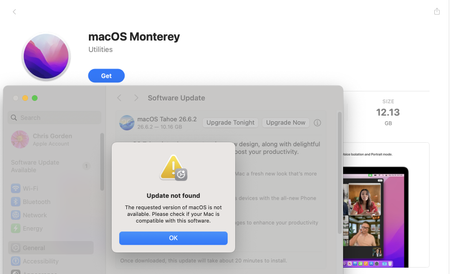

When the working Mac reports that Monterey is unavailable, the main problem is getting the installer files without relying on Software Update. For macOS Monterey dmg download, Mist can retrieve available macOS installer resources from Apple’s software catalog and save them in a form that can be used to prepare installation media.
How to use macOS Monterey dmg download files to prepare a bootable installer
Op. 1: Download Mist from its official GitHub Releases page and open it on the working Mac.
Op. 2: In the app, open the macOS installer list and locate a Monterey release that matches the version you need.
Op. 3: Select the Monterey entry and choose the available disk image or installer image output option. Pick a destination folder with enough free space, then start the download.
Op. 4: Wait for the download and image creation process to finish. Check that the resulting DMG file opens correctly before using it for the next step.
Op. 5: Connect a USB drive and back up anything important on it, because creating bootable installation media will erase the drive.
Op. 6: Mount the downloaded image, access the Monterey installer inside it, and use the installer’s createinstallmedia tool in Terminal to write the bootable installer to the USB drive.
Op. 7: Connect the USB drive to the non-booting MacBook Pro, start it in Startup Manager, and select the installer volume to begin installation or recovery.
Notes:
- Confirm that the MacBook Pro supports Monterey.
- Keep the DMG file until the USB installer has been tested.
- The USB drive will be erased during creation.