Forum Discussion

How to permanently change folder details columns in Windows 11
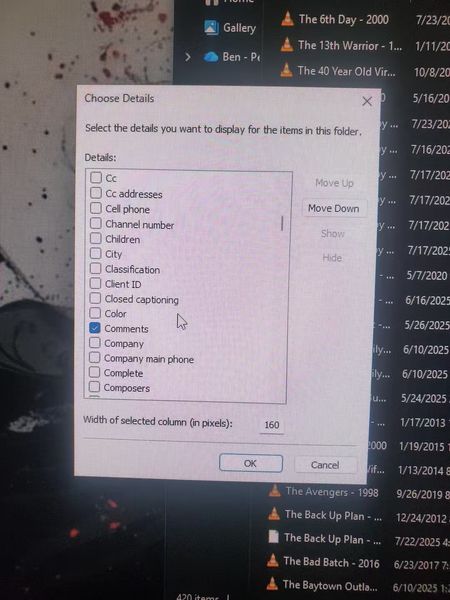

You’re trying to keep the Title and Comments columns in Details view for every folder, rather than adding them repeatedly. In a representative folder, choose View > Details, right-click a column heading, select More, then enable Title and Comments and arrange their widths and order. Open the three-dot menu, choose Options > View, and select Apply to Folders. Windows applies that layout only to folders using the same template, not every folder globally. Repeat the procedure once for General items, Documents, Pictures, Music, and Videos if you want broad coverage. For a particular folder tree, open the top folder’s Properties > Customize, choose the appropriate template, enable applying it to subfolders, then configure and apply the view. Avoid registry edits; Microsoft does not document a supported global registry setting for arbitrary column layouts. Some file types do not expose Title or Comments metadata, so those cells can remain blank.