Forum Discussion

Frequent Network Connection Error Messages After Windows 11 Goes to Sleep
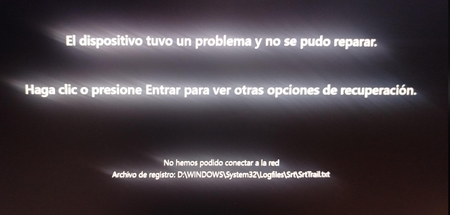

This is more likely a Windows power-management or network adapter issue than a hard drive failure, especially if the error appears shortly after sleep.
Try these steps in order:
1. Disable Wi-Fi power saving: Open Device Manager → Network adapters → right-click your Wi-Fi adapter → Properties → Power Management. Uncheck Allow the computer to turn off this device to save power (if available).
2. Update network drivers: Download the latest Wi-Fi/LAN driver from your laptop manufacturer's website.
3. Reset network settings: Go to Settings → Network & internet → Advanced network settings → Network reset.
4. Check sleep settings: Temporarily disable sleep and see whether the error disappears.
5. Check Event Viewer: Look under Windows Logs → System for network adapter, WLAN, or power-related warnings around the time the error occurs.
Should you send it for repair?
Not yet. If Wi-Fi works normally after restarting and the problem only happens after sleep, it's probably software or driver related.
If the problem persists even after driver updates and network resets, or you experience frequent disconnections while actively using the laptop, consider having the Wi-Fi hardware checked.