Forum Discussion

Aaronwom
Sep 13, 2024Copper Contributor
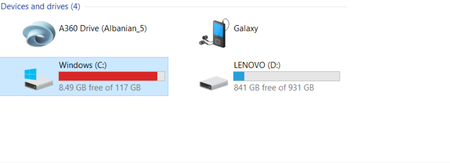
Drive C: What should I do?

Jasonnmiz
Oct 01, 2024Iron Contributor
1.Free Up Space: If your C: drive is running low on space, you can:
Uninstall unused programs via Control Panel > Programs > Uninstall a program.
Use Disk Cleanup (search "Disk Cleanup" in the Start menu) to delete temporary files, system files, and more.
Check for large files and folders that you can move or delete, using tools like WinDirStat.
2.Check for Errors: You can run a Disk Check to identify and fix file system errors:
Open Command Prompt as an administrator and type chkdsk C: /f, and then press Enter. You may have to restart your computer.
3.Defragment the Drive: If you're using an HDD (not recommended for SSDs), you can defragment your hard drive to improve performance:
4.Open "Defragment and Optimize Drives" from the Start menu and select your C: drive.
Uninstall unused programs via Control Panel > Programs > Uninstall a program.
Use Disk Cleanup (search "Disk Cleanup" in the Start menu) to delete temporary files, system files, and more.
Check for large files and folders that you can move or delete, using tools like WinDirStat.
2.Check for Errors: You can run a Disk Check to identify and fix file system errors:
Open Command Prompt as an administrator and type chkdsk C: /f, and then press Enter. You may have to restart your computer.
3.Defragment the Drive: If you're using an HDD (not recommended for SSDs), you can defragment your hard drive to improve performance:
4.Open "Defragment and Optimize Drives" from the Start menu and select your C: drive.