Forum Discussion

Cloning HDD to SDD
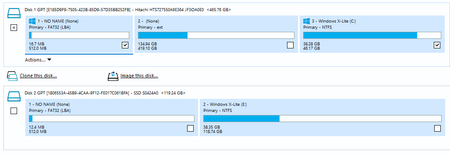

It's smarter to use the command prompt to capture and apply them as WIM images, especially given both drives aren't exactly the same size. To eliminate most errors, avoid trying to capture and store WIM images on volumes that utilize the same physical disk number:
Capture the EFI partition as a WIM image, after using diskpart to assign it the volume letter S:
DISM /Capture-Image /ImageFile="D:\Partition_Backup\Win_11_EFI.wim" /CaptureDir:S:\ /Name:"Win_11_EFI" /EACapture the system partition as a WIM image:
DISM /Capture-Image /ImageFile="D:\Partition_Backup\Win_11_25H2_Desktop.wim" /CaptureDir:C:\ /Name:"Win_11_25H2" /EAExport / Apply the EFI image:
DISM /Apply-Image /ImageFile="D:\Partition_Backup\Win_11_EFI.wim" /Index:1 /ApplyDir:S:\ /EAExport / Apply the system partition image:
DISM /Apply-Image /ImageFile="D:\Partition_Backup\Win_11_25H2_Desktop.wim" /Index:1 /ApplyDir:C:\ /EAWhen you recreate the partitions, you will have to use a 128MB MSR partition, due to the size of the disk, and you will also have to edit the bootloader to fix the Windows entries, not specifically the GRUB 2.x ones alone, at least in multiboot configurations it works like this:
"Capture and apply a Windows image using a single .WIM file" -> https://learn.microsoft.com/en-us/windows-hardware/manufacture/desktop/capture-and-apply-windows-using-a-single-wim
"Sample scripts" -> https://learn.microsoft.com/en-us/windows-hardware/manufacture/desktop/windows-deployment-sample-scripts-sxs
"PARTITION_INFORMATION_GPT structure (winioctl.h)" -> https://learn.microsoft.com/en-us/windows/win32/api/winioctl/ns-winioctl-partition_information_gpt
"UEFI/GPT-based hard drive partitions" -> https://learn.microsoft.com/en-us/windows-hardware/manufacture/desktop/configure-uefigpt-based-hard-drive-partitions
"Understanding Disk Partitions ( Windows 7 )" -> https://learn.microsoft.com/en-us/previous-versions/windows/it-pro/windows-7/dd799232(v=ws.10)?redirectedfrom=MSDN
"Windows and GPT FAQ ( legacy )" -> https://learn.microsoft.com/en-us/previous-versions/windows/hardware/design/dn640535(v=vs.85)
"WinPE: Store or split images to deploy Windows using a single USB drive" -> https://learn.microsoft.com/en-us/windows-hardware/manufacture/desktop/winpe--use-a-single-usb-key-for-winpe-and-a-wim-file---wim
"Boot to UEFI Mode or legacy BIOS mode" -> https://learn.microsoft.com/en-us/windows-hardware/manufacture/desktop/boot-to-uefi-mode-or-legacy-bios-mode
"UEFI in Windows" -> https://learn.microsoft.com/en-us/windows-hardware/drivers/bringup/uefi-in-windows
"UEFI protocols for Windows" -> https://learn.microsoft.com/en-us/windows-hardware/drivers/bringup/uefi-protocols-for-windows
"Boot and UEFI" -> https://learn.microsoft.com/en-us/windows-hardware/drivers/bringup/boot-and-uefi
"UEFI Firmware" -> https://learn.microsoft.com/en-us/previous-versions/windows/it-pro/windows-8.1-and-8/hh824898(v=win.10)?redirectedfrom=MSDN
"Windows support of UEFI" -> https://learn.microsoft.com/en-us/previous-versions/windows/it-pro/windows-8.1-and-8/hh824898(v=win.10)?redirectedfrom=MSDN#windows-support-of-uefi
"Windows Secure Boot certificate expiration and CA updates" -> https://support.microsoft.com/en-us/topic/windows-secure-boot-certificate-expiration-and-ca-updates-7ff40d33-95dc-4c3c-8725-a9b95457578e
"Windows Secure Boot Key Creation and Management Guidance - 1.4 Signature Databases (Db and Dbx)" -> "https://learn.microsoft.com/en-us/windows-hardware/manufacture/desktop/windows-secure-boot-key-creation-and-management-guidance#14-signature-databases-db-and-dbx"
"Secure Boot Key Generation and Signing Using HSM (Example)" -> "https://learn.microsoft.com/en-us/windows-hardware/manufacture/desktop/secure-boot-key-generation-and-signing-using-hsm--example"
"BCD System Store Settings for UEFI" -> "https://learn.microsoft.com/en-us/windows-hardware/manufacture/desktop/bcd-system-store-settings-for-uefi"
"Validating Windows UEFI Firmware Update Platform Functionality" -> "https://learn.microsoft.com/en-us/windows-hardware/manufacture/desktop/validating-windows-uefi-firmware-update-platform-functionality"
"QueryVersionAndStatus.ps1 PowerShell script" -> "https://learn.microsoft.com/en-us/windows-hardware/manufacture/desktop/query-version-and-status-ps1-script"
"GitHub - Microsoft's Secure Boot open-source repository - Releases - Latest" -> "https://github.com/microsoft/secureboot_objects/releases/latest"
"GitHub - Microsoft's Secure Boot open-source repository - secureboot_objects wiki - Secure Boot Workflow: Setup Mode, Key Installation, and Management" -> https://github.com/microsoft/secureboot_objects/wiki/Secure-Boot-Workflow"
Here are some examples that I copy pasted from a guide I wrote that partially utilizes the deployment lab sample scripts:
5A.)

BCDBOOT C:\Windows /s C: /f BIOS

5B.)

BCDBOOT C:\Windows /s S: /f UEFI


Example DiskPart Script:


NOTE: When using certain types of removable mass storage devices, it doesn't allow you to configure the bootloader on the EFI partition, unless it's on an online operating system image. Sometimes to get around this, you have to manually recreate the EFI partition as a regular FAT32 partition first, assign a volume letter ( whatever you have in mind, maybe the volume letter S in this instance, ) apply the offline image, install and configure the bootloader, and then use the SET ID command in DiskPart to update the partition ID.

CONVERT GPT NOERR
SELECT PARTITION 1
DELETE PARTITION OVERRIDE NOERR
CREATE PARTITION PRIMARY SIZE=300 NOERR
FORMAT FS=FAT32 QUICK NOERR
SET ID="C12A7328-F81F-11D2-BA4B-00A0C93EC93B" NOERR
CREATE PARTITION MSR SIZE=128 NOERR
CREATE PARTITION PRIMARY NOERR
FORMAT FS=NTFS UNIT=4096 QUICK NOERR


6.)

BOOTSECT /NT60 C: /FORCE

7A.)

BCDEDIT /SET {default} QUIETBOOT TRUE
BCDEDIT /SET {default} BOOTLOG FALSE
BCDEDIT /SET {default} BOOTMENUPOLICY LEGACY
BCDEDIT /SET {default} USEPLATFORMCLOCK TRUE
BCDEDIT /SET {default} TPMBOOTENTROPY FORCEENABLE
BCDEDIT /SET {default} TSCSYNCPOLICY ENHANCED
BCDEDIT /SET {default} DISABLEDYNAMICTICK FALSE
BCDEDIT /SET {default} NX OPTOUT
BCDEDIT /SET {default} PAE DEFAULT
BCDEDIT /SET {default} DISABLEELAMDRIVERS TRUE

7B.) MBR / BIOS Configurations:

BCDEDIT /STORE C:\Boot\BCD /SET {default} QUIETBOOT TRUE
BCDEDIT /STORE C:\Boot\BCD /SET {default} BOOTLOG FALSE
BCDEDIT /STORE C:\Boot\BCD /SET {default} BOOTMENUPOLICY LEGACY
BCDEDIT /STORE C:\Boot\BCD /SET {default} USEPLATFORMCLOCK TRUE
BCDEDIT /STORE C:\Boot\BCD /SET {default} TPMBOOTENTROPY FORCEENABLE
BCDEDIT /STORE C:\Boot\BCD /SET {default} TSCSYNCPOLICY ENHANCED
BCDEDIT /STORE C:\Boot\BCD /SET {default} DISABLEDYNAMICTICK FALSE
BCDEDIT /STORE C:\Boot\BCD /SET {default} NX OPTOUT
BCDEDIT /STORE C:\Boot\BCD /SET {default} PAE DEFAULT
BCDEDIT /STORE C:\Boot\BCD /SET {default} DISABLEELAMDRIVERS TRUE

7C.) EFI / UEFI Configurations:

BCDEDIT /STORE S:\EFI\Microsoft\Boot\BCD /SET {default} QUIETBOOT TRUE
BCDEDIT /STORE S:\EFI\Microsoft\Boot\BCD /SET {default} BOOTLOG FALSE
BCDEDIT /STORE S:\EFI\Microsoft\Boot\BCD /SET {default} BOOTMENUPOLICY LEGACY
BCDEDIT /STORE S:\EFI\Microsoft\Boot\BCD /SET {default} USEPLATFORMCLOCK TRUE
BCDEDIT /STORE S:\EFI\Microsoft\Boot\BCD /SET {default} TPMBOOTENTROPY FORCEENABLE
BCDEDIT /STORE S:\EFI\Microsoft\Boot\BCD /SET {default} TSCSYNCPOLICY ENHANCED
BCDEDIT /STORE S:\EFI\Microsoft\Boot\BCD /SET {default} DISABLEDYNAMICTICK FALSE
BCDEDIT /STORE S:\EFI\Microsoft\Boot\BCD /SET {default} NX OPTOUT
BCDEDIT /STORE S:\EFI\Microsoft\Boot\BCD /SET {default} PAE DEFAULT
BCDEDIT /STORE S:\EFI\Microsoft\Boot\BCD /SET {default} DISABLEELAMDRIVERS TRUE


Misc Examples Not Related To Step #7 ( Avoid Using These With CompactOS Enabled )


BCDEDIT /V
BCDEDIT /ENUM ACTIVE
BCDEDIT /ENUM {current}
BCDEDIT /ENUM {default}

BCDEDIT /SET {bootmgr} device partition=C:
BCDEDIT /SET {default} device partition=C:
BCDEDIT /SET {default} osdevice partition=C:

BCDEDIT /SET {bootmgr} device partition=\Device\HarddiskVolume1
BCDEDIT /SET {default} device partition=\Device\HarddiskVolume1
BCDEDIT /SET {default} osdevice partition=\Device\HarddiskVolume1

BCDEDIT /STORE C:\Boot\BCD /V
BCDEDIT /STORE C:\Boot\BCD /ENUM ACTIVE
BCDEDIT /STORE C:\Boot\BCD /ENUM {current}
BCDEDIT /STORE C:\Boot\BCD /ENUM {default}

BCDEDIT /STORE C:\Boot\BCD /SET {bootmgr} device partition=C:
BCDEDIT /STORE C:\Boot\BCD /SET {default} device partition=C:
BCDEDIT /STORE C:\Boot\BCD /SET {default} osdevice partition=C:

BCDEDIT /STORE C:\Boot\BCD /SET {bootmgr} device partition=\Device\HarddiskVolume1
BCDEDIT /STORE C:\Boot\BCD /SET {default} device partition=\Device\HarddiskVolume1
BCDEDIT /STORE C:\Boot\BCD /SET {default} osdevice partition=\Device\HarddiskVolume1

BCDEDIT /SET {bootmgr} device partition=S:
BCDEDIT /SET {default} device partition=C:
BCDEDIT /SET {default} osdevice partition=C:

BCDEDIT /SET {bootmgr} device partition=\Device\HarddiskVolume2
BCDEDIT /SET {default} device partition=\Device\HarddiskVolume1
BCDEDIT /SET {default} osdevice partition=\Device\HarddiskVolume1

BCDEDIT /STORE S:\EFI\Microsoft\Boot\BCD /V
BCDEDIT /STORE S:\EFI\Microsoft\Boot\BCD /ENUM ACTIVE
BCDEDIT /STORE S:\EFI\Microsoft\Boot\BCD /ENUM {current}
BCDEDIT /STORE S:\EFI\Microsoft\Boot\BCD /ENUM {default}

BCDEDIT /STORE S:\EFI\Microsoft\Boot\BCD /SET {bootmgr} device partition=S:
BCDEDIT /STORE S:\EFI\Microsoft\Boot\BCD /SET {default} device partition=C:
BCDEDIT /STORE S:\EFI\Microsoft\Boot\BCD /SET {default} osdevice partition=C:

BCDEDIT /STORE S:\EFI\Microsoft\Boot\BCD /SET {bootmgr} device partition=\Device\HarddiskVolume2
BCDEDIT /STORE S:\EFI\Microsoft\Boot\BCD /SET {default} device partition=\Device\HarddiskVolume1
BCDEDIT /STORE S:\EFI\Microsoft\Boot\BCD /SET {default} osdevice partition=\Device\HarddiskVolume1