Forum Discussion

Can you change this icon (and label) from Headphones to Speakers?
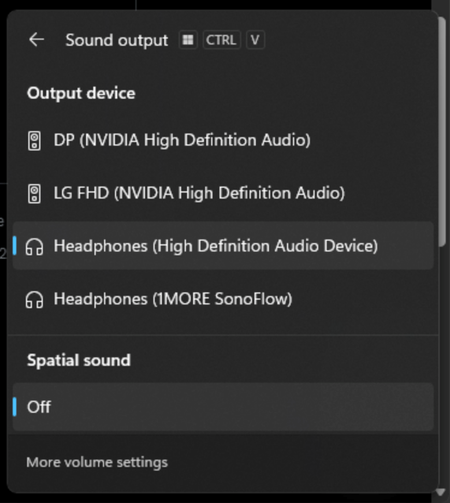

You can rename the entry, but the Quick Settings icon is controlled separately. Open Settings > System > Sound > More sound settings, select the Playback tab, double-click “Headphones (High Definition Audio Device),” and on the General tab replace the name with “Speakers,” then choose Apply. That changes the friendly label only. The headphone glyph in the taskbar output list is derived from the audio endpoint’s form factor, which the audio driver reports; changing the Sound icon may not change this Quick Settings glyph. Because your screenshot shows Microsoft’s generic “High Definition Audio Device” endpoint, install the audio driver from the PC or motherboard manufacturer, restart, and check its audio console for connector or jack-retasking options. Choose Speakers only if speakers are actually connected to that jack. If the OEM driver provides no retasking control, leave the icon as-is and avoid registry edits; the label can still identify the output.