Forum Discussion

Windows Update says my pc doesn't meet windows 11 requirements
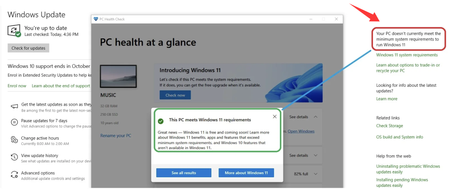

If PC Health Check says my PC is compatible but Windows Update says it doesn't currently meet the minimum system requirements to run Windows 11, using the Windows 11 ISO installer can sometimes help bypass detection issues during an upgrade.
This method uses the Windows 11 ISO file and runs the installer with a special parameter. The /product server command changes how the installer checks the system requirements, which may allow the upgrade process to continue on some unsupported hardware configurations.
How to use:
- Download the Windows 11 ISO file from Microsoft.
- Double-click the ISO file to mount it as a virtual drive.
- Open the mounted drive folder.
- Open Command Prompt in that location.
- Run:
setup.exe /product server
Finally, follow the installation steps and choose whether to keep your personal files and applications.
Things to note:
- This method does not change your actual hardware compatibility.
- Microsoft may not officially support installations performed this way.
- Always back up important files before upgrading.
If PC Health Check says my PC is compatible but Windows Update says it doesn't currently meet the minimum system requirements to run Windows 11, this ISO-based setup method can be an alternative way to start the upgrade process.