Forum Discussion

Why can't the ISO file be properly mounted?
 Aug 06, 2026
You already tried different ISO files, so continue to ensure they are legitimate and correctly downloaded.

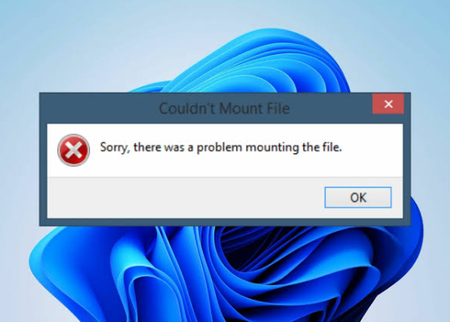
The screenshot shows Windows reporting “Sorry, there was a problem mounting the file,” and you see it with several ISOs, so the dialog alone does not identify one damaged image. First copy one ISO into a new local NTFS folder on the C drive rather than opening it from a network, cloud-synced, or removable location. Microsoft documents that copying can remove the SparseFile attribute, which can block mounting. In PowerShell, run (Get-Item "C:/ISO/file.iso").Attributes and check whether SparseFile appears. Eject USB drives, memory-card readers, and other removable media temporarily, then right-click the copied ISO and select Mount. Check This PC afterward because an image can sometimes mount despite the warning. If it still fails, run Mount-DiskImage -ImagePath "C:/ISO/file.iso" in PowerShell and record the full error and code. Share that output plus the Windows version; without it, permission, file-format, and component-store failures cannot be distinguished safely.