Forum Discussion

User Folder displaying wrong name
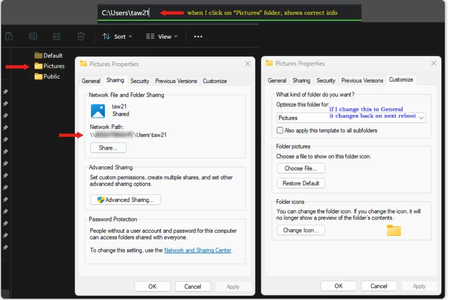

That sounds incredibly frustrating especially after going through the trouble of a Windows reset and still seeing "Pictures" staring back at you!
Based on your description and the fact that the address bar shows the correct path, the issue isn't that your folder was actually renamed; it’s a display glitch caused by a hidden file called desktop.ini.
Essentially, Windows uses this tiny file to tell File Explorer, "Hey, even though this folder is named 'John', show the user the word 'Pictures' instead." This usually happens if a desktop.ini file from your actual Pictures folder accidentally got copied into your main User profile directory.
In order to fix this issue, you need to follow the below listed steps:
Open File Explorer and navigate into that "Pictures" folder (your user folder).
Click the View tab (or the three dots ... in Windows 11) and select Options.
Go to the View tab in the pop-up window.
Find and uncheck the box that says Hide protected operating system files. Click Yes on the warning.
Ensure Show hidden files, folders, and drives is also selected. Click OK.
Look inside your user folder for a file named desktop.ini. You might see two; check them both.
Delete the desktop.ini file.
Restart your computer or restart Windows Explorer via Task Manager.
When you choose "Keep my files" during a Windows reset, the system preserves everything inside your User folders. Since the desktop.ini file lives right inside that folder, Windows dutifully saved the very bug that was causing the problem!
Once you're done, I highly recommend going back into Folder Options and re-checking Hide protected operating system files to keep your system directories clean and safe from accidental deletions.