Forum Discussion

USB external drive letter not remembered
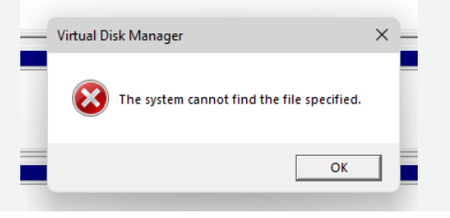

On your desktop, you'll see an icon, "This PC". Right click, then if you see it then disk management, or "Show more options "Manage" click, then "Disk management". Usually "Disk 1" but you can see which one it is. If there are important files on it, then try "Convert disk to GPT." If there is nothing important on it then right click, delete volume, then create new volume, and there is "Assign drive letter". And of course, "Format this disk" usually Ex Fat, or restore original. The point is that the disk must be GPT. It is not "File specified" but a hard disk
. Or "This Pc" and if you see that disk then right click, properties, tools, check disk for errors and repair.
https://www.windowscentral.com/how-convert-mbr-disk-gpt-move-bios-uefi-windows-10
And then, if, say, a USB is plugged into the computer, and you see "Drive D", then the name of what you are talking about here is also "Drive D", there is nothing strange in it if when you plug it in, it says "Drive E", because there is already a "Drive D" in it, so it will either be "Drive F" or whatever. If it works, don't touch it.
- Dism.exe /online /Cleanup-Image /checkhealth
2) Dism.exe /online /Cleanup-Image /scanhealth
3) Dism.exe /online /Cleanup-Image /Restorehealth
4) sfc /scannow
5) Dism.exe /Online /Cleanup-Image /AnalyzeComponentStore
6) Dism.exe /Online /Cleanup-Image /StartComponentCleanup
😁 (Run CMD as administrator)