Forum Discussion

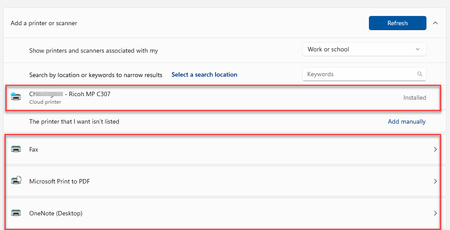
Universal printer says installed, but not in printer list
 May 10, 2023
Resolved the issue. Cloud printers register as a device in devices. Locate the device, click on the ellipse and remove device. Reboot the Device, you will now be able to add in the Universal Printer again.

chiners_68
I've encountered this problem, too.
The problem isn't that the printer isn't offered in the "work or school" search option.
It is that every time you (re)install it, it proceeds to only partially install and not function (listed as other device). I've seen this across several organizations that have deployed universal print. Restarting the client device before adding it back does not improve the result in any manner. Once a machine has this symptom the only method I've found to allow the device to successfully install the share is to host the printer with a new/distinct share - which of course, is objectively bad and should not be the solution.

I am also facing the same issue where printer has been removed by user and now they are unable to install it again. Because it doesn't shows the Follow Me cloud printer in Work or School account during the search.
Also i have checked whether there's any entry in Devices section but i haven't found any printer.
Now i have no clue what to do next...and this is not with every device but most of the devices.
- chiners_68Sep 25, 2024Brass Contributor
ntnchoudhary666 if your not getting work or school option check your licensing. Does the user have a license for UP. if they do and that’s not changed check the device has accepted the enterprise license activation. You could also try removing the license from a user, give it 5 mins and add it back, reboot, login and check again.
- ntnchoudhary666Sep 25, 2024Copper ContributorUser are getting Work or School account option but printer is not showing up there.
User is having E5 license and removing the same is not a good approach as it will impact other services