Forum Discussion

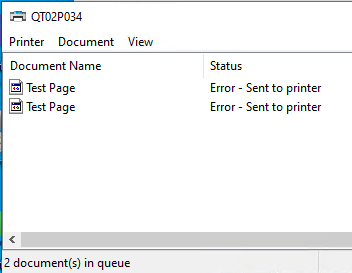
Error - Send to Printer
 May 11, 2020
Saurabh_Bansal I received a sollution from Microsoft support. They came with the following response:
One possible cause is that the machine running the Connector is joined to a different on-premise domain than the one associated with your AAD, as the Connector tries to impersonate the user sending the print job. To disable impersonation, do the following:
open elevated command prompt
stop the print connector service by running
net stop "Print Connector Service"
Open the config.json file for connector since this option is not exposed in the UI / connector.
notepad c:\windows\printconnectorsvc\config.json
At the very end, add , to the previous line and add two new lines:
"always-log-print-ticket-validation": "true",
"enable-impersonation": "True"
Save, exit Notepad, and restart the connector svc.
net start "Print Connector Service"
If this does not work try to set the "enable-impersonation" to False and test it again.
This worked for me!

 Microsoft
Marrick2000 this will need to be investigated. Can you create a support request? Support request can be created using one of the following (based on your Support plan with Microsoft):
- Marrick2000May 11, 2020Copper Contributor
Saurabh_Bansal I received a sollution from Microsoft support. They came with the following response:
One possible cause is that the machine running the Connector is joined to a different on-premise domain than the one associated with your AAD, as the Connector tries to impersonate the user sending the print job. To disable impersonation, do the following:
open elevated command prompt
stop the print connector service by running
net stop "Print Connector Service"
Open the config.json file for connector since this option is not exposed in the UI / connector.
notepad c:\windows\printconnectorsvc\config.json
At the very end, add , to the previous line and add two new lines:
"always-log-print-ticket-validation": "true",
"enable-impersonation": "True"
Save, exit Notepad, and restart the connector svc.
net start "Print Connector Service"
If this does not work try to set the "enable-impersonation" to False and test it again.
This worked for me!