Forum Discussion

Aunthentication for the App to post message and files in the specific teams channel

 Microsoft
chetan_sk - Thanks for reporting your issue.
Please have look into this document-Send chatMessage in a channel - Microsoft Graph v1.0 | Microsoft Learn
You can try like below-
graph_client = GraphServiceClient(request_adapter)

request_body = ChatMessage(
	body = ItemBody(
		content = "Hello World",
	),
)

result = await graph_client.teams.by_team_id('team-id').channels.by_channel_id('channel-id').messages.post(body = request_body)
 chetan_skSep 13, 2023Copper ContributorHi Sayali,
Thankyou for your response but that we are already doing, my question is not with respect to the code, my question is specific to the request_adapter in the above code.
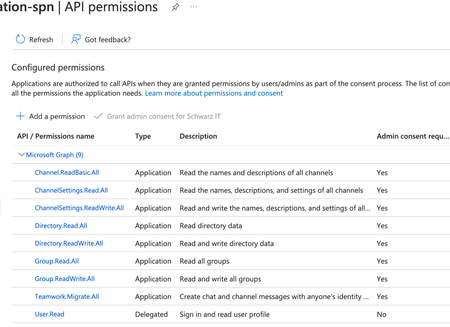
the authentication which we do , is via registered App as shown in my question and in screeenshot, and if we give permissions, that will be for all the Team channels in the organization,
Can you please let us me know how do we give permissions specific to the single channel ? . or is there any other way to authenticate instead or register APP, if there is a way , can you please give example ?- Sayali-MSFTSep 13, 2023
chetan_sk - To grant permissions specific to a single channel in Microsoft Teams, you can use Resource-specific consent (RSC). RSC allows your app to use API endpoints to manage specific resources, such as teams or chats, within an organization.
Here are the steps to grant RSC permissions to your Teams app for a single channel:
-
Add RSC permissions to your Teams app:
- In your Teams app's manifest file, add the required
resourceSpecificApplicationPermissionsproperty. - Specify the API permissions that your app requires for the specific channel.
- For example, if your app needs to read and write messages in a channel, you would add the
ChannelMessage.Read.AllandChannelMessage.Sendpermissions.
- In your Teams app's manifest file, add the required
-
Install your app in the channel:
- Once you have added the RSC permissions to your app, you need to install the app in the specific channel where you want to grant permissions.
- You can install the app using the Teams client or programmatically using the Microsoft Graph API.
-
Verify app RSC permission granted to your app:
- After installing the app in the channel, you can verify if the RSC permissions have been granted to your app.
- You can check the app's permissions using the Microsoft Graph API or the Teams admin center.
By following these steps, you can grant specific permissions to your Teams app for a single channel. This allows your app to access and manage resources within that channel based on the granted permissions.
For more detailed information and code examples, you can refer to the following documentation:
- Add RSC permissions to your Teams app
- Install your app in a team or chat
- Verify app RSC permission granted to your app
- chetan_skSep 19, 2023Copper ContributorThanks for these details, I will investigate this
-