Forum Discussion

Pete001
Dec 14, 2018Copper Contributor
SharePoint Seach error
Hi , Newly migrated site, when I click on search .. this is the error I get...please advise... Thanks in advance.
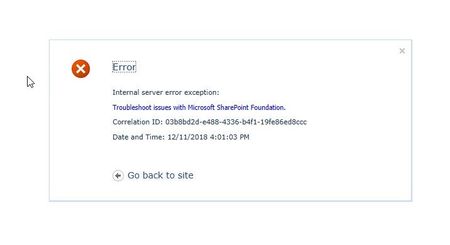
- Dec 14, 2018Hi,
Please provide the error related to the correlation ID / or ask your admin, only then we will be able to see what exactly is the error related .
If search is not displaying then few things you can do ..
1. Check your search service running fine
2. check whether crawl is running - Since its migrated recently the full crawl is must.
Hope this helps
THuyavan

Thuyavan Ganesan
Dec 14, 2018Steel Contributor
Hi,
Please provide the error related to the correlation ID / or ask your admin, only then we will be able to see what exactly is the error related .
If search is not displaying then few things you can do ..
1. Check your search service running fine
2. check whether crawl is running - Since its migrated recently the full crawl is must.
Hope this helps
THuyavan
Please provide the error related to the correlation ID / or ask your admin, only then we will be able to see what exactly is the error related .
If search is not displaying then few things you can do ..
1. Check your search service running fine
2. check whether crawl is running - Since its migrated recently the full crawl is must.
Hope this helps
THuyavan
 Pete001Dec 15, 2018Copper ContributorThank you .. Yes you are right the crawl was not running and I am not able to start it. Any idea?
- Thuyavan GanesanDec 15, 2018Steel ContributorHi,
Good to know you found the root cause .
There are few people succeeded by doing the below steps, please try and let me know, I have also placed the Forum URL for more information.
1) Stop the Windows SharePoint Timer Service
2) Navigate to C:\Documents and Settings\All Users\Application Data\Microsoft\SharePoint\Config
3) Go into the single folder in there that has a GUID type name.
4) You see a whole bunch of XML files and a file cache.ini
5) Copy all the XML files to another folder somewhere (for backup), then delete them but do not delete cache.ini
6) Edit cache.ini to contain just the number "1" in the file - erase whatever is there and replace with "1"
7) Restart the Windows SharePoint Timer Service
8) You should see XML files being regenerated in the folder
https://social.technet.microsoft.com/Forums/en-US/26883a1b-13f8-4614-9552-e8ca910987c9/scheduled-crawls-not-running?forum=sharepointsearchlegacy
Hope this helps!- Pete001Dec 15, 2018Copper ContributorHi Thuyavan,
Thanks a lot, it worked :) now we are able to see results but .. it runs for a while and stops, any thoughts?