Forum Discussion

Task Dates Incorrect Based on Resource Availability
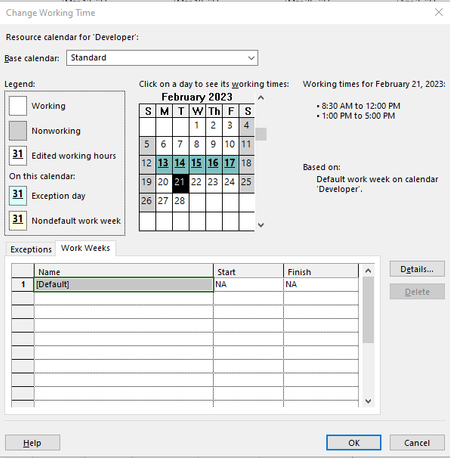

I notice a couple of things right off the bat. First, the "vacation" week you set up for the resource is not only for that resource but for all tasks in your plan, assuming the Project calendar is the Standard. To set up non-working periods for a specific resource, you need to do it at resource level. On the Resource Sheet, select the resource, then go to, Project > Properties group > Change Working Time.
To set the custom working time for the whole plan, best practice is to NOT modify the Standard calendar directly but create a new custom calendar, based on the Standard, if appropriate. That way, the custom calendar does not get stored in your Global as the Standard calendar for any future plan. On the surface it may seem like, "gee, that's what I'd like", but more than likely it'll bite you some time in the future.
Since you have a 7.5 hour workday I assume you changed your Project options to reflect that (i.e. File > Options > Schedule group > Hours per day). And you should also change the Project Start Date (Project > Properties group > Project Information > Start date) from the default 8:00 AM time to 7:30 AM. Note, to facilitate this go to, File > Options > General group and select a Date Format that includes the time.
Finally, I can't tell how the start date of the Development task was determined because there isn't enough information. Does that task have the Client approval as a predecessor? Did you manually enter the start date thus creating a "start-no-earlier-than" constraint? How did you assign the resource to the task? What is the task type (i.e. fixed work, fixed units, etc.)?
Given all those fixes and tweaks, you should have something that looks like this.
John