Forum Discussion

Task Control - Actual Start and Actual Finish Wrong data
 May 22, 2022
Filipe,
My, my aren't we having fun! The scenario you present is interesting and in fact, was a challenging one for me to figure out. I couldn't do it with Project 2019 running on Windows 10 with my Parallels virtual machine, I had to revert back to Project 2010 running on Windows 7 ( a much faster and more responsive configuration).
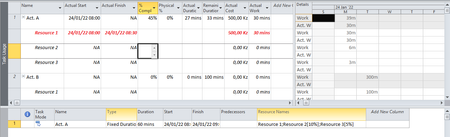
Okay, I've got your answer, you may or may not like it. To understand what is happening, I had to set the timescale to hours (middle tier) and minutes (bottom tier). Even then Project would not reliably display Work in the timescaled data but it did display Cumulative work in the timescaled data and that allowed me to figure it out. (It helps to look at the face of an analog clock to visualize the information below.)
The task is 60 minutes duration. The first resource is assigned at 100% so those hours are spread linearly over the full 60 minute task duration, one minute of work for every minute of duration. The second resource is assigned at 10% with 6 minutes of work and those 6 minutes are assigned linearly over the full task duration which translates to 1 minute of work for every 10 minutes of duration. Thus, when that resource shows an actual work content of 3 minutes with zero remaining work (i.e. 100% complete), those 3 minutes span 30 minutes of duration so that resource's finish time is 8:30, not 8:06 as you might assume.
A similar thing applies to the third resource with an assignment level of 5%. Those 3 minutes of work are spread linearly over the full 60 minute task duration (i.e. 1 minute of work every 20 minutes of duration).
That is how Project schedules the task. If you want a different spread of resource hours, (e.g. resource 2 works for 6 minutes all at the very beginning of the hour), you will need to change the task type to Fixed Work and manually adjust the work time directly in the Finish field for the resource's assignment row (i.e. enter 1/24/22 8:06 AM).
Whether I've made you understand, I do not know. But I do know, you probably owe me a beer, a Mercedes Benz and 10,000 in bitcoin for digging this one out for you. 🙂
John
Filipe,
My, my aren't we having fun! The scenario you present is interesting and in fact, was a challenging one for me to figure out. I couldn't do it with Project 2019 running on Windows 10 with my Parallels virtual machine, I had to revert back to Project 2010 running on Windows 7 ( a much faster and more responsive configuration).
Okay, I've got your answer, you may or may not like it. To understand what is happening, I had to set the timescale to hours (middle tier) and minutes (bottom tier). Even then Project would not reliably display Work in the timescaled data but it did display Cumulative work in the timescaled data and that allowed me to figure it out. (It helps to look at the face of an analog clock to visualize the information below.)
The task is 60 minutes duration. The first resource is assigned at 100% so those hours are spread linearly over the full 60 minute task duration, one minute of work for every minute of duration. The second resource is assigned at 10% with 6 minutes of work and those 6 minutes are assigned linearly over the full task duration which translates to 1 minute of work for every 10 minutes of duration. Thus, when that resource shows an actual work content of 3 minutes with zero remaining work (i.e. 100% complete), those 3 minutes span 30 minutes of duration so that resource's finish time is 8:30, not 8:06 as you might assume.
A similar thing applies to the third resource with an assignment level of 5%. Those 3 minutes of work are spread linearly over the full 60 minute task duration (i.e. 1 minute of work every 20 minutes of duration).
That is how Project schedules the task. If you want a different spread of resource hours, (e.g. resource 2 works for 6 minutes all at the very beginning of the hour), you will need to change the task type to Fixed Work and manually adjust the work time directly in the Finish field for the resource's assignment row (i.e. enter 1/24/22 8:06 AM).
Whether I've made you understand, I do not know. But I do know, you probably owe me a beer, a Mercedes Benz and 10,000 in bitcoin for digging this one out for you. 🙂
John
 FilipeCuangoMay 23, 2022Copper ContributorBut given the confusing situation because of the task type being Fixed Duration. Is it a program error or is it its natural way of calculating working time
- John-projectMay 23, 2022Silver ContributorFilipe,
You're welcome and thanks for the feedback.
No, it's not a program error, regardless of task type, Project will always linearly spread resource assignments across the full task duration, assuming the user did not change the assignment Work Contour which is "flat" (linear) by default. But, manually editing those assignments to a non-linear spread is dependent on the task type. It all depends on which of the three variables in Project's work equation is fixed.
Duration = Work / Units
John
- FilipeCuangoMay 23, 2022Copper ContributorHa, ha, ha
Thank you John.
When I find my lamp genius I will fulfill your wishes... Hugs