Forum Discussion

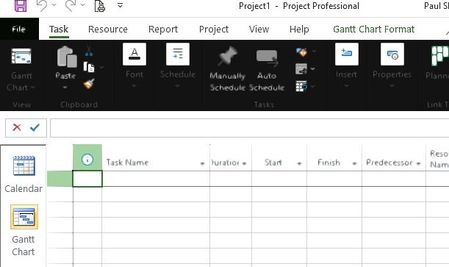
Project - Blurry and Inverted Black/Blocky Areas
 Sep 18, 2022
Stripester
Resolution: Integrated Graphics card settings
I had the same issue w/ JUST Project, and it was not easy searching for others with same issue & finding a solution. Your screenshots were very helpful !
See the setting I changed to resolve - I had an Intel HD Graphics controller.
When I turned OFF the CONSERVATIVE MORPHOLOGICAL ANTI-ALIASING, It fixed the issue with MS Project.
SEE PICS BELOW
In case image does not come through...
-type in at start search bar "Graphics Settings" - if the Project does not appear browse for the loation of Project: "C:\Program Files\Microsoft Office\root\Office16\WINPROJ.EXE" and set it to appear.
-Now set to high performance
For me to get to the setting:
-Next Task is to find your graphics controller setting and turn anti-aliasing off.
Goto SETTINGS - > DISPLAY on left side -> scroll down and click on DISPLAY ADAPTER PROPERTIES FOR DISPLAY 1 - > on pop-up screen it lists your Adapter type, here it was my Intel HD Graphics card CLICK TAB Intel HD Graphics Control Panel -> Click GRAPHIC PROPERTIES.... goto 3D settings -> turn off ANTI_ALIASING
all other settings can still be High Performance.Also you may be able to see the Display Controller if you right click on task manager and see its icon there.
http://prntscr.com/LFS_-x8XtfUH
http://prntscr.com/iUjZv45MVO8m
http://prntscr.com/ElrGVyJWzFOm
Hope this helps.
JD

Responses below -
I ask again, if you switch the Office Theme to a different setting, say "white", will the change take effect but then periodically present the black/blocky/blurry issue, or does the new setting stay? Change takes effect and then the black/blocky/burry issues happens almost immediately, but not as much if using "White"
Is it possible you only see the issue with Project because you use Project more than other Office apps or do you use other apps just as often? I used all office apps every day, only effects Project
In Project does the issue only occur with a particular view (e.g. Gantt Chart)? Happens in all Views
Just curious, do you have speech recognition turned on? If so, try turning it off. Turned off
I also notice that in your first posted screen shots you have the default Calibri 11 font but then I notice in your latest screen shots you show an Arial 8 font. I suggest you stick with the Calibri font as I have seen/heard of graphic issues with other fonts. Its defaults as Calibri 11, I had opened someone's else Programme open, the font doesnt seem to have an effect on the issue

Pardon me for bumping into this thread. Out of curiosity, what happens if you change the screen resolution on your computer? What you are describing sounds vaguely like some issues I have seen reported previously that were related to screen resolution and how it impacts Microsoft Project. Also, is your copy of Microsoft Project fully updated with the latest updates from Microsoft? You might find that applying the latest updates will resolve this problem. Hope these additional thoughts help.
- StripesterOct 12, 2022Copper Contributor
I had not forgot about this Post and was still trying to resolve it, in fact I came back today to give you all an update...the update would have been that I am still having the issues even with an identical machine...
BUT..
Thanks to your post it has fixed the problem.
I would never have found that setting to change and I was almost in the frame of mind to buy a new laptop to resolve this issue.
I am in your debt, thank you so much for posting this and all the help I have been given on this site and to the other contributors such as John-project .
 John-projectSep 18, 2022Silver ContributorJD,
Thanks for jumping in. Hopefully the original poster will see your suggestion and will provide him/her some help.
John- J__D_Sep 18, 2022Copper Contributor
Stripester
Resolution: Integrated Graphics card settings
I had the same issue w/ JUST Project, and it was not easy searching for others with same issue & finding a solution. Your screenshots were very helpful !
See the setting I changed to resolve - I had an Intel HD Graphics controller.
When I turned OFF the CONSERVATIVE MORPHOLOGICAL ANTI-ALIASING, It fixed the issue with MS Project.
SEE PICS BELOW
In case image does not come through...
-type in at start search bar "Graphics Settings" - if the Project does not appear browse for the loation of Project: "C:\Program Files\Microsoft Office\root\Office16\WINPROJ.EXE" and set it to appear.
-Now set to high performance
For me to get to the setting:
-Next Task is to find your graphics controller setting and turn anti-aliasing off.
Goto SETTINGS - > DISPLAY on left side -> scroll down and click on DISPLAY ADAPTER PROPERTIES FOR DISPLAY 1 - > on pop-up screen it lists your Adapter type, here it was my Intel HD Graphics card CLICK TAB Intel HD Graphics Control Panel -> Click GRAPHIC PROPERTIES.... goto 3D settings -> turn off ANTI_ALIASING
all other settings can still be High Performance.Also you may be able to see the Display Controller if you right click on task manager and see its icon there.
http://prntscr.com/LFS_-x8XtfUH
http://prntscr.com/iUjZv45MVO8m
http://prntscr.com/ElrGVyJWzFOm
Hope this helps.
JD - John-projectDec 02, 2021Silver ContributorStripester,
You're welcome and thanks for the update. Yes, please let us know if the other PC shows any difference.
John - StripesterDec 02, 2021Copper Contributor
Hi both thanks for all your suggestions, I've tried a lower res, same...
I will be getting hold of an identical computer in the next week or so and see if it has the same problem, if so, I guess its a driver issue (or at least an issue with Project on this type of machine).
Many thanks for your assistance, I will post a final message when I get to a answer.
PS updated to the newest version, still the same

- John-projectDec 01, 2021Silver ContributorDale,
Thanks for bumping in. I'm out of suggestions.
John