Forum Discussion

MS Project: Overallocation not showing in Custom View
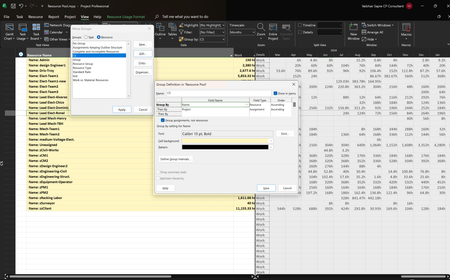

Hi VaibhavSapre
As it is a task grouping, I don't think the group title can be displayed in another color if the resource is overallocated.
If it helps, try inserting a logical field, Flag1 for example, whose formula is = [Overallocated], and in the summary and group tasks row select Rollup.
This way at least you have the information of whether the resource is overallocated, even if it is not shown in a different color.
Ignacio

Thank you for your reply.
I tried your suggestion but it shows "No", while I know that resource is overloaded for a few months.
- Jul 10, 2024All -- The Overallocated field is entirely useless in this situation because the Overallocated field only displays a Yes value for tasks on which the resource is assigned more work on that task than Microsoft thinks they can do (such as assigning the resource to work 10 hours per day when their Max. Units value indicates they can only work 8 hours per day). The Overallocated field DOES NOT display a Yes value when the resource is overallocated across multiple tasks.
I think the reality is that when grouping is applied in the Resource Usage view, the red text disappears. The approach I uses is NOT using grouping. Instead, I insert the Project column and the Task Summary Name column, which tells me the projects in which the resource is overallocated, and the summary section in which the tasks are located. Just a thought. Hope this additional information helps.- VaibhavSapreJul 10, 2024Copper ContributorThank you for your suggestions Dale_HowardMVP.
 John-projectJul 10, 2024Silver Contributor
Ignacio offered an excellent workaround. Unfortunately, because you are working with a linked structure it can't be implemented directly as described. Depending on where the custom field formula is resident (i.e. master or subprojects), it will only work at that level (i.e. if at master level, it will only work for assignments at master level, not for assignments in subprojects and vice versa).
To make it all work as intended you will likely need the same custom field formula at each level. You might try that and see it it helps. If not, I'd have to do some testing to find a way to implement Ignacio's approach or perhaps he will modify his approach to make it work in your scenario.
John
- VaibhavSapreJul 10, 2024Copper ContributorThank you John-project, I appreciate your suggestion to apply the solution to each level. Unfortunately, after trying it, the issue remains unresolved.
- John-projectJul 11, 2024Silver Contributor
You're welcome and thanks for the feedback. Unfortunately, I crafted my response "off the cuff" and didn't really check it out, so for that, I apologize. A few hours later I read Dale's response and realized I had missed the mark entirely and that his response was, as usual, the best response.
Please consider marking Dale's response as the answer.
John
