Forum Discussion

Importing a plan from Google Sheet
- Jul 21, 2022Robert --
I ran into this exact problem when I exported a project from Project for the Web to an Excel workbook. When I tried to import the workbook into Microsoft Project, the From: Excel field rows were blank in the Import Wizard dialog.
Oddly enough, I was able to resolve the problem by copying and pasting the contents of the original Excel workbook into a totally new blank workbook and then saving it with a different name. I would suggest that you try this method to see if it resolves your problem as well. Hope this helps.


Hi Sarthak-Kala
Yes, I am beginning to gather that we can't import a project plan from Google Sheet. Currently, i am going through a painful process of manually entering the project plan in MS Project, as I need to soon share the plan with the stakeholders.
In parallel, i am keeping my fingers crossed that someone can throw some light as to why I am unable to map the Excel columns with the MS Project columns.

If I may step in. Reading your previous post about not being able to select Excel fields, could it be as simple as failing to select a "Source Worksheet Name"? And bear in mind that if you intent to import tasks, resources and assignments, those elements need to be on separate Worksheets in Excel.
John
- robertpoddarJul 21, 2022Copper Contributor
Hi John-project
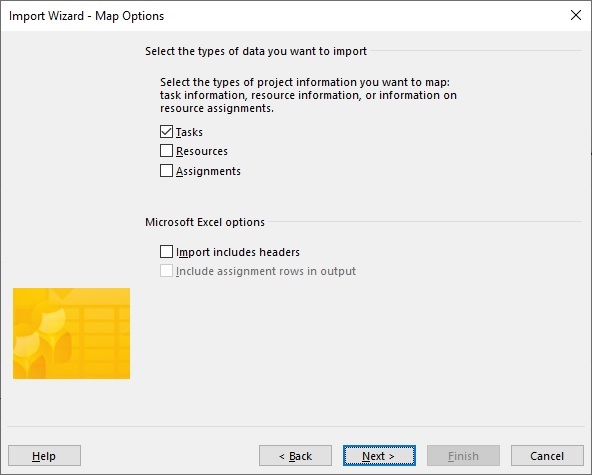
I selected the "Source Worksheet" and also selected the "Tasks" checkbox. I am unable to pull down the list in the "From: Excel field" and also map "To Microsoft Project field". Attaching the screenshot of my map wizard.
- John-projectJul 21, 2022Silver Contributorrobertpoddar,
It sounds like Dale may have the solution for you. However if you are still having issues, VBA is a fallback solution and I'd be happy to help you with that.
John- robertpoddarJul 22, 2022Copper ContributorHi John.
The solution that Dale provided worked. In the sense i was able to import the data into the MS Project.
The issue is that i am not getting the desired results, which i need to further fine tune the importing of data.
Thank you so much for helping me..
- Jul 19, 2022Robert --
John's reply helped me to figure out what might be your problem. When you go to import the Excel workbook, only select the Tasks option in the Import Wizard dialog. If you select Tasks, Resources, and Assignments, then you Excel workbook MUST have three worksheets. Most of the time, you can successfully import an Excel workbook only using the Tasks option. Just a follow up to John's excellent post. Hope this helps.- robertpoddarJul 21, 2022Copper ContributorOK Dale.. i did try out what John mentioned, but i am yet unsuccessful. I have shared the screenshots of the Map Wizard as part of John's response.
- Jul 21, 2022Robert --
I ran into this exact problem when I exported a project from Project for the Web to an Excel workbook. When I tried to import the workbook into Microsoft Project, the From: Excel field rows were blank in the Import Wizard dialog.
Oddly enough, I was able to resolve the problem by copying and pasting the contents of the original Excel workbook into a totally new blank workbook and then saving it with a different name. I would suggest that you try this method to see if it resolves your problem as well. Hope this helps.