Forum Discussion

 Microsoft
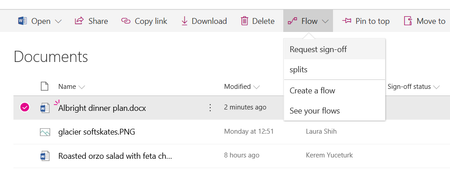
Introducing "Request sign-off" - an approval flow that requires no set up

I guess misery loves company - I also started a formal testing of this feature today, but on a custom list not a document library.
Same result as everyone else - final emails says 'signed off on your item. Note that we were not able to update the column in SharePoint because the file was locked by a user.
I've tried approving from the email. Approving from the mobile flow app. Same thing every time.

Kerem Yuceturk - Is anyone at MS looking at this? I went to introduce this "great" feature to someone in leadership only to be embarrassed that it is BROKEN as others have pointed out recently. It appears it has been broken for a number of days now and there's nothing in O365 Admin Center about it.
- Chakkaradeep (Chaks) Chinnakonda ChandranFeb 11, 2019Former Employee
Hi all,
I am Chaks and have taken the ownership of this feature from Kerem. First off, thanks for the awesome feedback here. While I am happy to hear you all love this feature, I can feel your frustration when it comes to feature not working as expected!
Just wanted to provide some update on some of the issues reported here - especially with Sign-off column not being updated which is an after effect of the file being locked for a long time by the user. This could happen if the file is open in the browser or client for a long time, which is very common, as we can see from the responses in this thread itself. This issue exists today in SharePoint and as one of the users pointed out here, even a custom flow updating file properties will encounter this issue.
Good news is that the product team will be looking into this issue specifically for Request sign-off feature and ensure we are able to "fix" this issue in the product. I will keep this thread updated as and when we have more updates to share.
In the meanwhile, please do continue to share your feedback!
Thanks,
Chaks
- Chakkaradeep (Chaks) Chinnakonda ChandranAug 26, 2019Former Employee
Hi all,
Wanted to share some good news! We just rolled out the fix for the file lock issue for the Request sign-off feature! If you go to your list or library and click on Request sign-off, you will be prompted to create a new flow (for once for that list) and then you should get the updated flow.
One known issue is that the file lock may not work with Excel files. We know the issue and will be working with the Excel product team to come up with a fix. It is an issue with the Office Excel client than SharePoint. Other than that, this update should work with other file types.
Please do let us know if it works for you! Looking forward to your replies!
Thanks,.
Chaks
 Andrew WooSep 23, 2019Brass Contributor
Hi, I found this function a little bit weird. What is the objective here?
If the approval has approved and the column was not locked and anyone can change to anything... I can even type some other wording other than the chosen, such as, WIP or waiting list which is not specific.
Regards
Andrew
- Paul StorkFeb 20, 2019MVP
I run the risk of piling on, but I want to add a couple of specific points.
1) I've experienced this in at least three tenants and across multiple libraries
2) The failure is consistent. It happens on files that haven't been edited for over two weeks and on files that are newly created in Word Online. There should be no remaining file locks in those cases. I have seen no cases where updating the column succeeds. They all fail. But the column can be updated manually immediately after the flow completes. If there is a file lock that shouldn't be possible.
 Marcus_KhooFeb 21, 2019Brass Contributor
I am so surprised that this feature was rolled out to all tenants into production environments when it clearly does not work. 😐
- Sharepoint-user1Feb 18, 2019Copper Contributor
Hello,
I also have this concern :
"Note that we were not able to update the column in SharePoint because the file was locked by a user."
> For me it's not a file like excel or word, but a simple item from a list in sharepoint..
Thanks advance every! (I am new in the field so be indulgent thank you).

