Forum Discussion

Approval button in SharePoint list
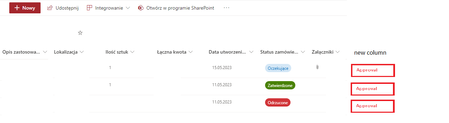
- May 17, 2023
SebastianSzyroki you can do this with JSON column formatting. Create a single line of text column and format it in advanced mode with the following JSON. You will need to change the actionParams line to your flow's ID and you can change the CSS in the style section, the icon and the button text in the txtContent line. When the user clicks the button it will trigger the approval flow.
{
  "$schema": "https://developer.microsoft.com/json-schemas/sp/v2/column-formatting.schema.json",
  "elmType": "button",
  "customRowAction": {
    "action": "executeFlow",
    "actionParams": "{\"id\": \"50097cde-b800-4c6c-ade9-95be7574f4e5\"}"
  },

  "style": {
    "border": "none",
    "background-color": "#f6ec6a",
    "cursor": "pointer"
  },
  "children": [
    {
      "elmType": "span",
      "attributes": {
        "iconName": "Flow"
      },
      "style": {
        "padding-right": "6px"
      }
    },
    {
      "elmType": "span",
      "txtContent": "Send to Manager"
    }
  ]
}
Rob
Los Gallardos
Microsoft Power Automate Community Super User

SebastianSzyroki you can do this with JSON column formatting. Create a single line of text column and format it in advanced mode with the following JSON. You will need to change the actionParams line to your flow's ID and you can change the CSS in the style section, the icon and the button text in the txtContent line. When the user clicks the button it will trigger the approval flow.
{
  "$schema": "https://developer.microsoft.com/json-schemas/sp/v2/column-formatting.schema.json",
  "elmType": "button",
  "customRowAction": {
    "action": "executeFlow",
    "actionParams": "{\"id\": \"50097cde-b800-4c6c-ade9-95be7574f4e5\"}"
  },

  "style": {
    "border": "none",
    "background-color": "#f6ec6a",
    "cursor": "pointer"
  },
  "children": [
    {
      "elmType": "span",
      "attributes": {
        "iconName": "Flow"
      },
      "style": {
        "padding-right": "6px"
      }
    },
    {
      "elmType": "span",
      "txtContent": "Send to Manager"
    }
  ]
}
Rob
Los Gallardos
Microsoft Power Automate Community Super User
 SebastianSzyrokiMay 17, 2023Copper Contributor
RobElliott thanks for your help but still not working for me. The button does not appear I added a single line of a text column and added this code in the formatting:
code:
{
"$schema": "https://developer.microsoft.com/json-schemas/sp/v2/column-formatting.schema.json",
"elmType": "button",
"customRowAction": {
"action": "executeFlow",
"actionParams": "{\"id\": \"v1/Default-e901769d-6aee-4e9d-8494-32da90ceb00a/47b8c80a-367c-4f2a-bb20-10aee385d243\"}"
},
"style": {
"border": "none",
"background-color": "#f6ec6a",
"cursor": "pointer"
},
"children": [
{
"elmType": "span",
"attributes": {
"iconName": "Flow"
},
"style": {
"padding-right": "6px"
}
},
{
"elmType": "span",
"txtContent": "zatwierdz"
}
]
}
I have a question if my code to flow is this:
v1/Default-e901769d-6aee-4e9d-8494-32da90ceb00a/47b8c80a-367c-4f2a-bb20-10aee385d243 should i add it like this?:
"actionParams": "{\"id\": \"v1/Default-e901769d-6aee-4e9d-8494-32da90ceb00a/47b8c80a-367c-4f2a-bb20-10aee385d243\"}"
- SebastianSzyrokiMay 17, 2023Copper Contributor
- RobElliottMay 17, 2023Silver ContributorThat's not the right code, look at what I put in my post. Your flow ID would be 47b8c80a-367c-4f2a-bb20-10aee385d243\