Forum Discussion

New in Microsoft planner - Add and assign tasks to non-members of the Group
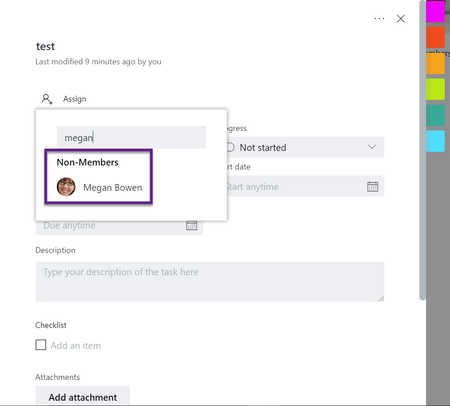

Hi,
how do I have to assign the task to a non-member? Via Power Automate or directly within the planner task? Do you have additional informationen, video or link?
Best Regards,
Marcus

Hi Marcus,
The solution I use allows us to assign tasks to new staff so we can monitor thier progress. The tasks are compliance jobs that need to be completed before they can start operating. We have a team of admins who monitor the plan and are members, but we don't want each new starter to become a member and be able to see the other new starters' tasks or attachments. The tasks are always the same and we use a M365 List to store the details (description, start date, due date etc) of the tasks, and use this as a template. We use Power Automate to then create the tasks using a manual trigger to provide the email address of the user who we want to assign the tasks to.
In each tasks' details a link is given to a Sharepoint page that gives further instructions on the how to complete the task. On that page the is also a M365 form that allows the user to supply the required information. When this form is filled in another power automate task is triggered to attach the information to the Planner task and mark it is as In Progress or Complete. Our admins (members of the plan) can then look at the task cards and see what has been supplied or is outstanding. We use an individual Planner bucker per new starter which is created in the flow using their display name.
This is the flow i use to create the tasks and assign the task to a user without that user becoming a member of the plan.
Here it is broken down:
I also use this flow to send an email to the new user with their login details and a link to the sharepoint site.
The HTTP request to sharepoint adds the user as a member of the sharepoint site with the task info and forms.
This flow does quite a lot more than just create a task and add a non-member without mnaking them a member, but if you wanted to create a single task you would use these steps:
1. Create manual trigger flow asking for an email address
2. Add Create a task in planner
3. Update task details
This solution does have a couple of issues that you can never assign a task to a user via planner as this will give them access to the whole plan. And it probably isn't great if your tasks are always different.
On a final note, I can only assume that this solution is exploiting an oversight by microsoft which may be changed/fixed at any point. Although i hope not as this is the only way i have found to achieve this.
I hope this helps
Ian
- PowerschmiedeOct 06, 2023Copper Contributor
Hi Ian,
Thank you for your detailed explanation.
I then tested something with PowerAutomate myself and found that the task doesn't even have to be created via PowerAutomate. It is enough to update the task via PowerAutomate and enter the user's email address. He then sees the task in his ToDo and receives a message via Teams and Outlook. He cannot upload his own files but can attach links. By default he cannot open and edit the existing files, but he can request it. All in all a great solution. Since I also have my own SharePoint list that serves as the basis for my planner, I'm thinking about integrating a Power Automate flow as a column, which would allow me to add users to a task directly from the SharePoint list.Thank you for sharing with you. That was very helpfull.
Best regards
Marcus