Forum Discussion

Microsoft Planner, Icon with an image instead of just text
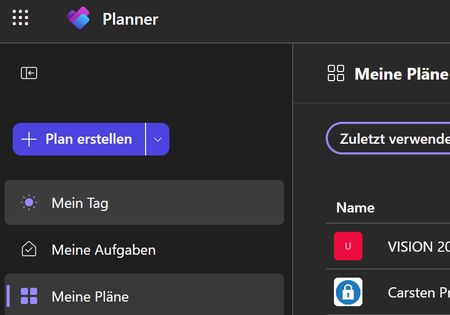

Hi Carsten — that icon isn't actually a Planner setting, which is why it feels inconsistent. A plan's tile takes its picture from the Microsoft 365 group behind the plan, so if the group has a photo you get the image, and if it doesn't you just get the plan's initials as text. That also explains why one of your plans looks right and the others don't — they're probably sitting in different groups, and only one of those groups has a photo set.
The way to fix the ones showing text is to open the plan, go to the three dots, then Members, then About and Edit, and upload the picture there with the camera icon. You can also set the same picture on the group in Teams or Outlook, it's the same group photo either way. Give it a bit of time after uploading, it doesn't always show up straight away.
One thing to check before you do all of them, though: if several of those plans were made in the same group, they'll all end up with the same picture, because there's only one group photo to draw from. In that case each plan needs its own group if you want a different image per plan. Worth checking which group each plan belongs to first, then you only have to set the photo where it's actually missing.