Forum Discussion

% Complete - doesn't seem to calculate properly, what am I missing?
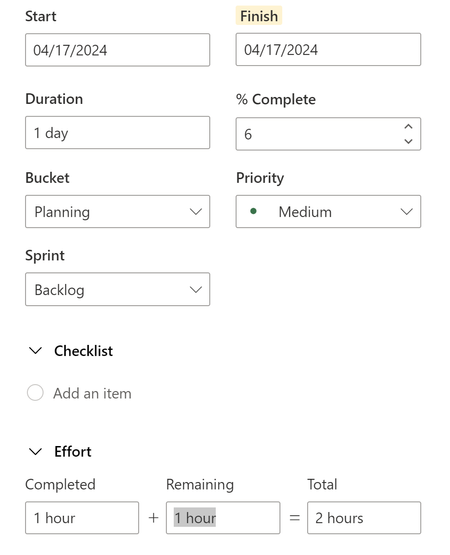

Hi Christine,
You’re not missing anything obvious, this behavior is confusing, and you’re actually seeing how the Project engine under Planner Premium works under the hood.
A key point is that in Project for the web / Planner Premium, % Complete is not a simple “completed effort / total effort” calculation. It follows classic Microsoft Project logic, where % Complete is based on the task’s duration and the time-phased schedule of work, not just the numbers you see in the Effort boxes.
So in your example:
- You set Completed = 1 hour and Remaining = 1 hour (2 hours total).
- But the task still has a 1-day duration, and internally Project may be scheduling more hours across that day than the 2 hours you typed, or distributing them unevenly over the day.
- When it recalculates, it uses the duration-based % Complete together with the internal schedule, which is why you see something like 6% instead of the 50% you’d intuitively expect for 1 of 2 hours. There are two important behaviors here:
- Changing Effort affects % Complete
- When you change Completed or Remaining Effort, Project recomputes % Complete based on how much work is scheduled over the task’s duration (time-phased), not just Completed / Total.
- If the task spans a whole day, and only a small slice of that day has scheduled work so far, the calculated % can look very small.
- Changing % Complete affects Effort
- When you manually set % Complete to 50%, Project says “OK, halfway through the duration of this task” and then recalculates Completed and Remaining Effort to match that point in the schedule.
- That’s why the hours jump to very different values, it’s trying to keep duration, assignments and effort internally consistent, not just override a single number.
If you open the Assignments view, you can see the time-phased distribution of work that drives these calculations (though licensing can limit that view, as one of the community replies mentions).
Because of this, for tutorial content you might want to:
- Pick a simple scenario:
- e.g. 1-day task, 8 hours total effort, single resource, and don’t change duration after work starts.
- Decide on a “driver”:
- Either you always adjust Effort and let Project calculate % Complete,
- Or you only adjust % Complete and let it calculate Effort, but try not to bounce back and forth between both, or the math will look “weird” again.
If you’re exploring Planner Premium for training material, we have several videos on our MLPro YouTube channel where we walk through Planner Premium and project progress concepts step by step, they might help with additional examples you can reuse in your tutorials
https://www.youtube.com/@MLProPPM