Forum Discussion

Why won't Outlook let my staff book a recurring meeting in our Boardroom Location for all of 2024?
- Jan 17, 2024
Hi DanielleW2022,
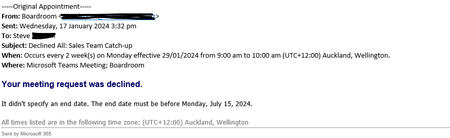
the cause of this issue are Booking settings of your resource mailbox (Boardroom) and also not defining the end date of the recurring meeting.
When creating a reccuring meeting in this case, it is important to define the end date before 15.07.2024.
That means that the settings of a resource mailbox (Boardroom) are set to not allow unlimited reccuring meetings (date must be defined) and the date must be before 15.07.2023, because the Booking window is less then 365 days.
You can change these settings as an Administrator, by using Exchange Online Admin Center (https://admin.exchange.microsoft.com/) > Resources > Booking > Booking Option Settings > Booking window (days)
If you want to leave the settings as they are, then you need to define the end date to the reccuring meeting in Outlook:
Please click Mark as Best Response & Like if my post helped you to solve your issue.
This will help others to find the correct solution easily. It also closes the item.If the post was useful in other ways, please consider giving it Like.
Kindest regards,
Leon Pavesic
(LinkedIn)

Hi DanielleW2022,
the cause of this issue are Booking settings of your resource mailbox (Boardroom) and also not defining the end date of the recurring meeting.
When creating a reccuring meeting in this case, it is important to define the end date before 15.07.2024.
That means that the settings of a resource mailbox (Boardroom) are set to not allow unlimited reccuring meetings (date must be defined) and the date must be before 15.07.2023, because the Booking window is less then 365 days.
You can change these settings as an Administrator, by using Exchange Online Admin Center (https://admin.exchange.microsoft.com/) > Resources > Booking > Booking Option Settings > Booking window (days)
If you want to leave the settings as they are, then you need to define the end date to the reccuring meeting in Outlook:
Please click Mark as Best Response & Like if my post helped you to solve your issue.
This will help others to find the correct solution easily. It also closes the item.
If the post was useful in other ways, please consider giving it Like.
Kindest regards,
Leon Pavesic
(LinkedIn)